

PV4 Virtual surfaces are the locally curated surfaces on a Renderer that combine inputs with other local surfaces, each with their own ability to apply basic transform and colour tweaking before recombining into the new Virtual Surface for outputting as required.
This is often used to meet onsite requirements if a 3rd party requires your surface to be cropped, stretched, striped or provided out multiple outputs or to add a camera PIP over a surface before outputting.
Creating a new Virtual Surface
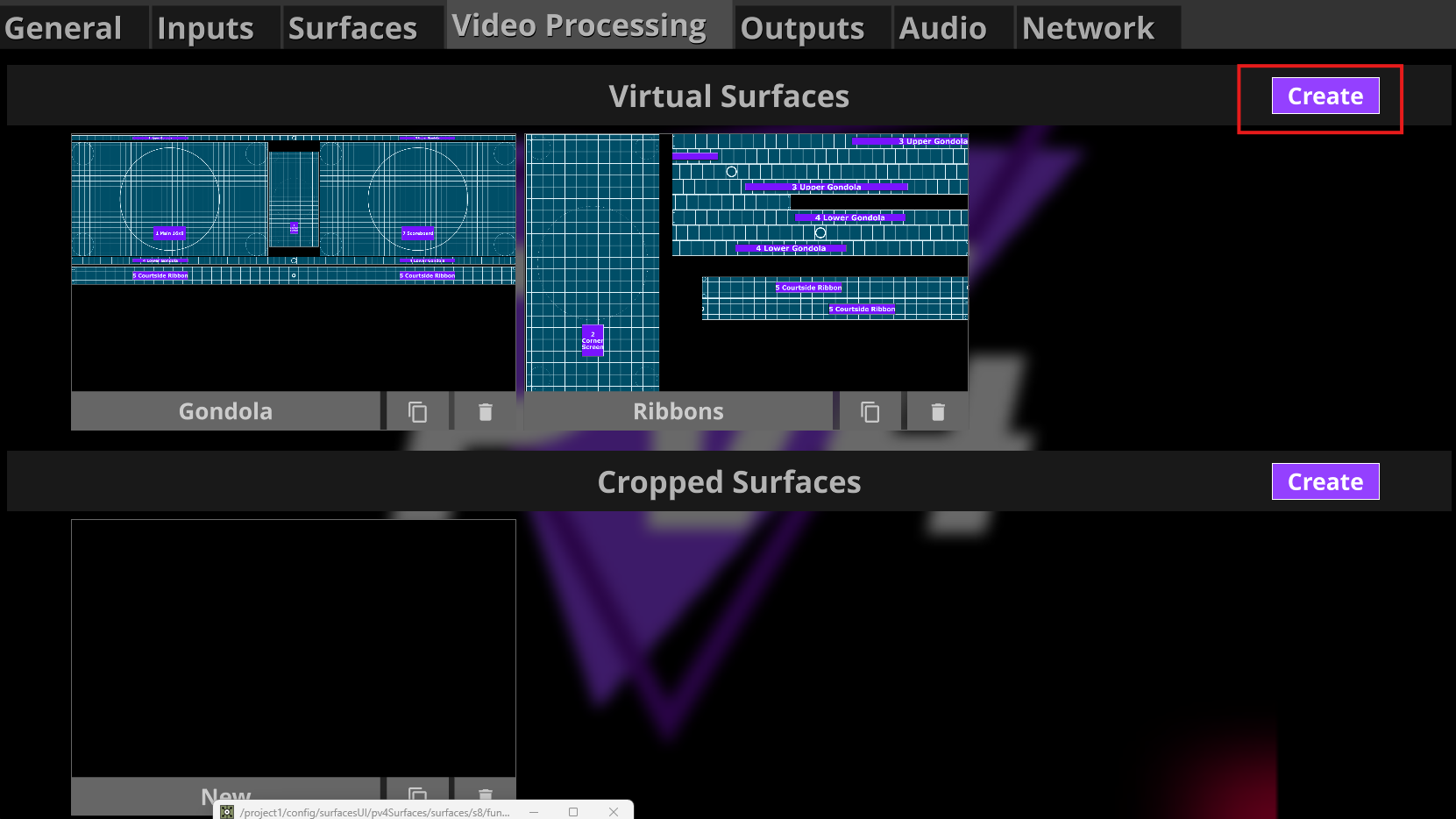
To create a new Virtual Surface, locate the highlighted button under the Video Processing Tab
This will populate a “New” virtual surface ready for configuring.
Configuring the Virtual Surface
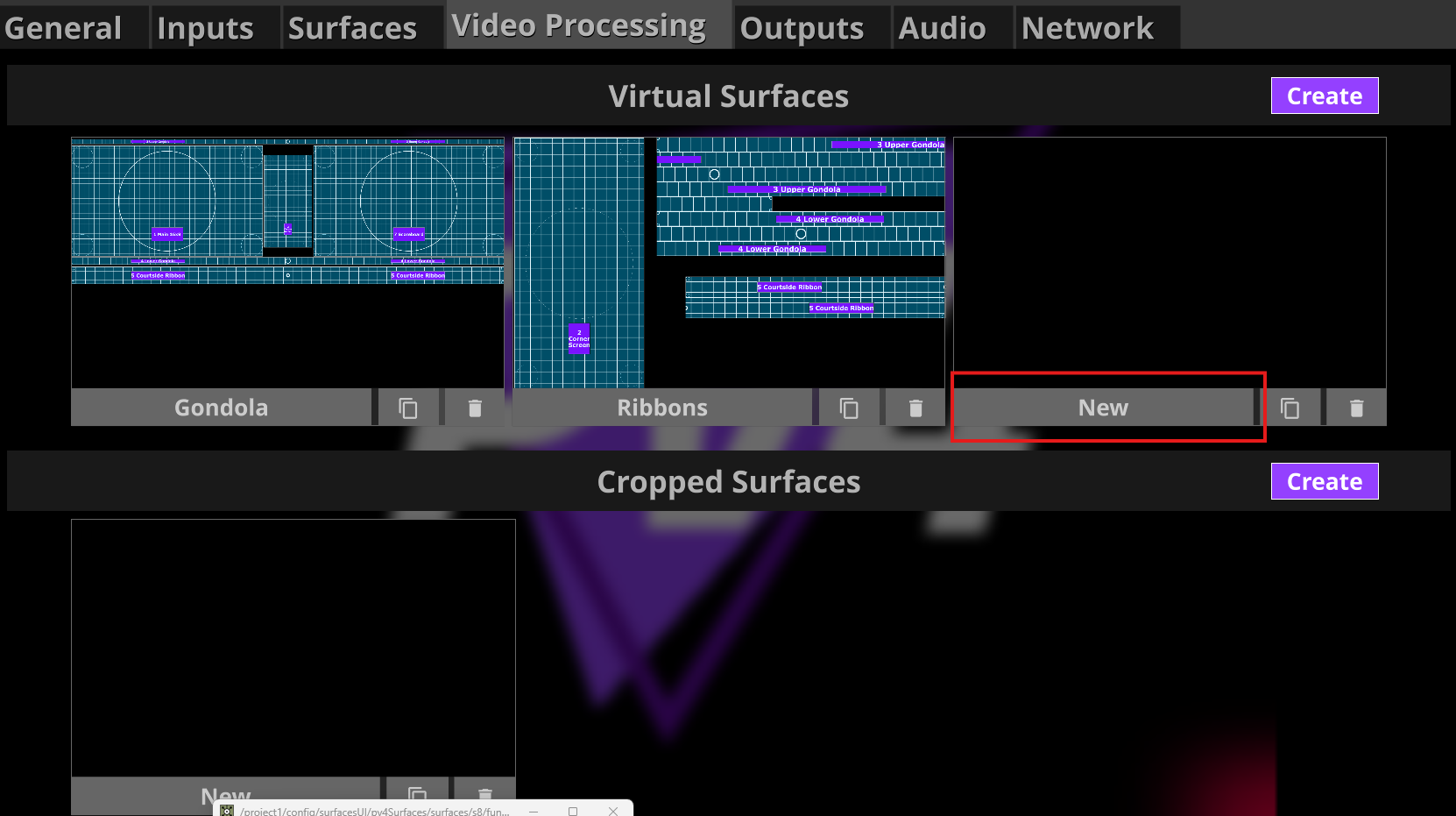
To start configuring your new Virtual Surface, open it by clicking the name of New Virtual Surface.
This will open a new UI.
Be Cautioned if modiying these surfaces lives as they draw extra resources during configuration and using the space bar is a shortcut for pausing your main timeline.
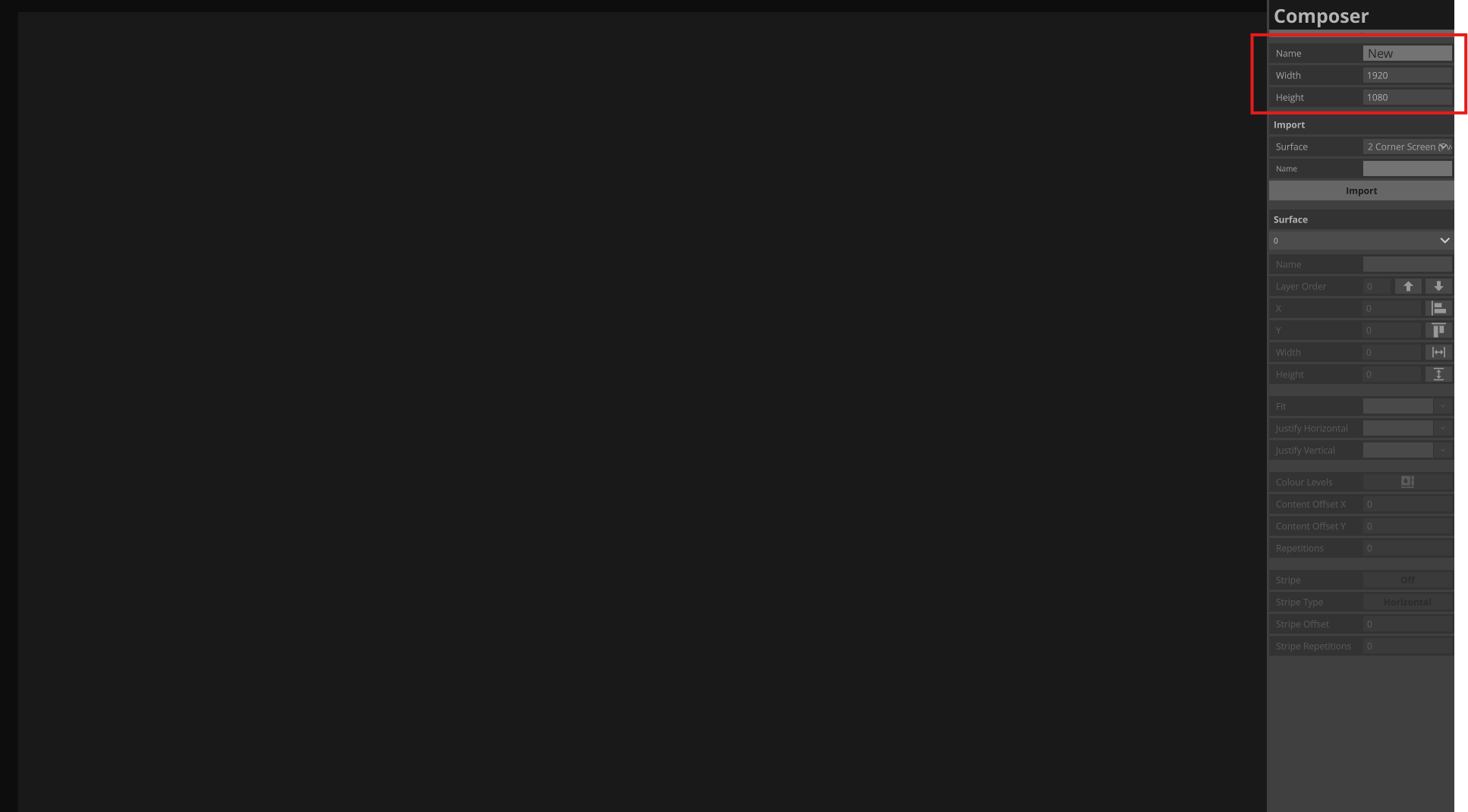
Use the highlighted fields to set:
-
Your Surface Name
-
Your Resoltuion (Width/Height)
The resolution here it to set the canvas size for this Virtual Surface. You can configure inputs sizes in the following steps.
Adding Inputs
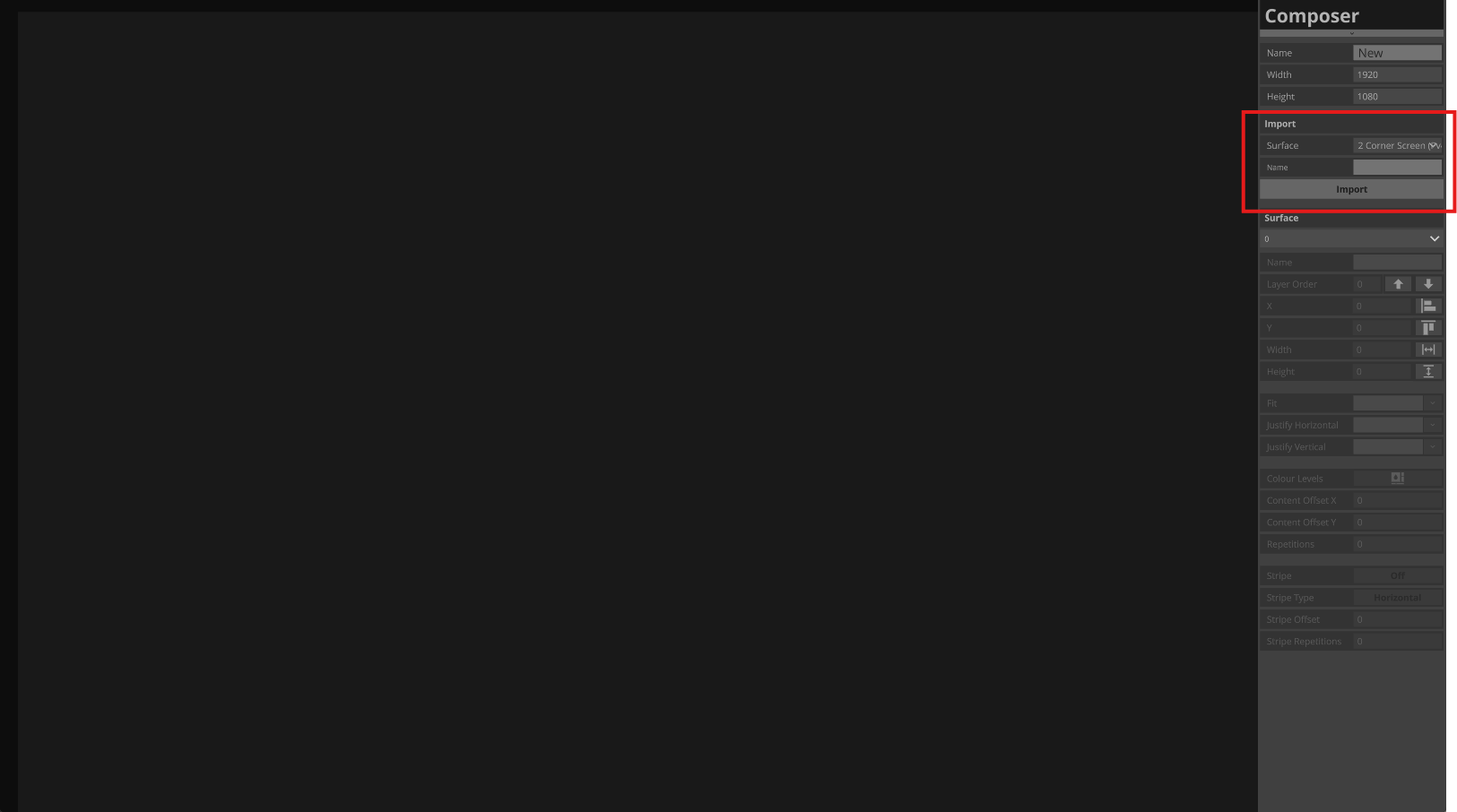
You can import as many surfaces or inputs available to your local renderer by selecting from the Surface drop down, Giving it a local friendly name and clicking Import.
Layering your input
Layering is configured with 1 being the bottom layer and increasing layer numbers being added ontop. Select the input you wish to change before editing the layer and click the up and down arrow to raise or lower the selected Input.
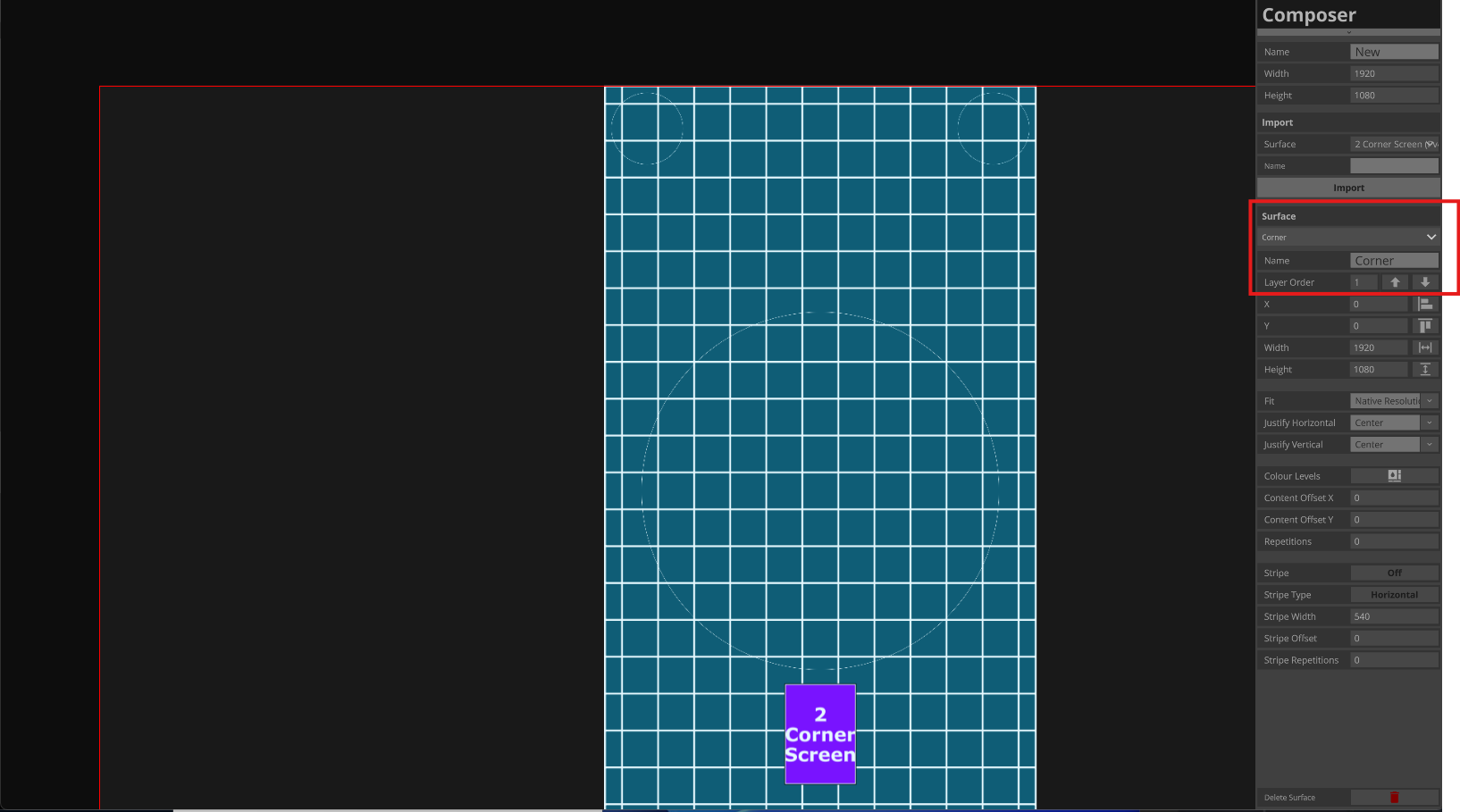
Positioning your input
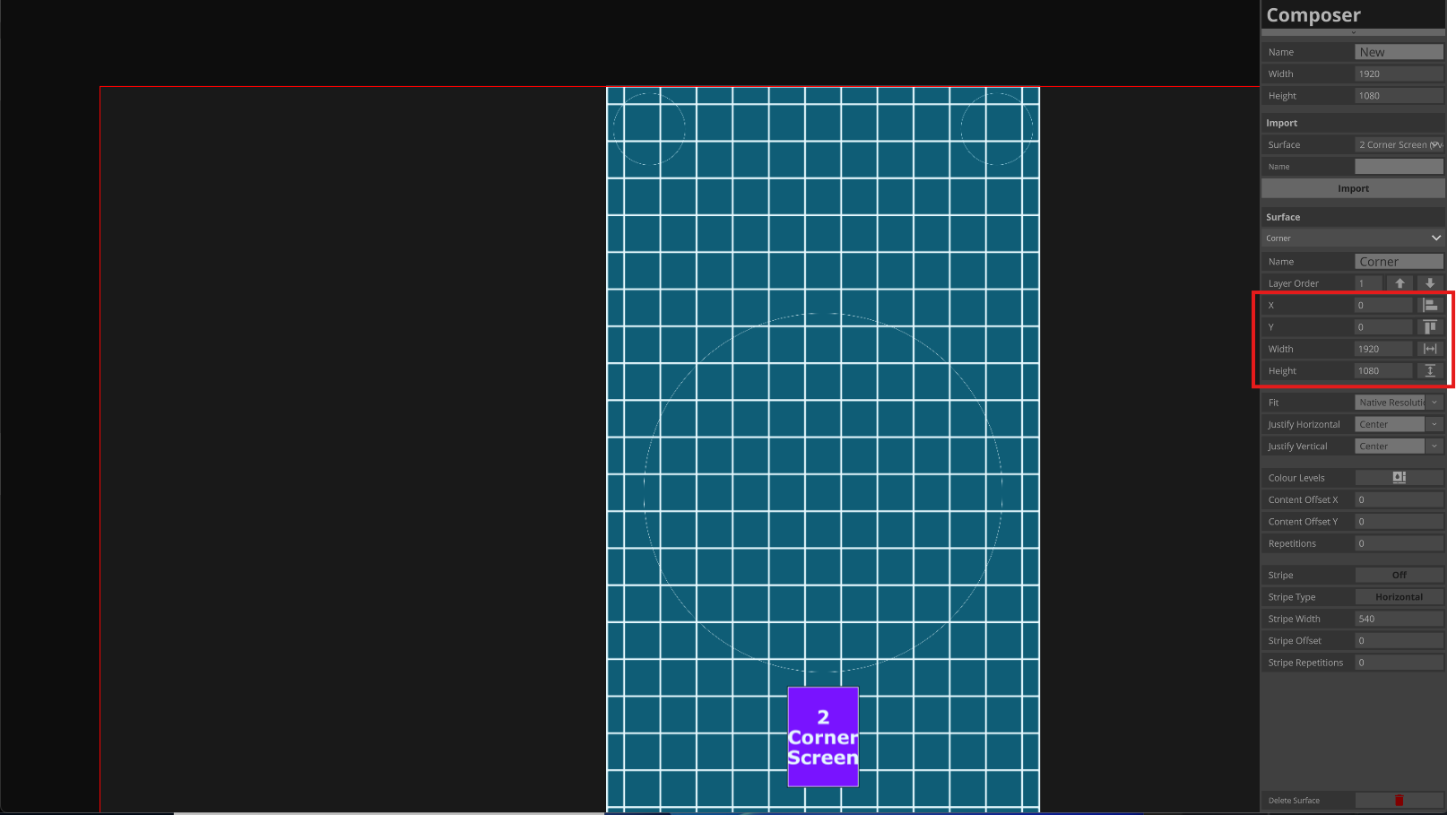
The X, Y, Width and Height values highlighted here controls the size of your input frame. Depicted by the red line expanding past test pattern. This example shows a 576(w) x 1080(h) input“fitting best” and “Centre aligned” inside a 1920x1080 input frame.
Applying Fit to your input
The fit and justification settings highlighted are applied to the content in relation to your input frame. Depicted here is a 576(w) x 1080(h) input“fitting best” and “Centre aligned” inside a 1920x1080 input frame.
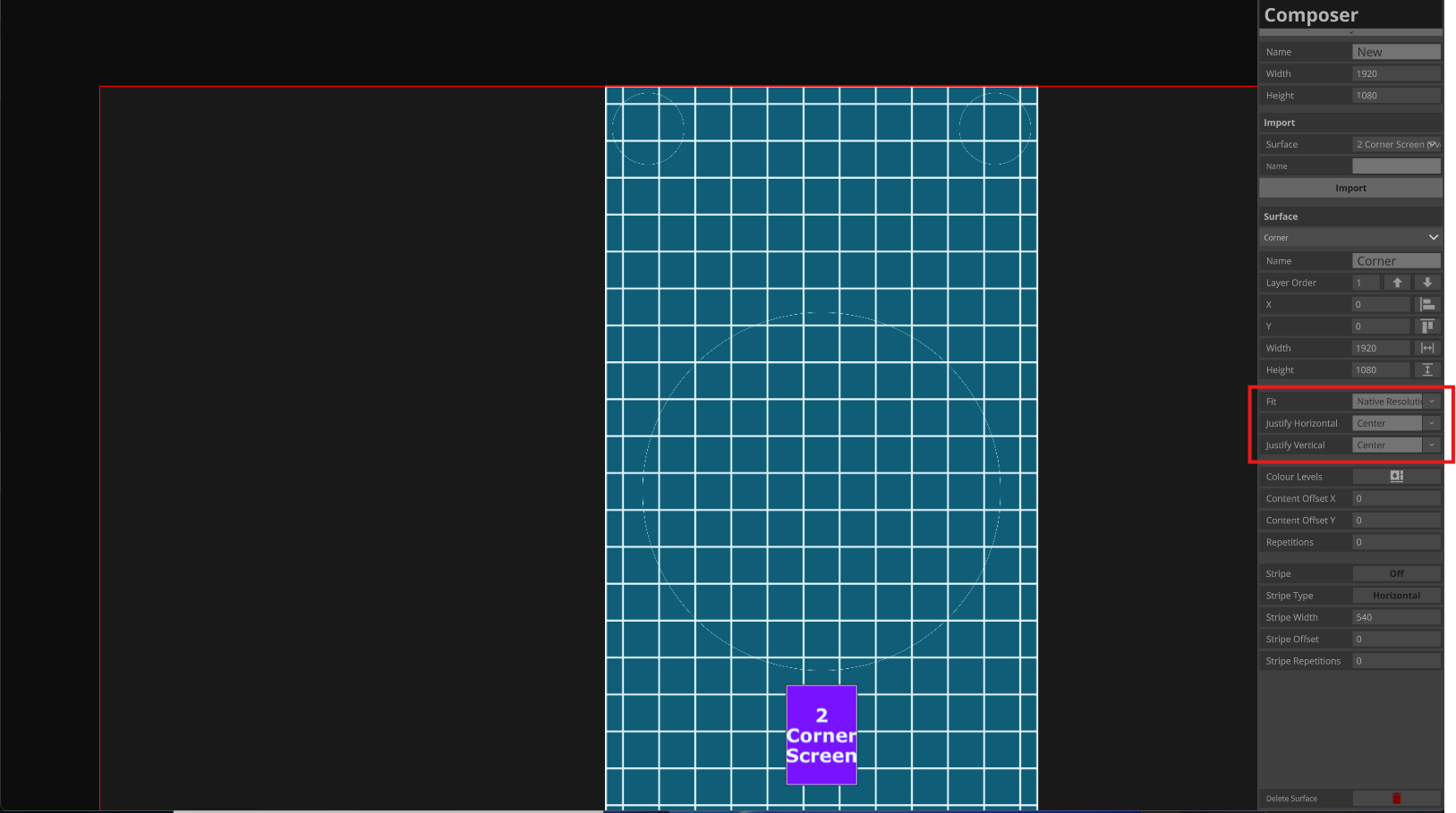
Available options for Fit:
-
Native Resolution: no scaling applied, content will get cropped by your image frame
-
Fit Height: Scales input to fit the content by height to your frame. Width may scale over or under.
-
Fit Width: Scales input to fit the content by width to your frame. Height may scale over or under.
-
Fit Best: Scales input to fit Height or Width, which ever reaches your frame first. Keeps aspect ratio
-
Fill: Stretches your input to fill your image frame
Adjust Colour Levels on your input
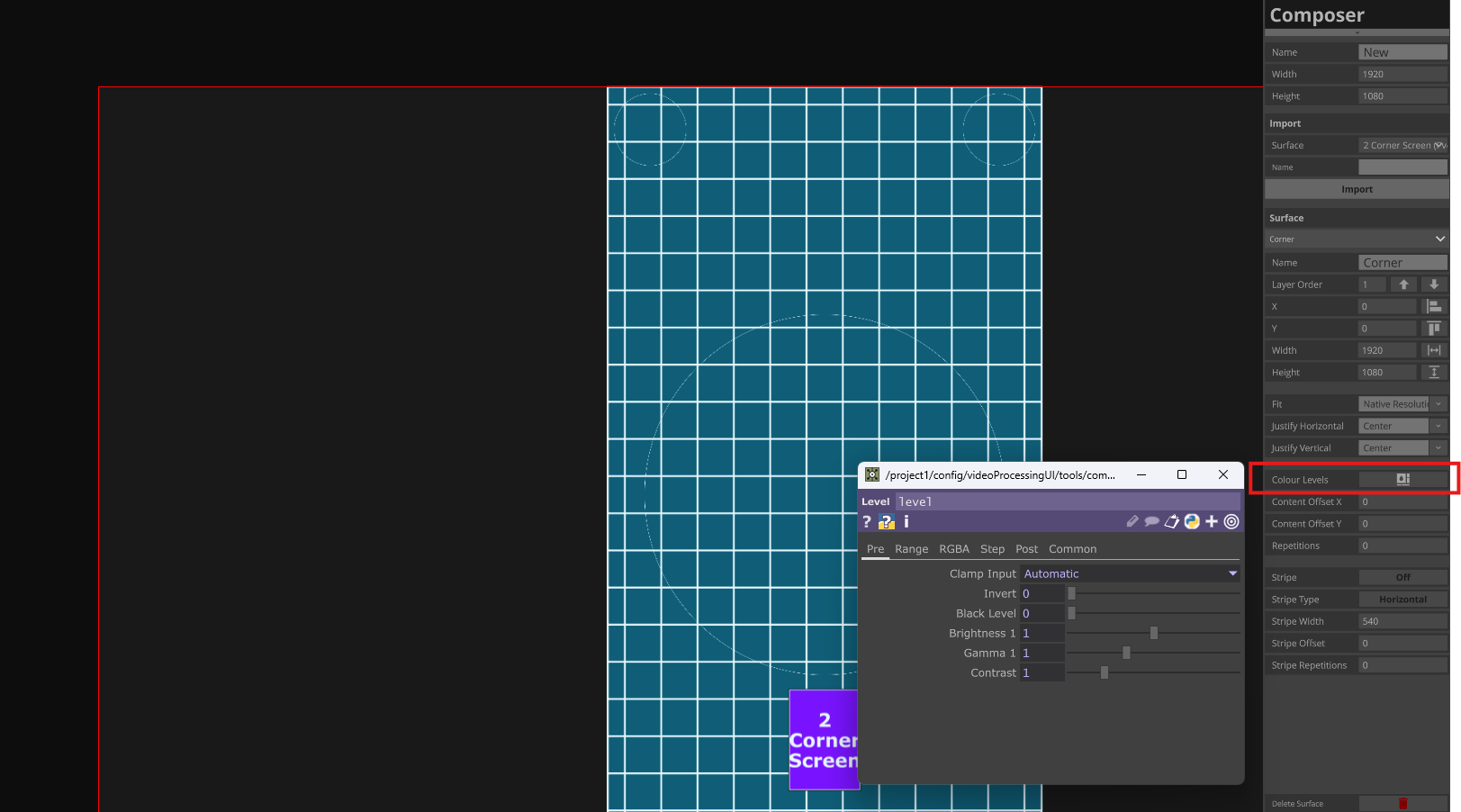
To apply colour and gamma corrections to your input. Select the highlighted colour control and use the pop up UI to apply.
Offsetting your contents Input
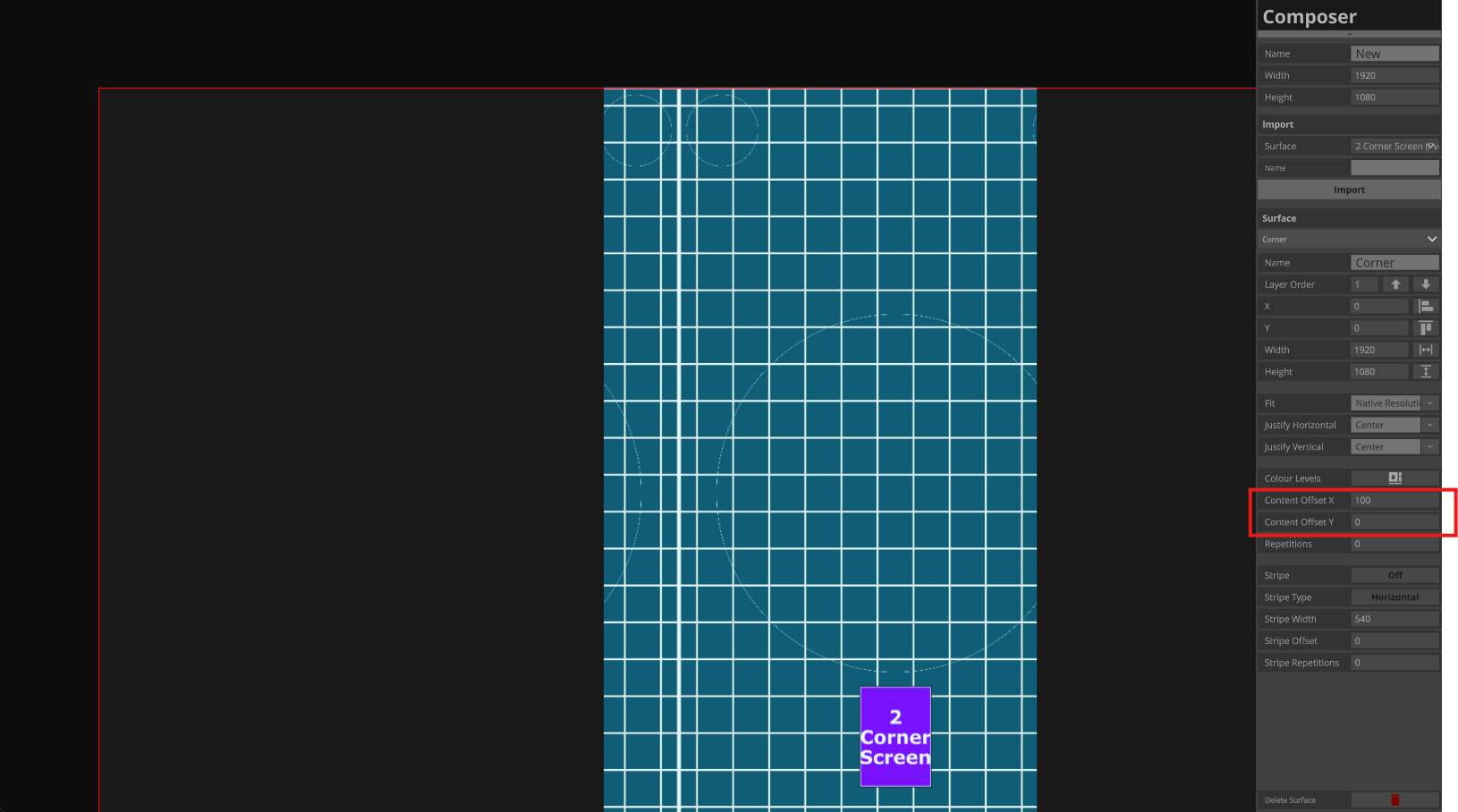
Offsetting X and Y (horizontal/vertical) applys to your content prior to being displayed. Depicted here is a X (horizontal) offset of +100 moving the content 100 pixels to the right and repeating the content on the right back into the frame where a void would be.
Repeating your input
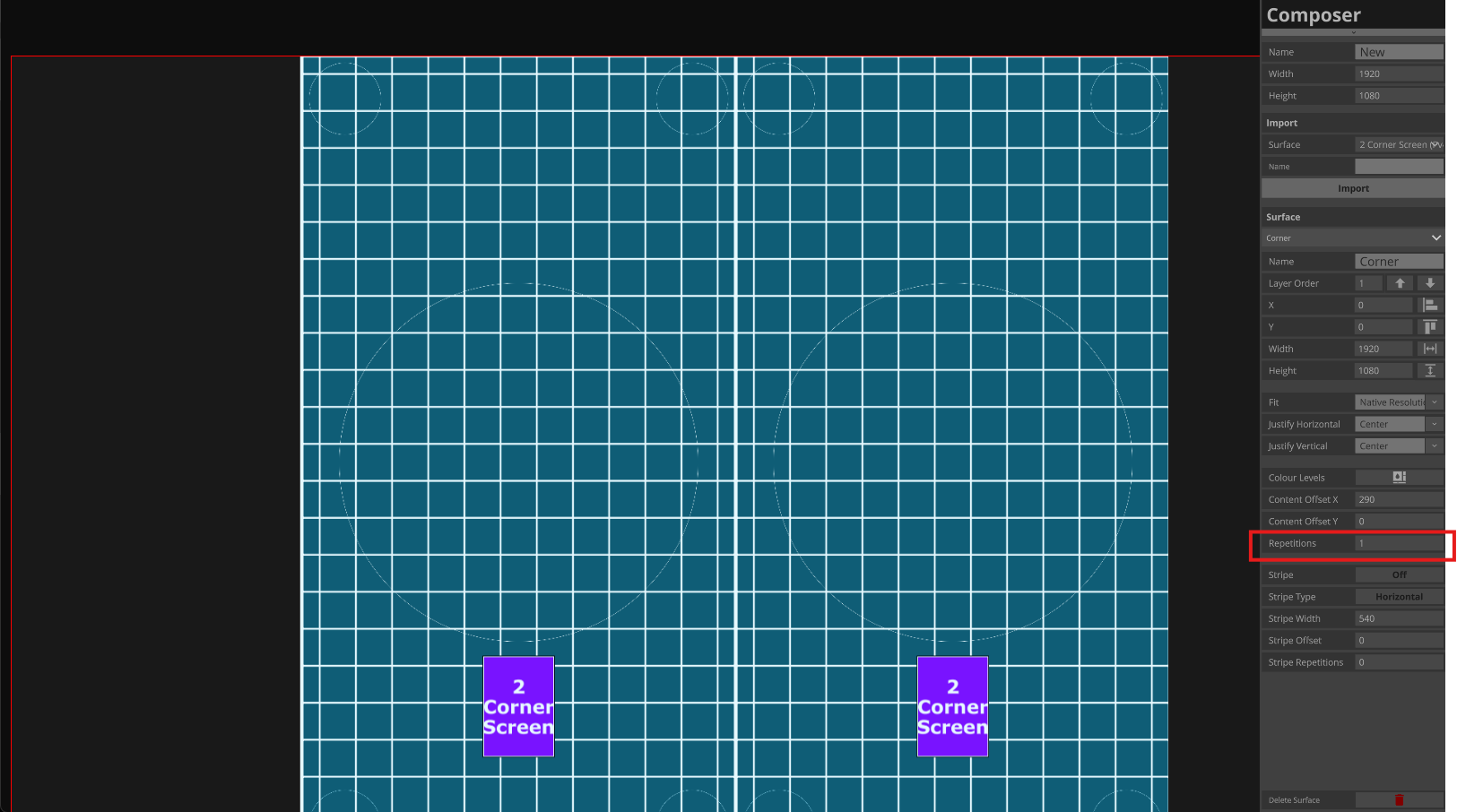
Repeating your input applys to your content prior to being displayed and is often used to repeat content for large ribbon outputs.
Example usage: You have a 32000px wide ribbon and want to duplicate 3200px wide image 10 times over.
Striping your input
The striping function is designed for use with ribbons where your screen processor is configured to receive longer ribbons within a HD frame.
Turning on the stripe setting depicted here and setting a width will auto stripe the content by cropping each line at the set width and start the next pixel on the next line down, repeated until content has run out.
Depicted is a 3840x64px ribbon left and vertical aligned in a 1920x1080 frame with a stripe width of 1200px
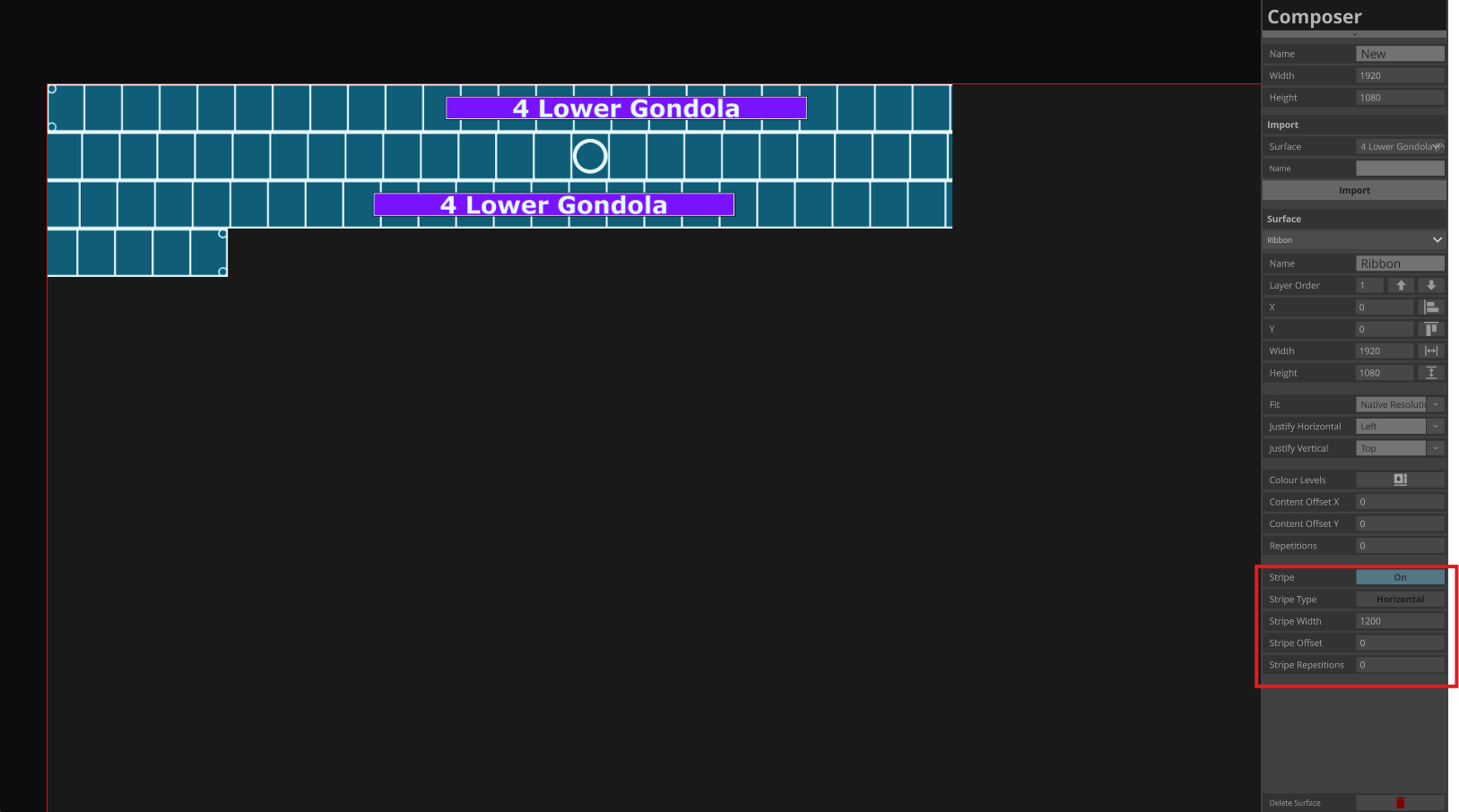
Horizontal and Vertical striping is supported.
The Stripe Offset applies to the entire input and functions the same as your content input offset detailed above.
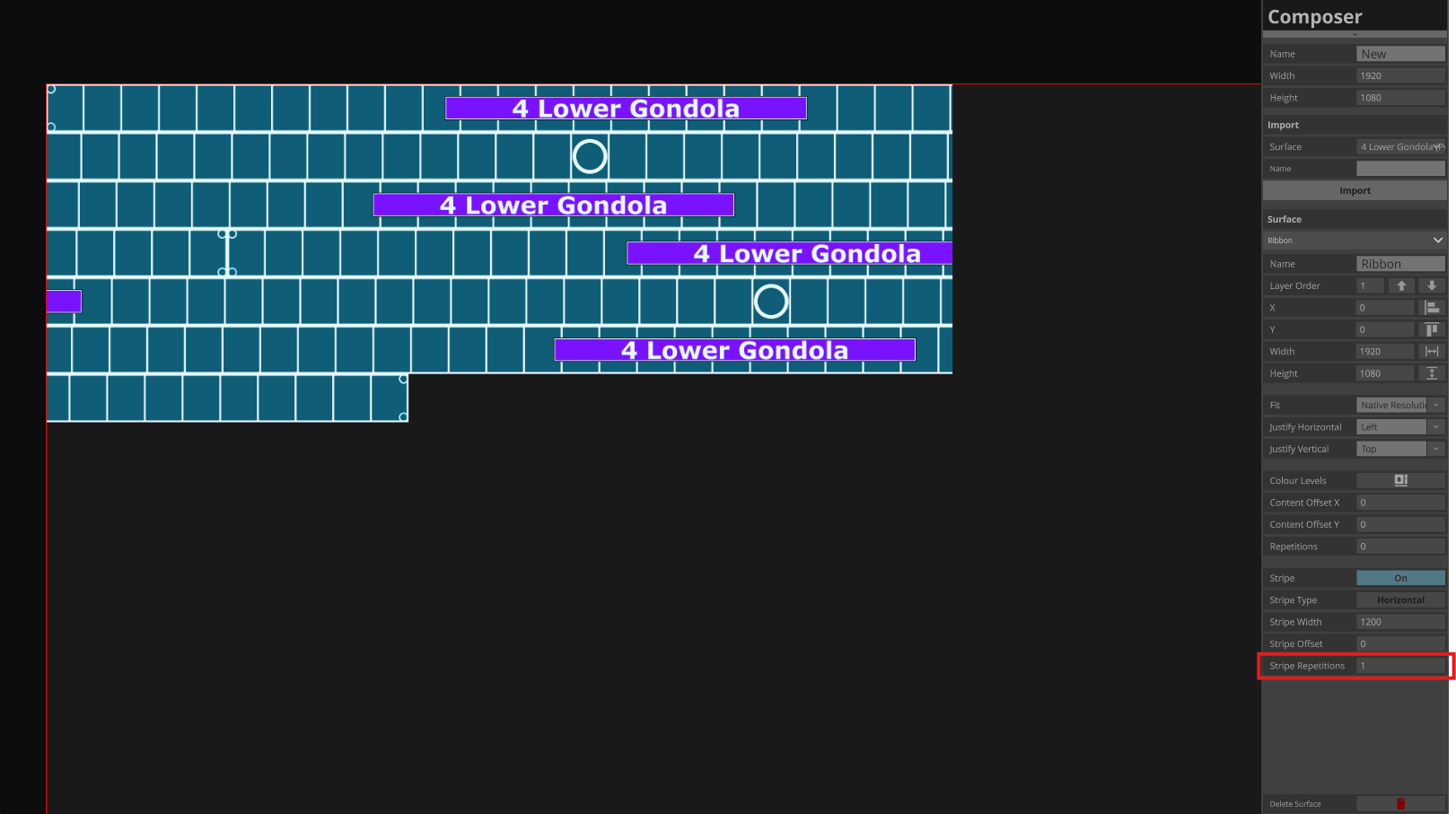
Repeat is also available on the stripe function and fucntions the same as your content repeat detailed above.
See image depiction for how the repeat outputs in stripe function.
Removing an input
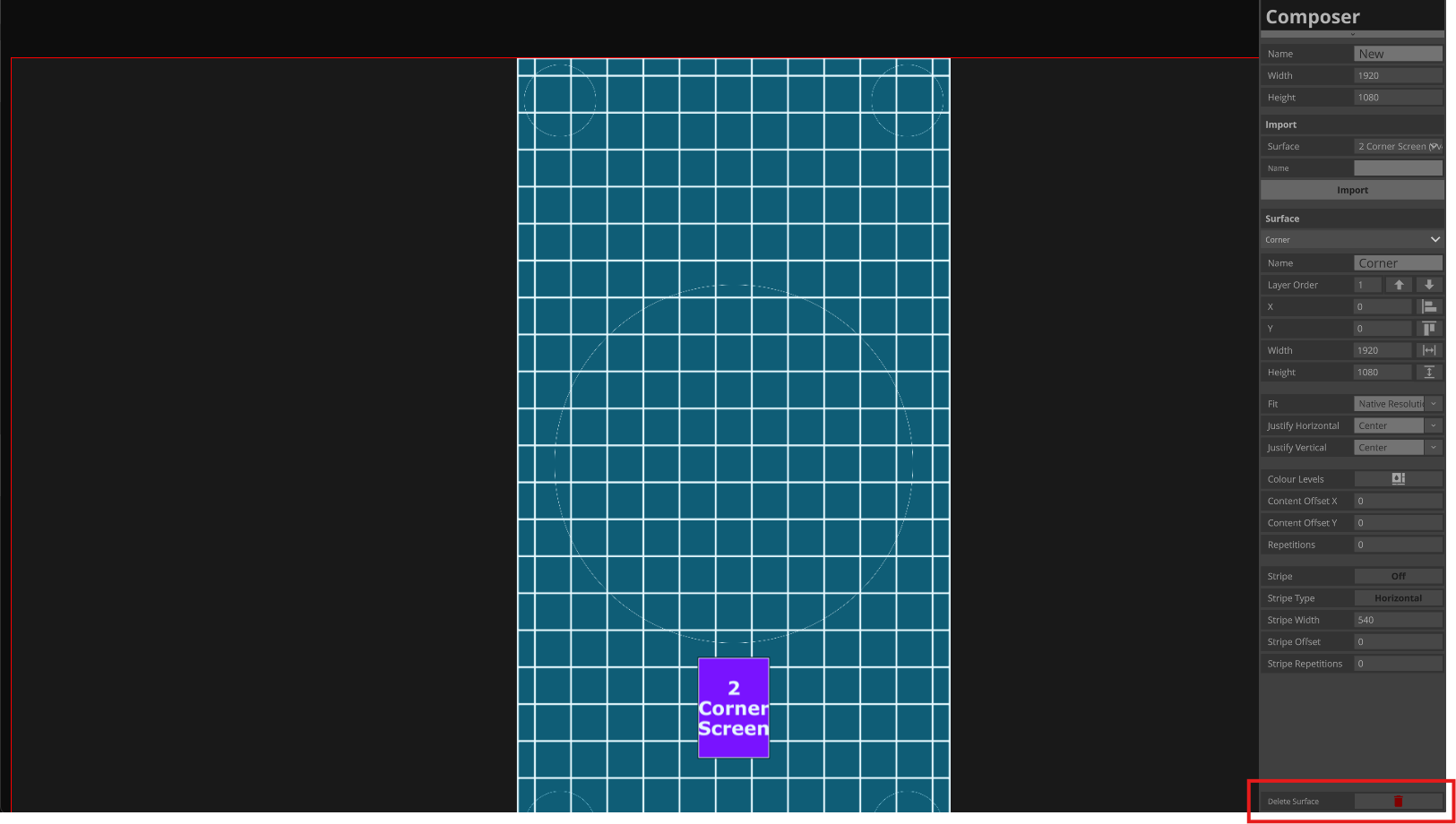
To remove an input from your Virtual Surface, ensure it is your currently selected Input from the drop down below “Surface” then click the depicted red trashcan icon.
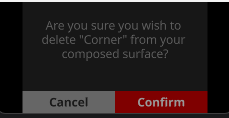
You will be prompted with a confirmation pop up before the input is removed.