

PV4 Engines are a means of increasing the number of Surfaces you can run on a single machine by offloading selected Surfaces to a sub process.
It also adds an additional layer of protection between Surfaces on other Engines – if one Surface is overloaded and experiences performance problems, other Surfaces on other Engines are not affected and can maintain frame rate.
It is recommended to always run all Surfaces on discrete Engines – unless two Surfaces are required to stay perfectly in sync, such as side by side or blended screens.
Assigning a Surface to an Engine
For a guide on how to assign surfaces to an engine, please refer to the Renderer Surfaces guide.
Accessing the Engines Config
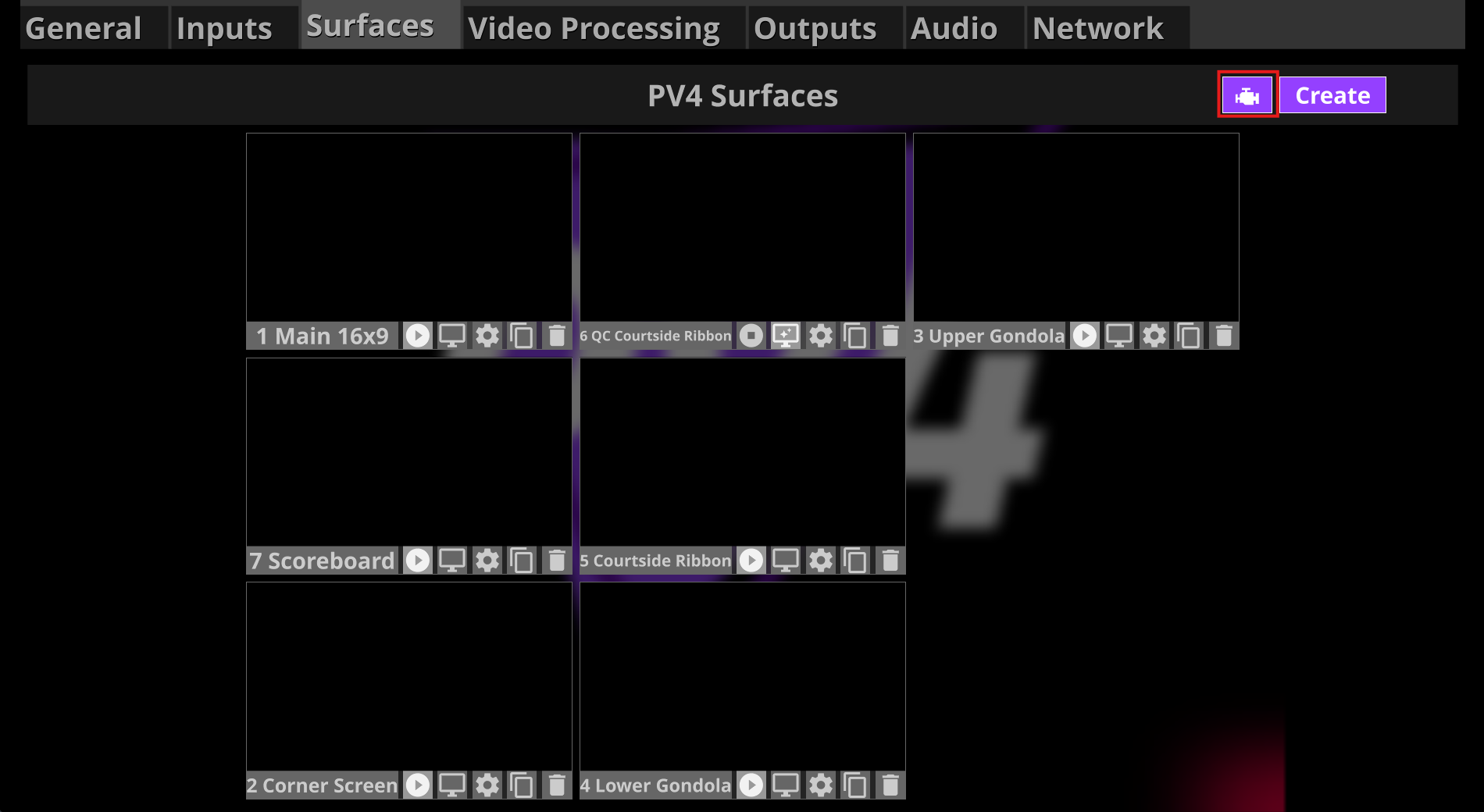
To access the Renderer Engine settings, click the engine icon button on the Surfaces tab of the Renderer UI.
This button is highlighted in red on the screenshot example here.
Understanding the Render Engine Settings
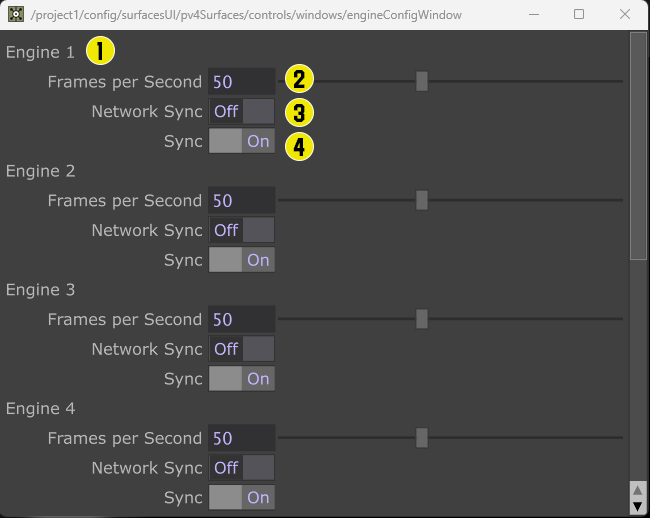
1. Engine Name: This is the name of the Engine that correlates with the Engine Group list found in Surface settings.
2. Engine FPS: This is the FPS that the specific engine will run at. Separate engines can run at different rates.
If your Master Timeline is running at a frame rate lower than your engine, any videos or animation in this engine will be passed back to the Main Thread at your master projects frame rate.
3. Network Sync: This enables the use of timeline messages available on the network instead of the Renderers own timeline – please see Renderer Network Sync for more info on how this is used.
4. Sync: When enabled, this setting synchronizes the selected Engines timeline with the Renderer master timeline. The Engine can still run at a separate frame rate from master, but depending on your Renderer version, this can provide significant performance boosts and reduce stutter.