Adding a Surface to the Renderer application
This guide explains how to add a surface to the PV4 renderer. For understanding on what a surface is, reference Surfaces . To begin working with surfaces in the PV4 renderer, ensure the application is installed and running. Once open, follow these steps:
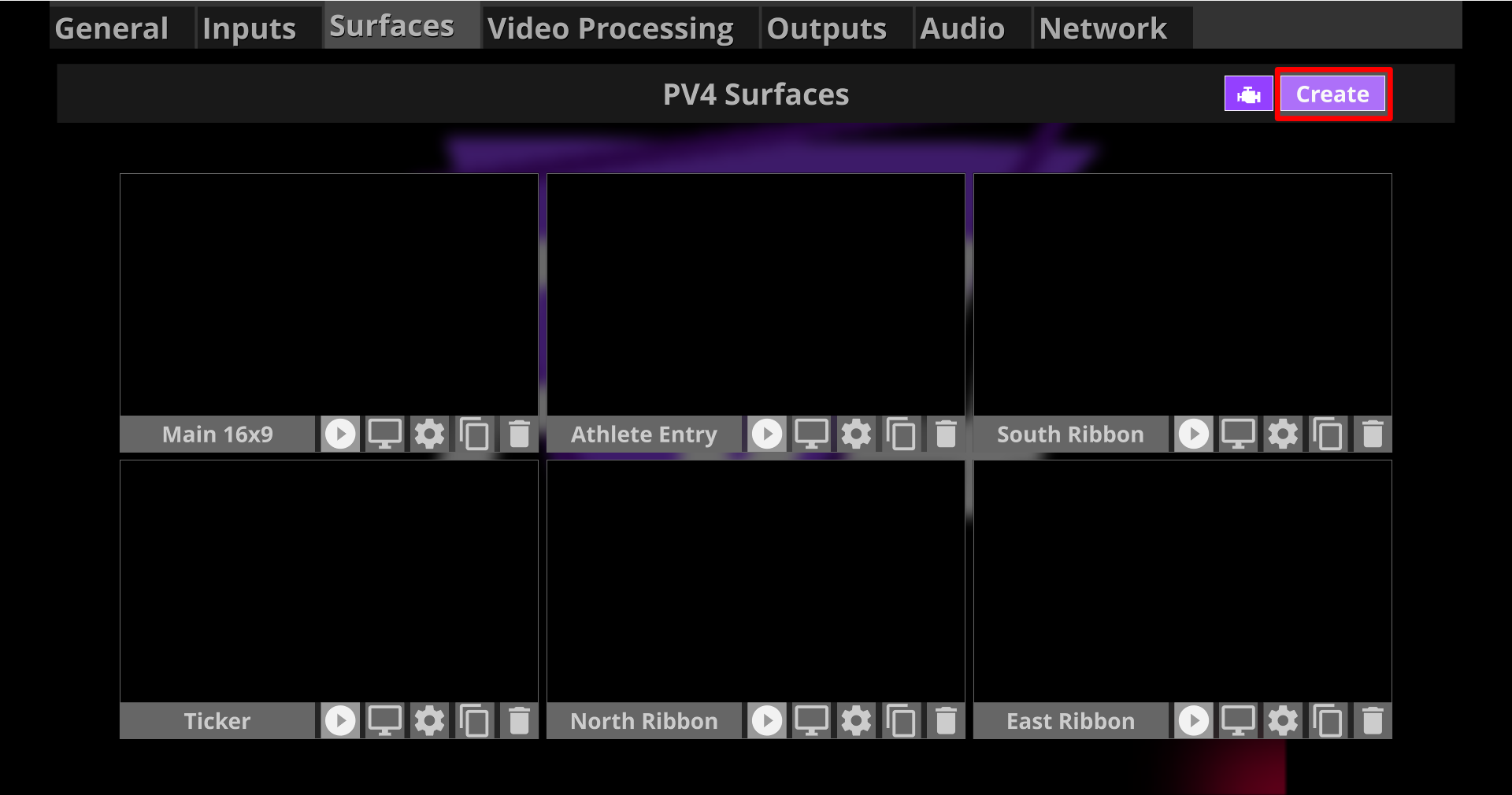
1. Navigate to the Surfaces Tab
In the top navigation bar of the PV4 Renderer interface, select the Surfaces tab.
This tab contains all
tools for creating, editing, and managing surfaces within the PV4 Renderer
2. Create a New Surface
In the top right corner of the Surfaces tab, click the Create button.
This will generate a new blank surface that appears in the surfaces list and is ready for configuration.
Configuring a Surface
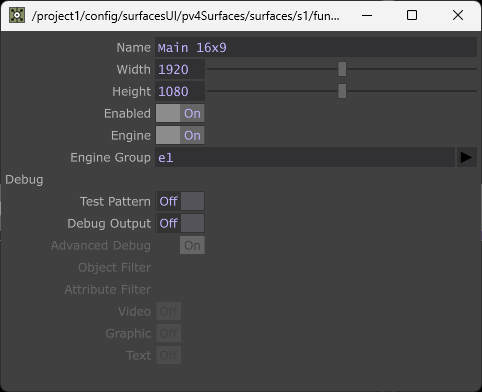
Configuring a surface involves setting the surface name, defining the dimensions, and specifying whether the surface is engined. To begin configuring a surface, press the cog wheel icon on the surface you wish to configure. From the configuration window that appears, follow the steps below.
1. Set the Surface Name
Enter the name of the surface.
The name of this surface must match exactly how the name appears for the surface in the PV4 Portal Instance. Any mismatch will result in the surface not being recognised correctly.
2. Configure the Surface Dimensions
Set the width and height of the surface.
These values must match the dimensions defined for the corresponding surface in the PV4 Portal to ensure correct rendering behaviour.
3. Configure Engine Settings
Check whether the surface should be engined by toggling the engined option on.
If the surface is engined, assign it to an engine group using the dropdown in the configuration window.
For more information on engines and engine groups reference Renderer Engines
Enable/Disable a Surface
Sometimes you may wish to enable or disable a surface depending on show requirements. This can be done directly from the PV4 Renderer interface by following the steps below.
1. Navigate to the Surfaces Tab
Open the PV4 Renderer and go to the Surfaces tab.
Locate the surface you wish to enable or disable.
2. Use the Enable/Disable Button
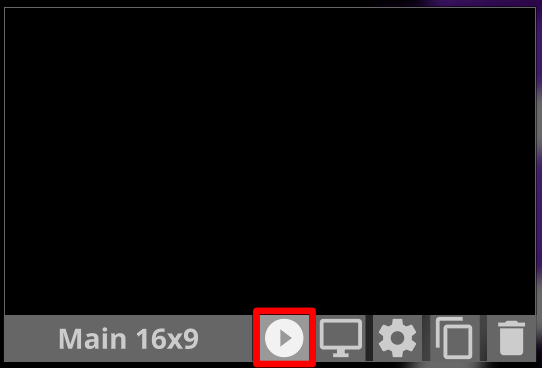
Next to the name of the surface, you will find an enable/disable button.
-
If the surface is enabled, the icon will appear as a play symbol.
-
If the surface is disabled, the icon will appear as a square stop symbol.
3. Toggle the Surface State
Click the button to toggle the state of the surface.
The surface will switch between enabled and disabled depending on its previous state.
Turning on the Surface test pattern
Turning on a test pattern can help verify surface dimensions and positioning when outputting a surface in PV4 without relying on content. The built‑in test pattern provides a clear reference for alignment and scaling.
Follow the steps below to enable or disable the test pattern for a surface.
1. Navigate to the Surfaces Tab
Open the PV4 Renderer and go to the Surfaces tab.
Locate the surface you wish to toggle the test pattern for.
2. Toggle the Test Pattern
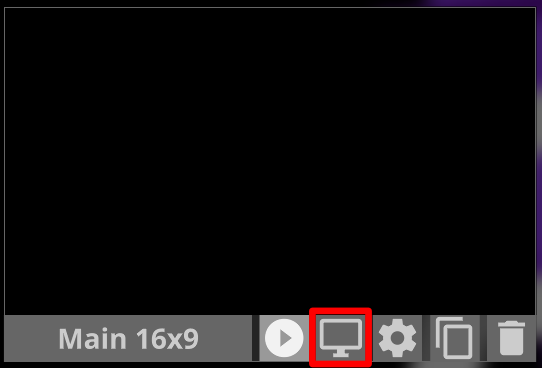
Press the test pattern button to turn the test pattern on or off.
This button is located among the surface action buttons next to the surface name, positioned between the enable surface button and the surface configuration (cog wheel) button.
Toggling this button will immediately update the surface output to show or hide the test pattern.
Duplicating a Surface
Sometimes you will duplicate a surface if you have multiple surfaces with the same or similar dimensions. Duplicating allows you to quickly create a new surface with matching settings that can then be adjusted as needed.
Follow the steps below to duplicate a surface.
1. Navigate to the Surfaces Tab
Open the PV4 Renderer and go to the Surfaces tab.
Locate the surface you wish to duplicate.
2. Duplicate the Surface
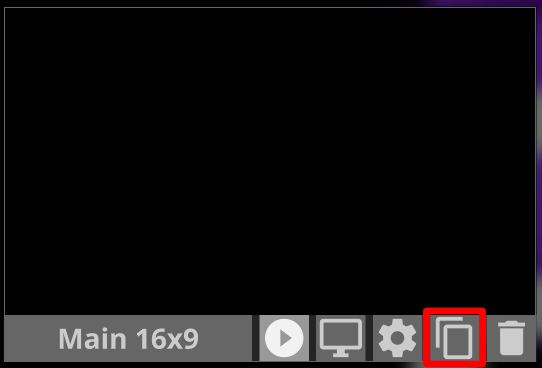
Press the duplicate button located in the row of action buttons to the right of the surface name.
Pressing this button will create a duplicate of the selected surface.
3. Update the New Surface
After duplication, update the new surface with the correct name, dimensions, and engine group settings as required.
Deleting a Surface
If you wish to delete a surface, follow the steps below.
Deleting a surface cannot be undone. Any outputs, crops, virtual surfaces, or other renderer elements that were utilising or referencing this surface will be affected. Ensure you are deleting the correct surface before proceeding.
Please note that there is no confirmation prompt when deleting a surface.
Pressing the delete button will immediately remove the surface from the renderer.
1. Navigate to the Surfaces Tab
Open the PV4 Renderer and go to the Surfaces tab.
Locate the surface you wish to delete.
2. Press the Delete Button
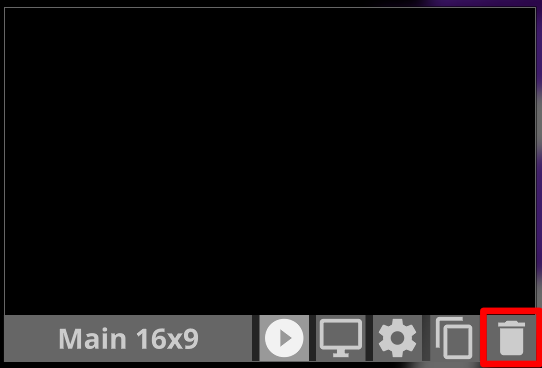
The delete button is located in the row of action buttons next to the surface name.
This button is represented by an icon shaped like a waste bin.