

The intention of this guide is to walk through each of the UI elements of the orchestrator to confirm what each area displays.
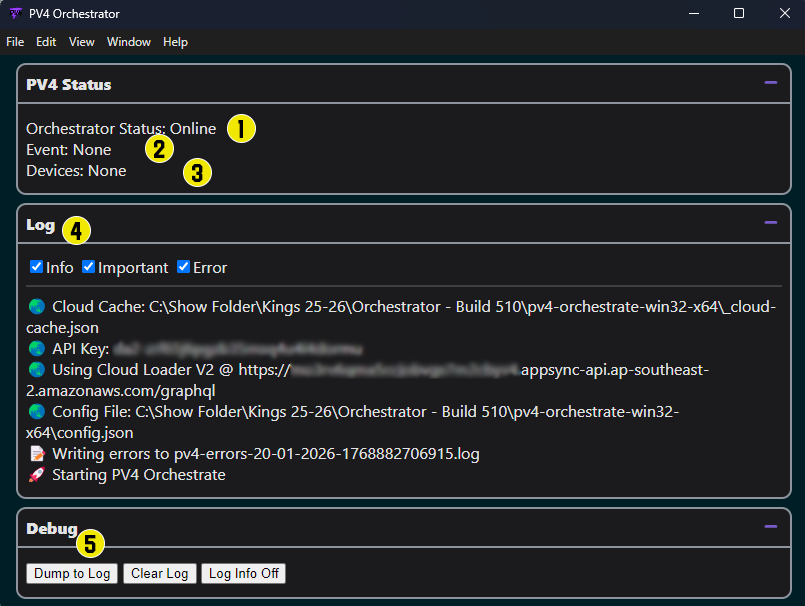
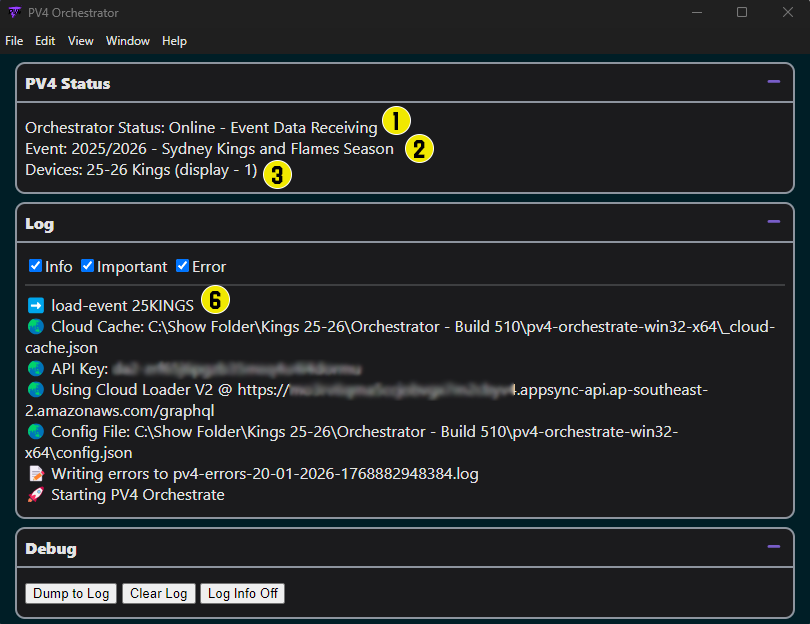
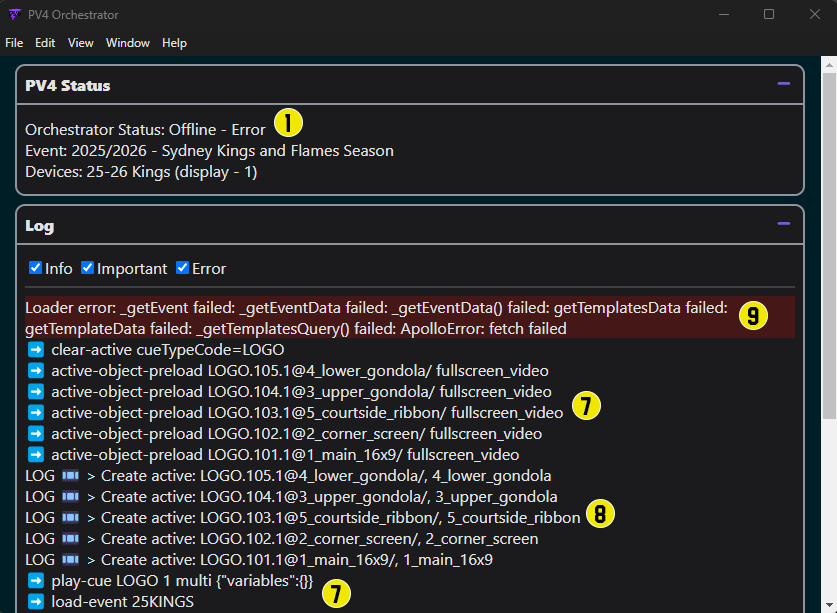
The above 3 images are taken at different times in the process.
Image 1 is immediately after loading the Application
Image 2 is after the renderer has also been started and an event has been loaded
Image 3 is after running a few cues and inducing an error by disconnecting the internet.
UI Elements Explained
-
Orchestrator Status: This quickly shows if the Orchestrator is online and receiving data or if an error is preventing full functionality.
-
Current Event: This will display the current Show loaded into the Orchestrator.
-
Devices: This will list all found Renderer applications on the network.
-
The Log Window: The log window is divided into three types of logs:
Info: Info messages detail information around expected operation actions. Examples of data included are:
6. Event load messages received from connected Controller applications.
7. Incoming Commands such as Play/Load Cue commands from connected Controller applications and successful load status messages from connected Renderer applications.
8. Cue creation commands sent to connected Renderer applications.
Important: Important messages detail data relating to system setting and configuration, including Cloud Cache directory, API Key and current Log file.
Error: Error messages indicate limitations to, or loss of, critical operation functionality.
9. Shows an example of an error where the Orchestrator is failing to get updated information from the Cloud Portal instance. This specific example is caused by loss of internet connection.