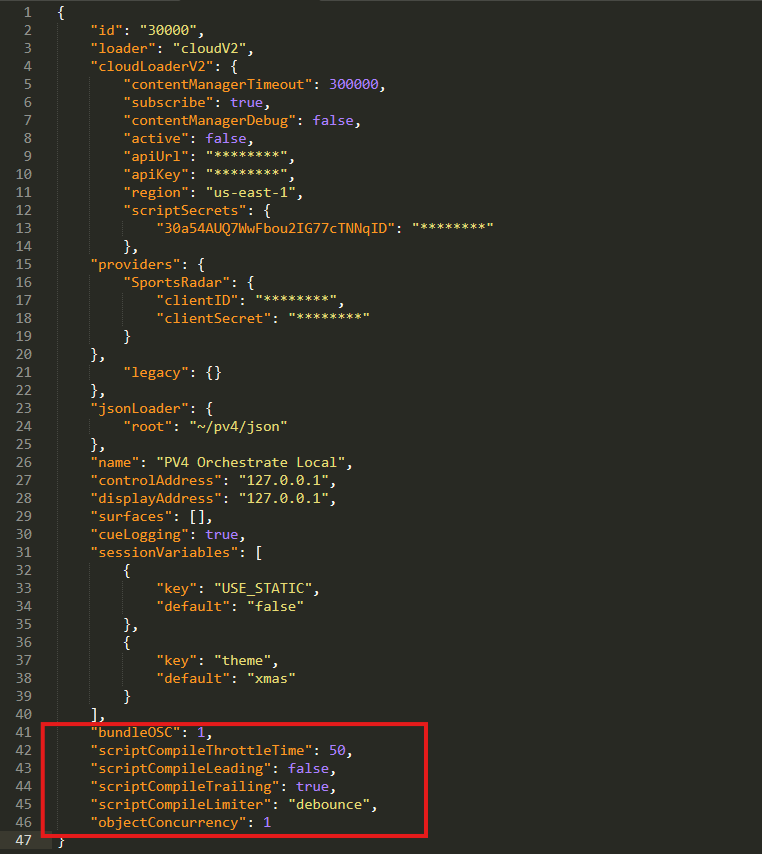
Before the Orchestrator can communicate over the network or load Shows from the Cloud Portal, the configuration must be correct.
Configuration updates do not apply while the application is running, if you make a change to your config file, you must restart your orchestrator application.
Locating your Orchestrator Config File
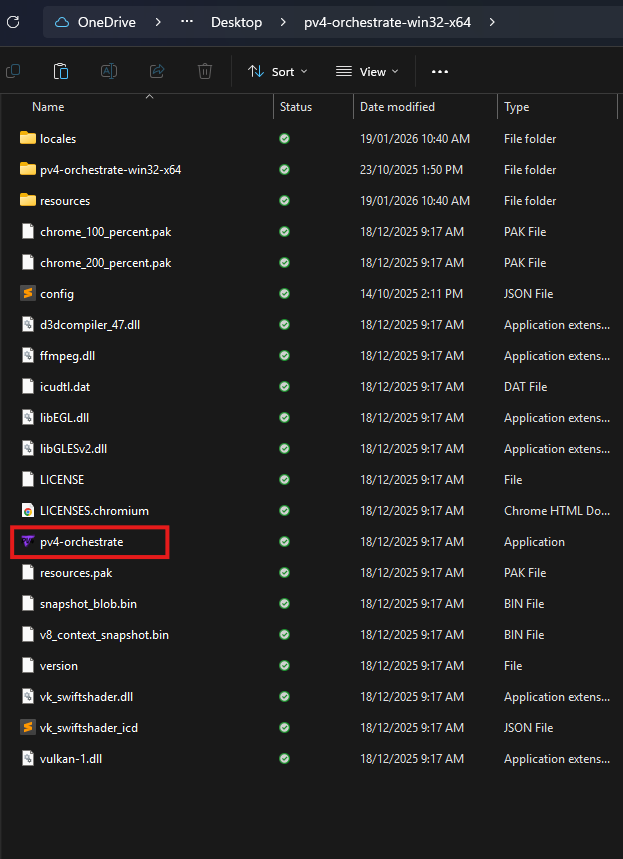
In your Orchestrator folder, locate and open the file ‘config.json’.
You can open this using any JSON viewer or plain text editor like Notepad, Text Edit or Sublime Text.
Your configuration file should look something like this example image.
All fields filled with ‘******’ are keys or endpoints relating your specific instance of the application. These connect your to your Cloud Portal instance.
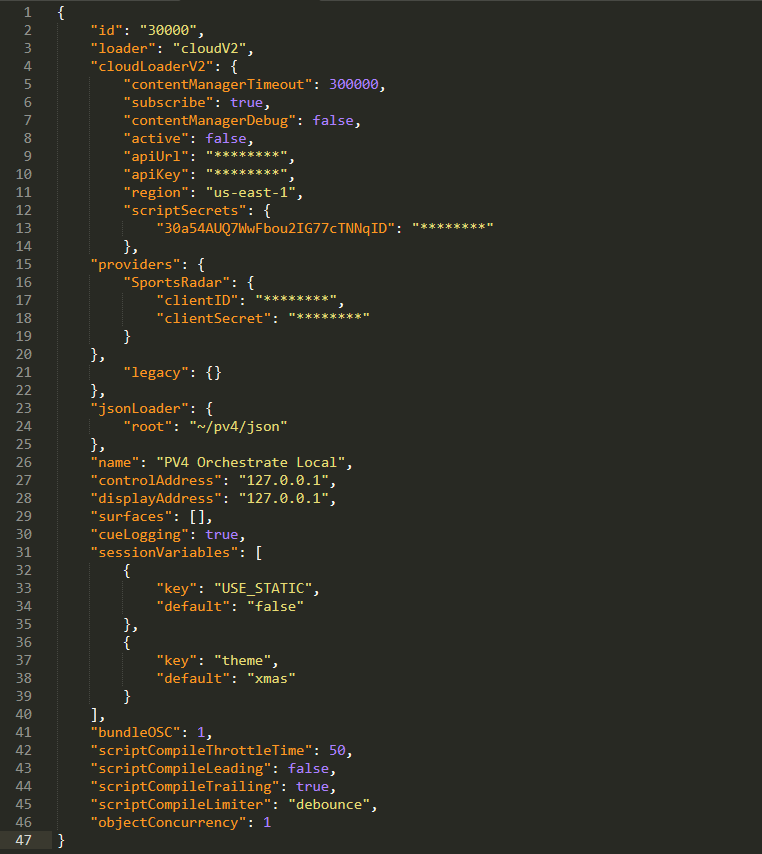
All fields can be updated by editing the text field, saving the config.json and restarting the Orchestrator application. The following guides will outline the specifics of each field.
Configure your Orchestrator Name
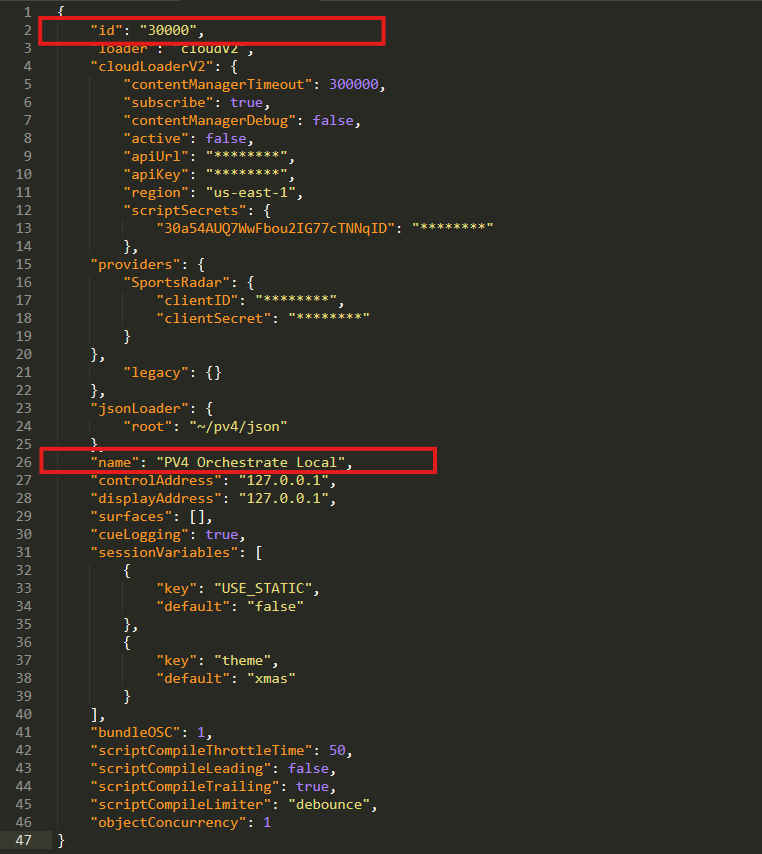
The Orchestrator Name field is used for identifying your Orchestrator application over the network.
When configured, your Controller Application will display this as an online device.
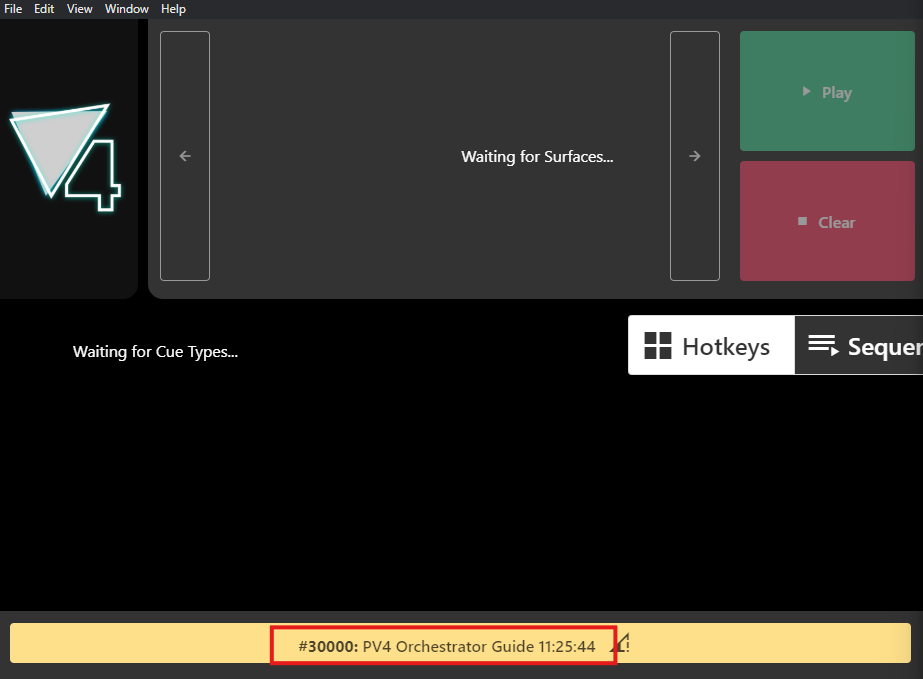
These are string values, you are free to use names or numbers as you wish. Using discrete names is particularly useful if you have multiple systems at one site to ensure you are only seeing your intended Orchestrator application.
Configure your Cloud Endpoint
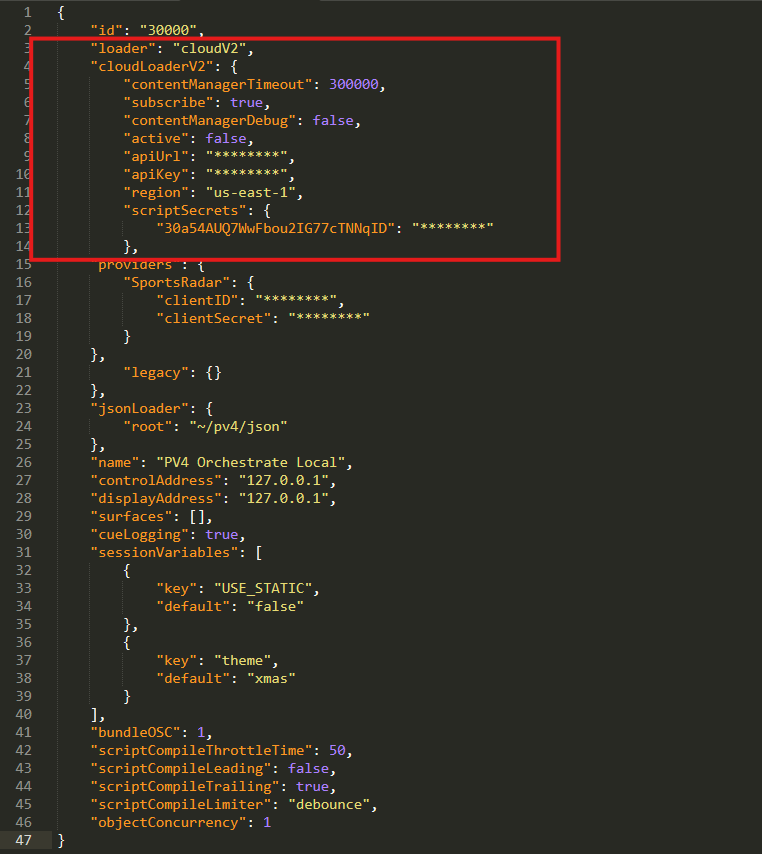
The Cloud Loader section is used to configure the connection to your specific Cloud Portal instance via it’s unique API.
Detailed information on each field is listed below.
-
loader: Your API version that the Orchestrator uses. This is preconfigured at the instance level and will be preset on download. If this is not present, please contact PV4 Support.
-
contentManagerTimeout:
-
subscribe:
-
contentManagerDebug:
-
active:
-
apiURL: This is the endpoint or the API address that provides all the Show information. This is preconfigured at the instance level and will be preset on download. If this is not present, please contact PV4 Support.
-
apiKey: This is your key or password to access the information from the API. This is preconfigured at the instance level and will be preset on download. If this is not present, please contact PV4 Support.
-
region: This is the AWS region that API is located in, this tells the Orchestrator which region to look for the information. This is preconfigured at the instance and will be preset on download. If this is not present, please contact PV4 Support.
-
ScriptSecrets:
Configure your Data Integrations
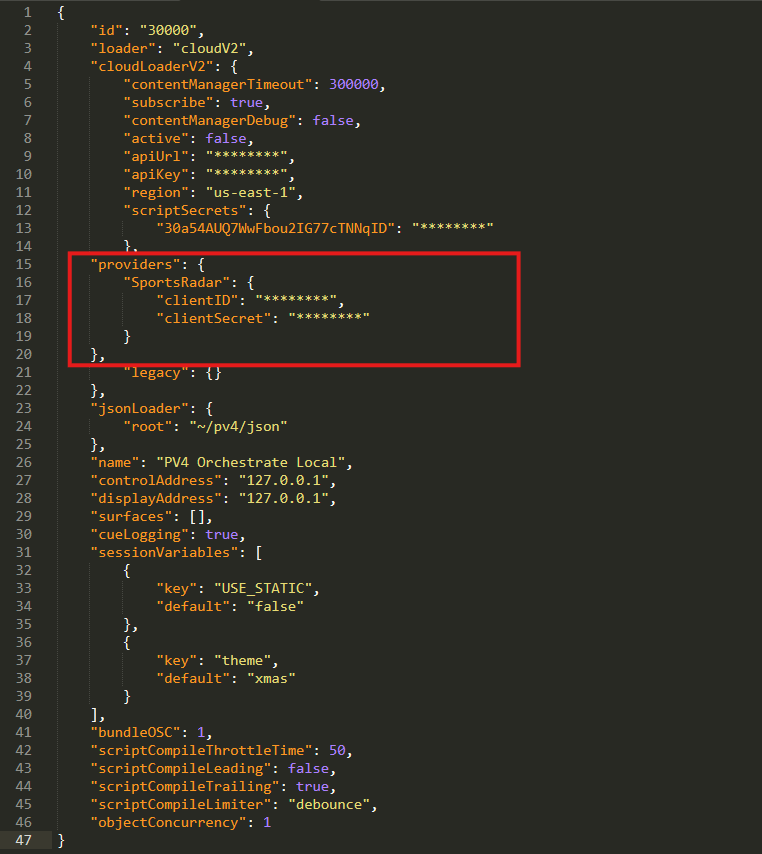
The Providers section is for integration with external data providers.
These integrations need to be connected to your Show in the Cloud Portal Instance first, and it is here you will find your ClientID and Client Secret.
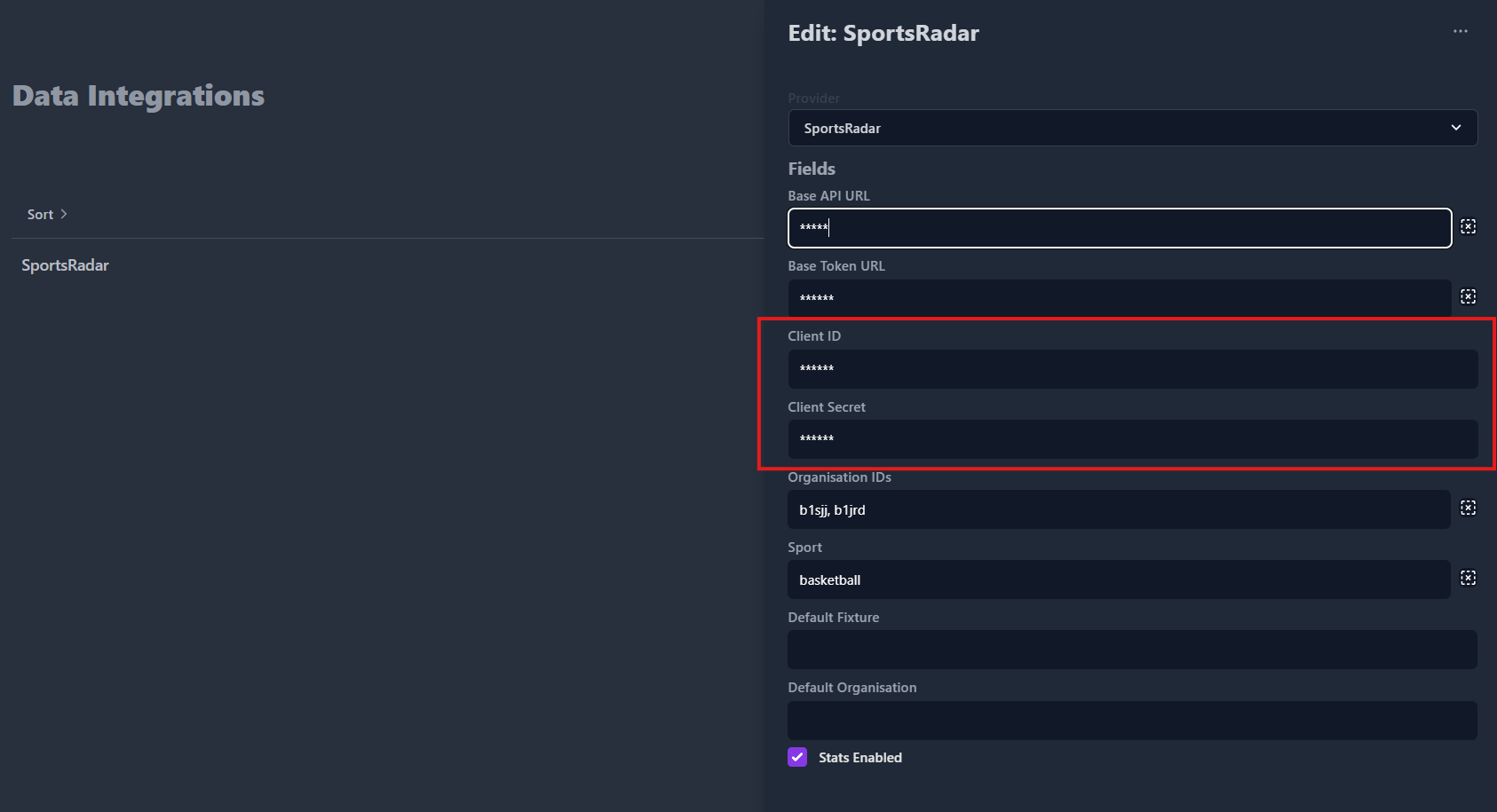
Multiple providers can be connected to a Show, and each one will require their own clientID and clientSecret.
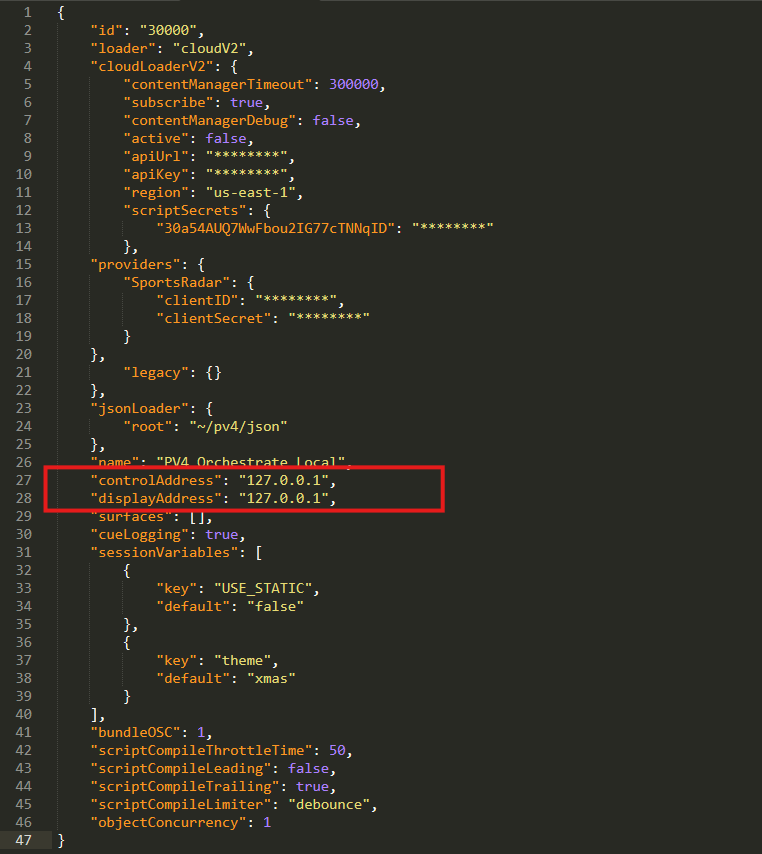
Configure your Network Connections
These are local network IP’s that the Orchestrator will be looking for the Control Application and the Renderer Applications at.
These fields can accept a single IP as depicted, or an array of IP’s.
LocalHost IP, Broadcast IP and Direct IP’s are all supported. Multicast is not supported at this time.
The Orchestrator is designed to handle multiple Renderers and Control applications on the network.
Configure or Limit your Surfaces
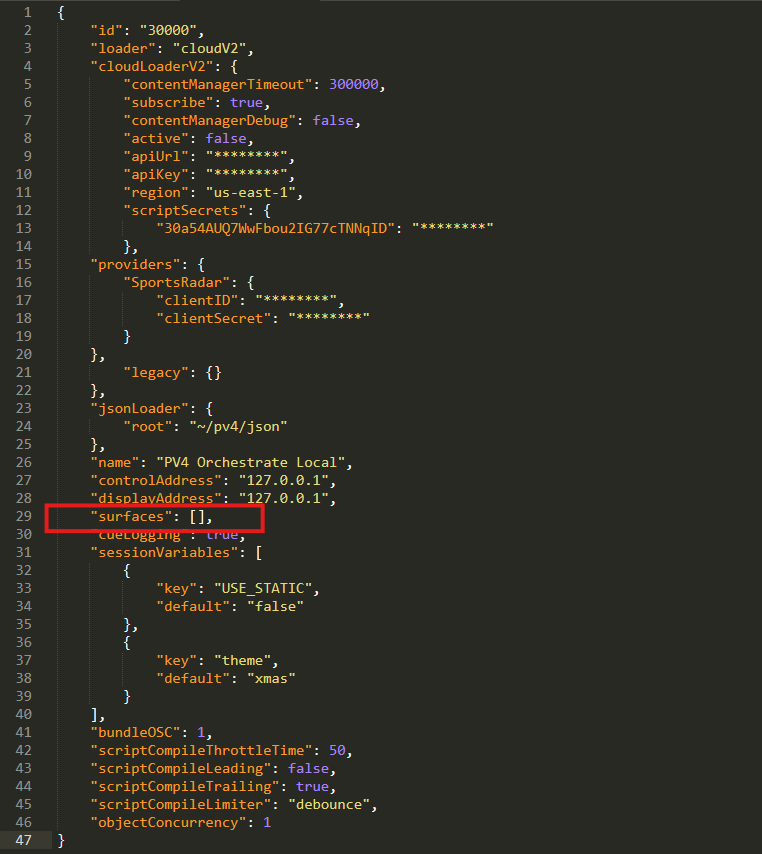
The Surfaces function is intended to limit the Surfaces that the Orchestrator will process.
Example:
Your show has been configured in the Cloud Portal to have three Surfaces, “16x9”, “32x9” and “Ribbon”.
By configuring Surfaces in the Orchestrator to
“surfaces”: [“16x9”, “Ribbon”],
only cues for the “16x9” and “Ribbon” surfaces will be processed. With any information for the “32x9” surface being disregarded.
Configure your Session Variables
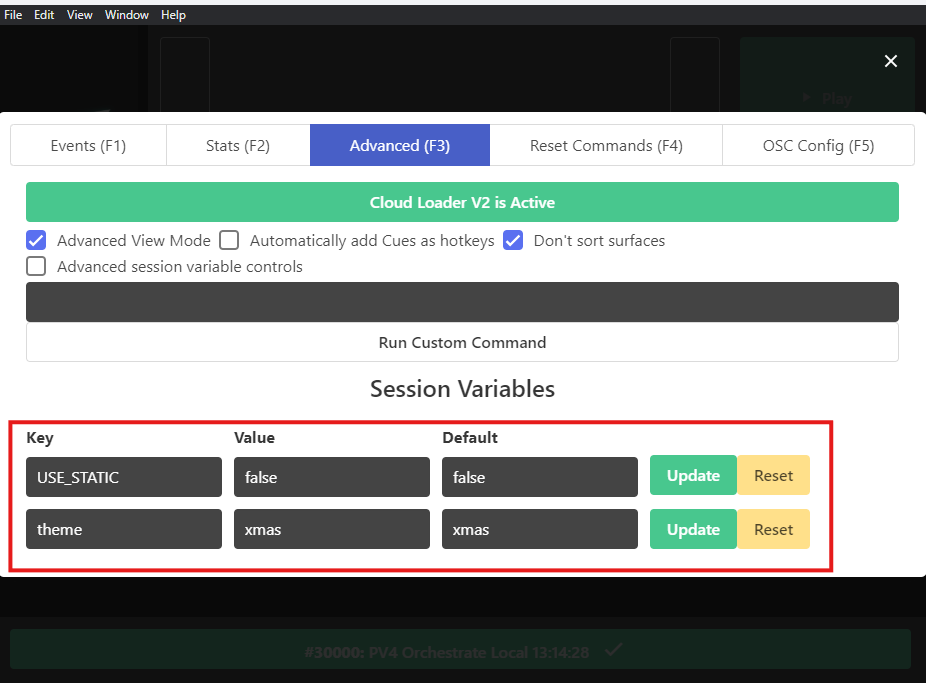
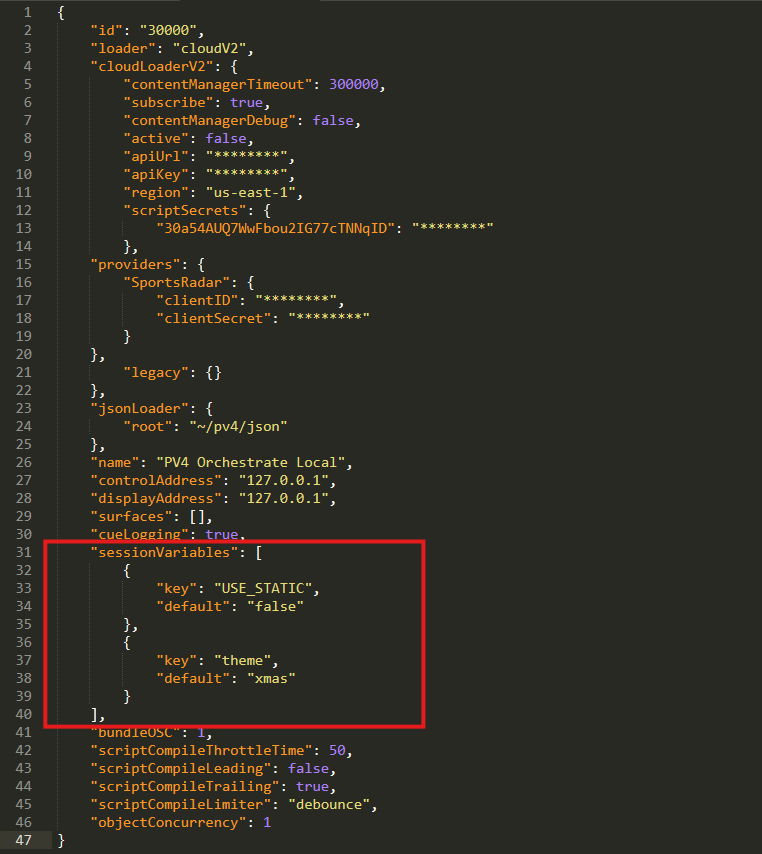
This is where you can prepopulate and set defaults for your Session Variables.
Configuring your Session Variable here will auto populate these into the connected Controller application UI after loading your Show.
Configure your Logging
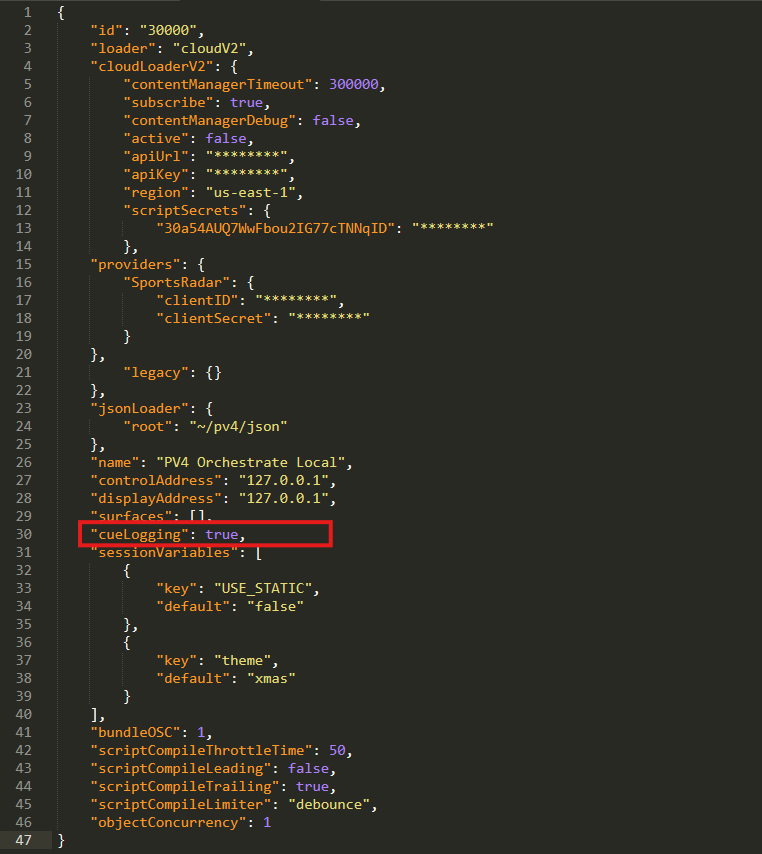
cueLogging is a true or false value that enables or disables the logging of your cue playback.
If true, a csv file will be created in the same director as the running Orchestrator application and updated every time a cue is played or cleared.
Values currently tracked in default logging are:
Cue Name
Cue Number
Cue Type
Surface
Start Time
End Time
Example log snippet:
activeID,cueName,cueType,cueNumber,surface,timePlayed,timeEnded
GFX.218.1@1_main_16x9/,Rhiane SM,GFX,218,1_main_16x9,1764310485902,1764310505242
Configure your “OTHER”
bundleOSC:
scriptCompileThrottleTime:
scriptCompileLeading:
scriptCompileTrailing:
scriptCompileLimter:
objectConcurrency:
These settings will be populated on download. Incorrect changes can disrupt operation or result in adverse behaviour. Only adjust these values if you fully understand their impact on playback, surfaces, cues, and show logic or under direct instruction from PV4 Support.