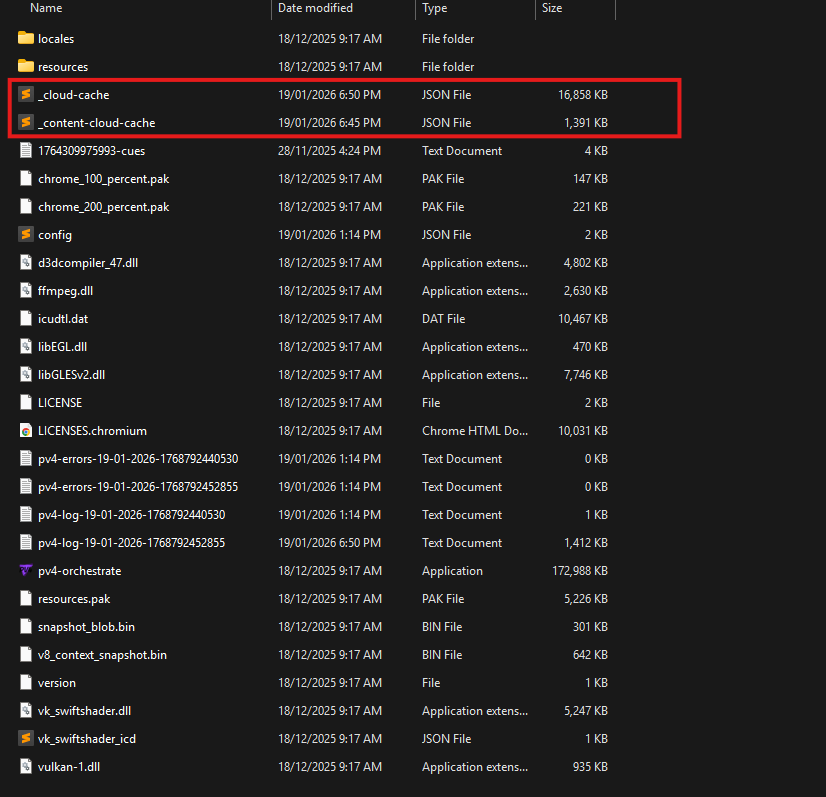
Updating the Orchestrator is achieved by downloading the new version, extracting to your computer and running the new version in the same way as installing it the first time. See install guide for that process.
After installation, you will want to retain your configuration. Below is guides on how to retain configuration and any additional options you may want, or need, to bring across.
Retaining your Orchestrator Configuration.
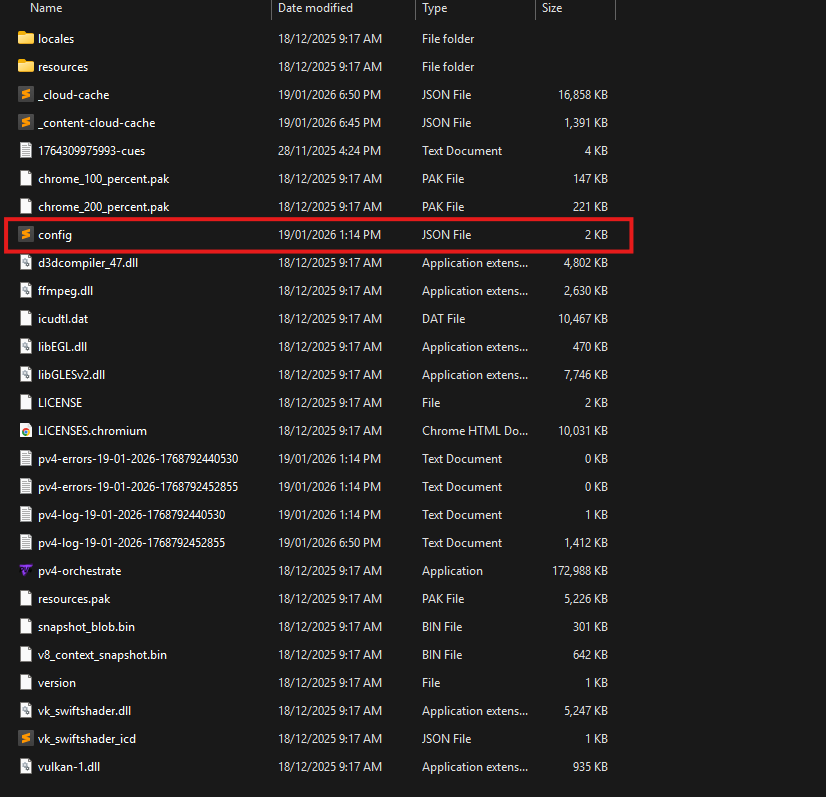
In almost all scenarios when updating your Orchestrator application version, you will want to maintain your current config.
Unless instructed otherwise, it is safe to bring across your existing 'config.json' file to the new directory.
Simply copy and paste the highlighted file from your old install folder to your new install folder.
Retaining your Logs
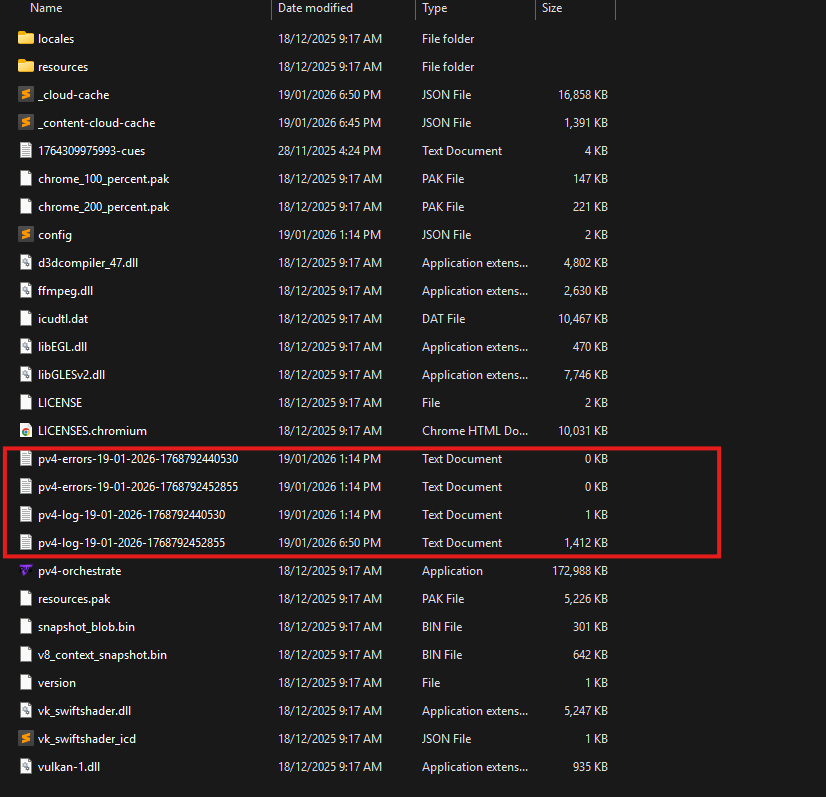
Logs are not crucial to the running of the Orchestrator, but if you want to keep them all in the same location it is safe to bring across these files.
New files with unique names are always generated each time you restart the Orchestrator application so there is no risk of overwriting existing files after migration.
Same as above, simply copy and paste the highlighted file from your old install to your new install folder.
Retaining your Cloud Cache
It is recommended to not migrate your existing cloud cache. Updates may change the format of this data, and bringing across these can prevent required data fields from populating into your cache.
However, in cases where you do not have connection to your Cloud Portal instance or can't download new show data, you can copy and paste both of these files across from your previous Orchestrator directory to allow you load and run your show.