

Overview
Relational objects describe how two or more objects work together at render time to produce a single visual result.
Rather than being rendered independently, objects can be placed into defined relationships where one object influences how another is displayed—such as masking, blending, compositing, or controlling visibility. Each object retains its own properties, but the relationship determines how they interact when rendered.
This approach enables layered graphics, broadcast‑style compositing, and reusable visual behaviours within templates, without duplicating content or flattening designs.
Relational isn't a selectable object type. There is no standalone "Relational" entry in the Blueprints panel. A relation is created by adding two ordinary objects (of any type) and then, in the Layers panel, dragging one object directly onto the other—this nests the two together and creates the relation between them. See the Template Editor page's Object Relations section for more detail.
The following relationship modes define how objects interact with one another once a relation has been created between them.
Mode Groups
|
Normal |
Used for structural compositing rather than visual grading. These modes control how images are layered, masked, or combined based on alpha or luminance. They define where pixels appear, not how colours interact. Commonly used for foreground/background composition, stencilling, and matte operations. Many Normal modes are order‑dependent. |
|
Darken |
Used when you want the result to be darker than one or both inputs. These modes preserve shadows, suppress highlights, or select darker information. Common for adding texture, grime, density, or shadow detail. They can crush detail if inputs are not well balanced. |
|
Lighten |
Used when you want to preserve or enhance bright areas. These modes accumulate light or select brighter contributions while reducing the influence of dark regions. Common for glows, highlights, reflections, and light‑emitting elements. Care is required to avoid clipping and washed‑out midtones. |
|
Contrast |
Used to increase visual punch by darkening dark areas and brightening light areas simultaneously. These modes enhance texture, depth, and perceived lighting. They range from subtle (Soft Light) to extreme (Hard Mix). Often sensitive to input order and noise. |
|
Inversion |
Used to compare images or create negative‑style effects. These modes emphasise differences rather than combining imagery naturally. Common for diagnostics, transitions, and stylised effects. Small input changes can become very visible. |
|
Cancellation |
Used to remove or counteract information from one image using another. These modes rely on direct arithmetic operations like subtraction or division. Common in technical, procedural, or calibration workflows. Inputs must be well constrained to avoid instability. |
|
Component |
Used to mix specific colour attributes rather than full RGB values. These modes allow one image to supply colour while another supplies brightness or structure. Common for recolouring, theming, and grading‑style effects. Best used with consistent colour management. |
Supported Modes
|
Name |
Short Name |
Group |
Description |
Reference Screenshot |
|---|---|---|---|---|
|
Add |
Ad |
Lighten |
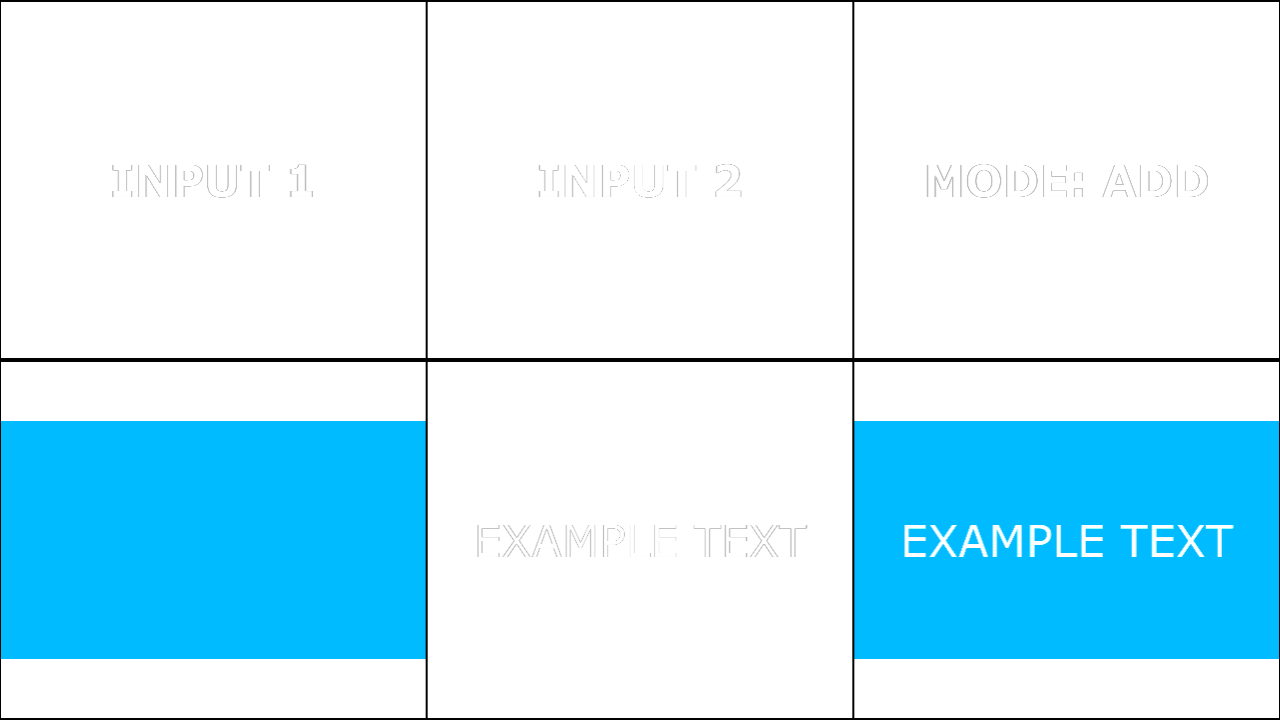
Adds the colour channels of the two inputs together, increasing brightness wherever either image is bright. Highlights will reach maximum quickly, so clipping is common if you are working in low bit-depth or already-bright imagery. This mode is typically used to accumulate “light-like” elements such as glows, particles, lens effects, and additive overlays. Operation order generally does not materially change the result, but alpha handling and any premultiplication conventions in your pipeline can affect edge appearance. |
|
|
Atop |
At |
Normal |
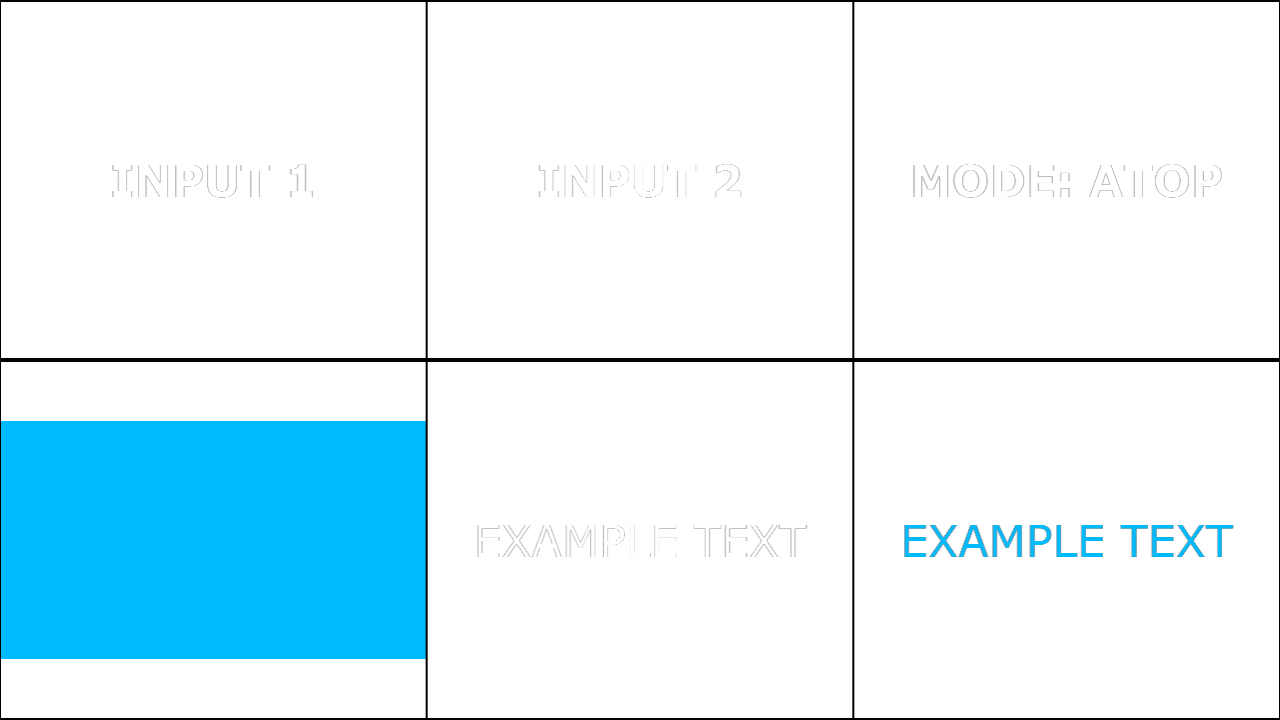
A matte-style compositing operator where the first input is kept only where the second input is present, while the second input remains visible where the first is not. Visually, it feels like placing input1 “inside” the coverage of input2 while preserving input2 outside that overlap. This is useful for filling a silhouette with content while keeping the original outside region intact. It is order-dependent: swapping inputs produces a different result. |
|
|
Average |
Av |
Normal |
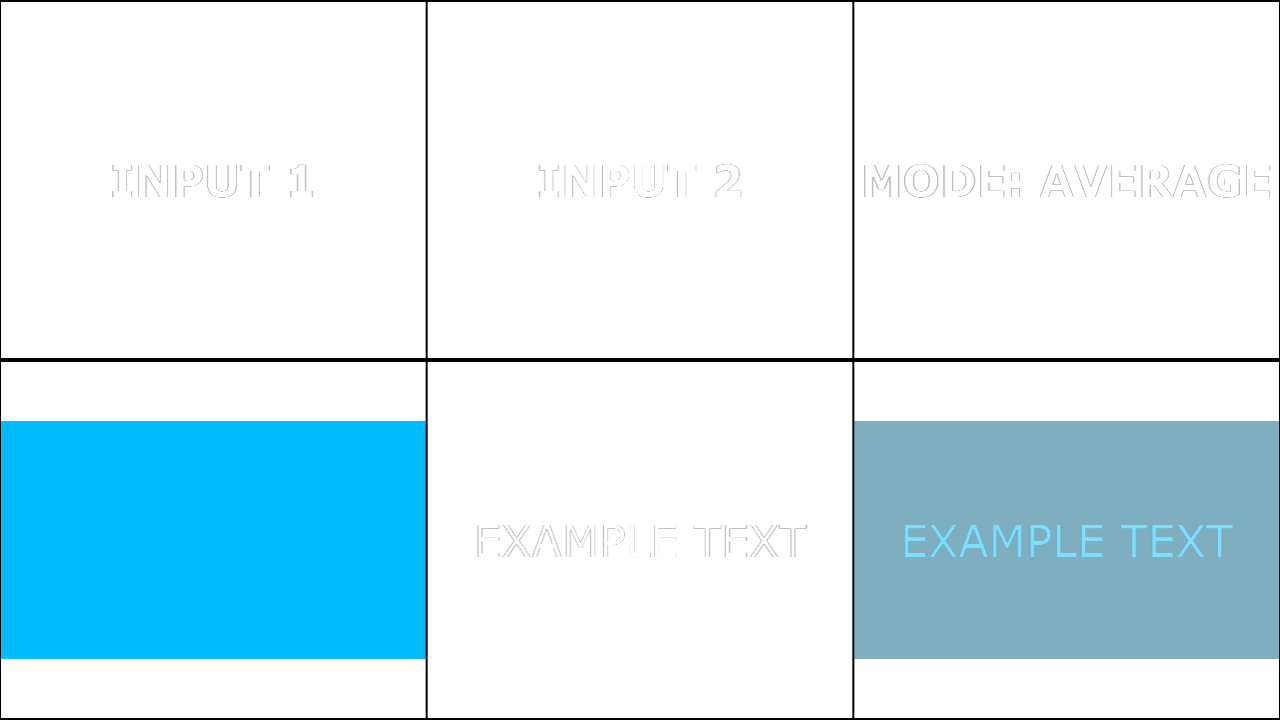
Computes a straight 50/50 mix of the two inputs per channel, producing a midpoint blend. It is neutral compared with most blend modes because it does not preferentially brighten highlights or deepen shadows. Use it for simple combination, quick previews, or when you need a stable “mix” baseline. If you need a controllable blend ratio, you should use a separate mix control rather than relying on Average, which is fixed at 50%. |
|
|
Brightest |
Br |
Lighten |
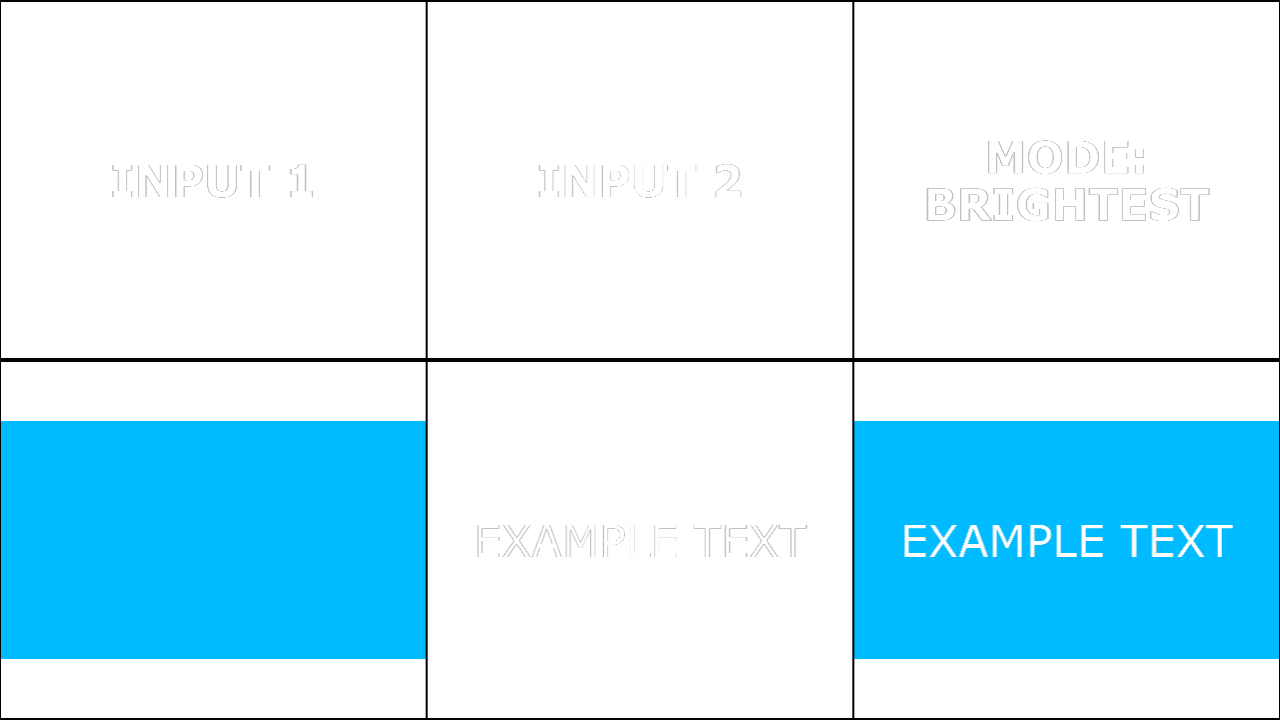
Selects the brighter contribution between the inputs in a way that preserves highlight structure without the aggressive accumulation of Add. It is typically used to keep luminous features from either input while suppressing darker contributions. This can be useful for compositing sparks, glints, and bright overlays without blowing out the entire image. Because it is effectively a “selection” mode, transitions can be abrupt around boundaries where dominance changes. |
|
|
Burn Color |
BC |
Darken |
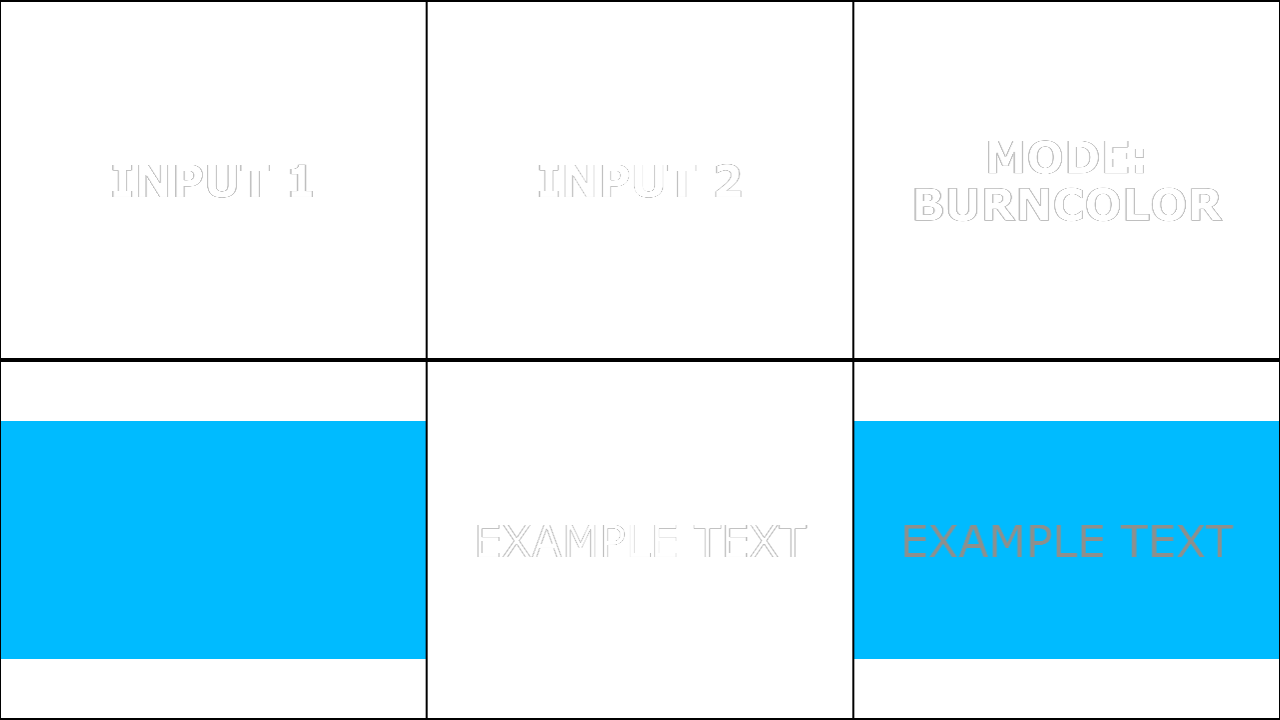
Darkens the base image by increasing contrast to reflect the blend image, producing deeper shadows and often stronger saturation in midtones. Whites in the blend generally have minimal effect, while darker blend values can push the base toward heavy shadowing. It is commonly used for “scorched”, gritty, or intense shading looks, and for adding dramatic tonal density. It can crush detail quickly; controlling input levels and opacity is important for predictable results. |
|
|
Burn Linear |
BL |
Darken |
Darkens by reducing brightness in a more linear fashion than Burn Colour, often producing a strong but slightly more predictable darkening curve. It is useful for robust shadowing, ink-like overlays, and pushing exposure down while keeping some tonal continuity. Like other burn modes, it can clip shadows if inputs are not managed. If you want a gentler darkening, Multiply is usually a safer default. |
|
|
Chroma Difference |
CD |
Inversion |
Emphasises differences between the inputs primarily in colour (chroma) rather than pure brightness. This is helpful when you want to detect or stylise hue/saturation changes while being less sensitive to luminance-only variation. Typical uses include colour-change visualisation, stylised “colour separation” looks, and diagnostic comparisons. Expect results to be content-dependent. |
|
|
Color |
Co |
Component |
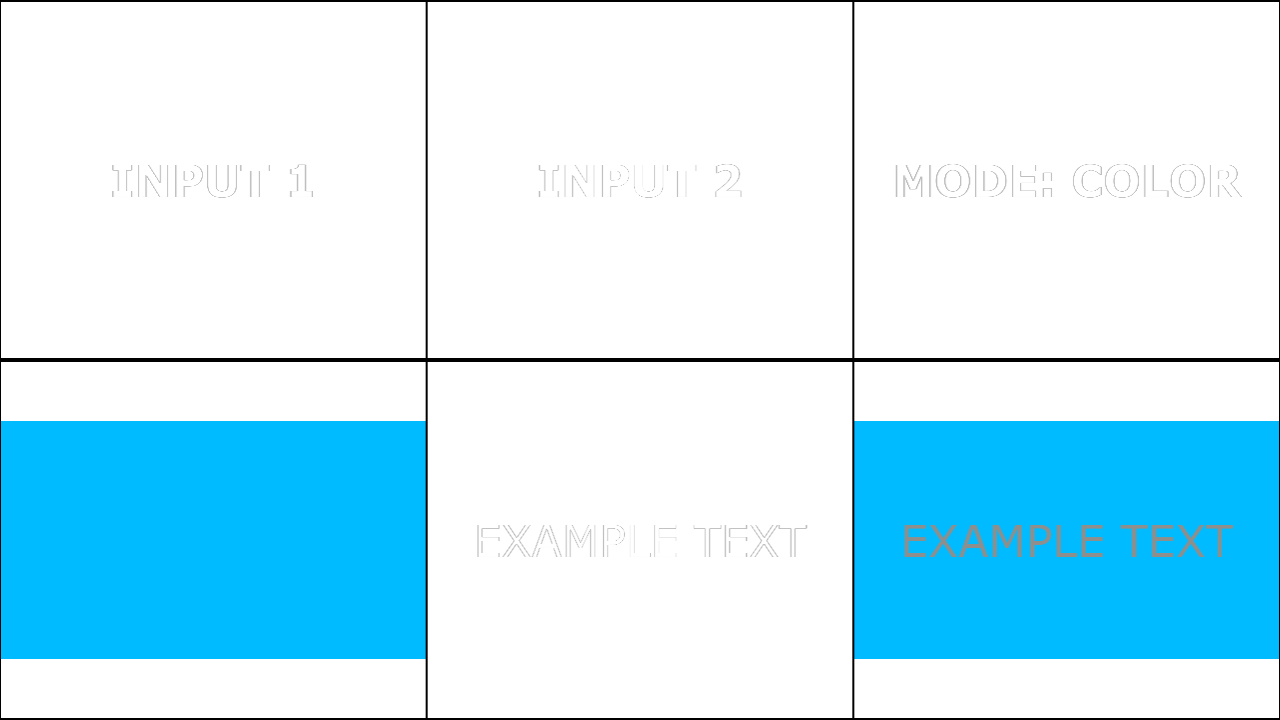
Applies the hue and saturation of the blend input while preserving the luminance of the base input. This is the standard way to “recolour” an image while maintaining its shading, highlights, and perceived brightness structure. It is commonly used for tinting footage, re-skinning UI elements, and grade-like overlays that should not change lightness. Low-saturation regions can behave subtly because hue is less defined near grey; document expected behaviour with representative samples. |
|
|
Darker Color |
DC |
Darken |
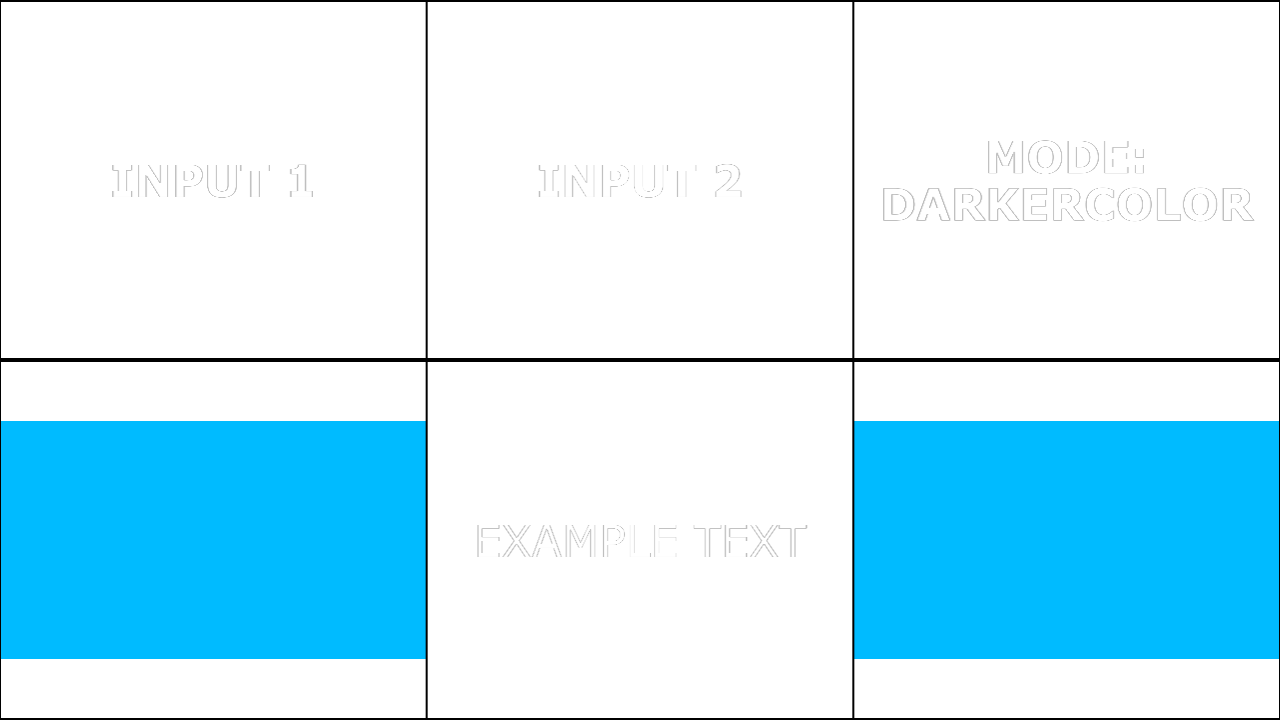
Chooses the darker overall colour of the two inputs rather than blending them, generally preserving one pixel’s colour intact. This differs from per-channel minimum because it is a “winner takes all” selection instead of mixing channels across images. It is useful when you want to keep the darker plate detail without introducing new colours through blending. Because it is selection-based, edges can switch abruptly and may shimmer in motion if inputs are noisy. |
|
|
Difference |
Df |
Inversion |
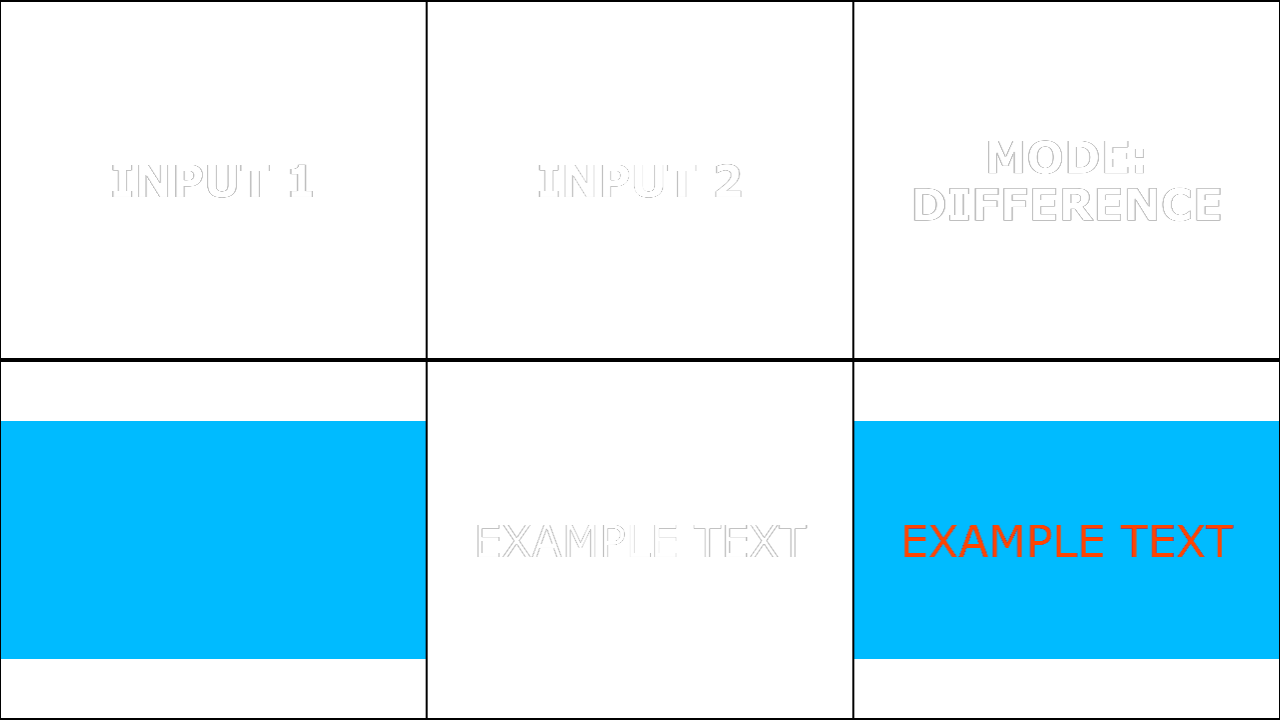
Produces the absolute difference between the inputs, yielding dark output where pixels match and brighter output where they diverge. It is widely used for alignment checks, match-moving diagnostics, and stylised negative/compare effects. Noise and compression artefacts can become highly visible because small differences are amplified into visible structure. For cleaner results, pre-filter or denoise inputs, or use Exclude for a softer comparison. |
|
|
Dimmest |
Di |
Darken |
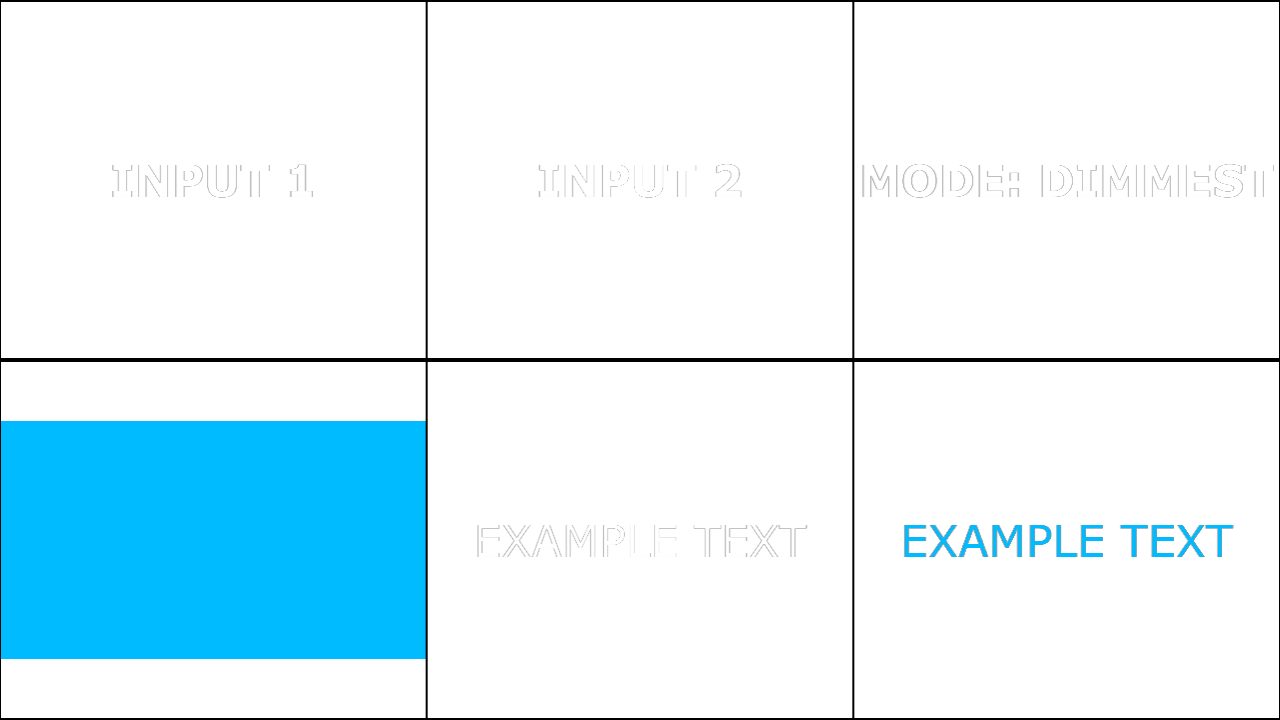
Preserves the dimmer contribution between the two inputs, behaving like a darken-selection mode. It is useful for maintaining shadow structure from either image while suppressing brighter content. This can be applied to “shadow-only” composites, darker texture extraction, or suppressing highlights when combining plates. Like other selection modes, it can introduce abrupt transitions at dominance boundaries; consider slight blur or level conditioning if needed. |
|
|
Divide |
Dv |
Cancellation |
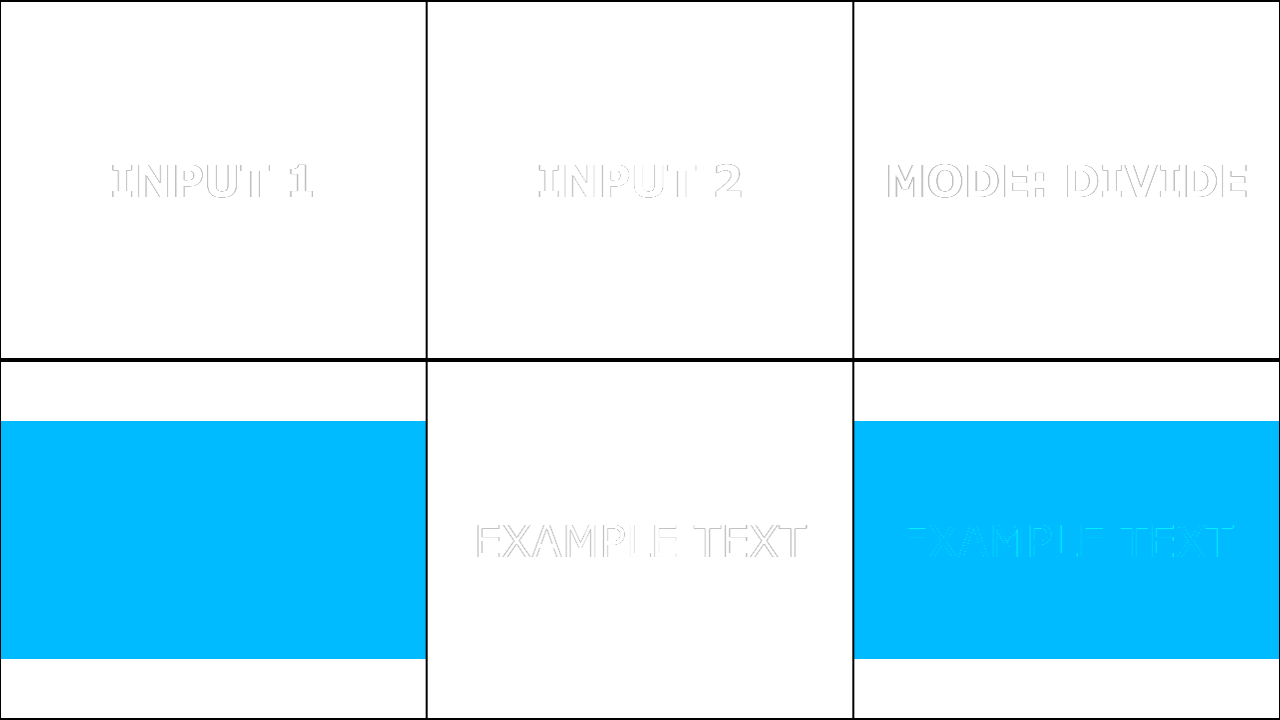
Divides the base input by the blend input per channel, which can strongly brighten where the blend is dark and have little effect where the blend is bright. It is often used for calibration-style tasks such as removing multiplicative shading, flat-field correction concepts, or stylised “unlighting” looks. Division can be numerically unstable near zero; very dark blend pixels can create blowouts and amplify noise. Use clamps, floors, or preconditioning of the blend input for robustness. |
|
|
Dodge |
Dg |
Lighten |
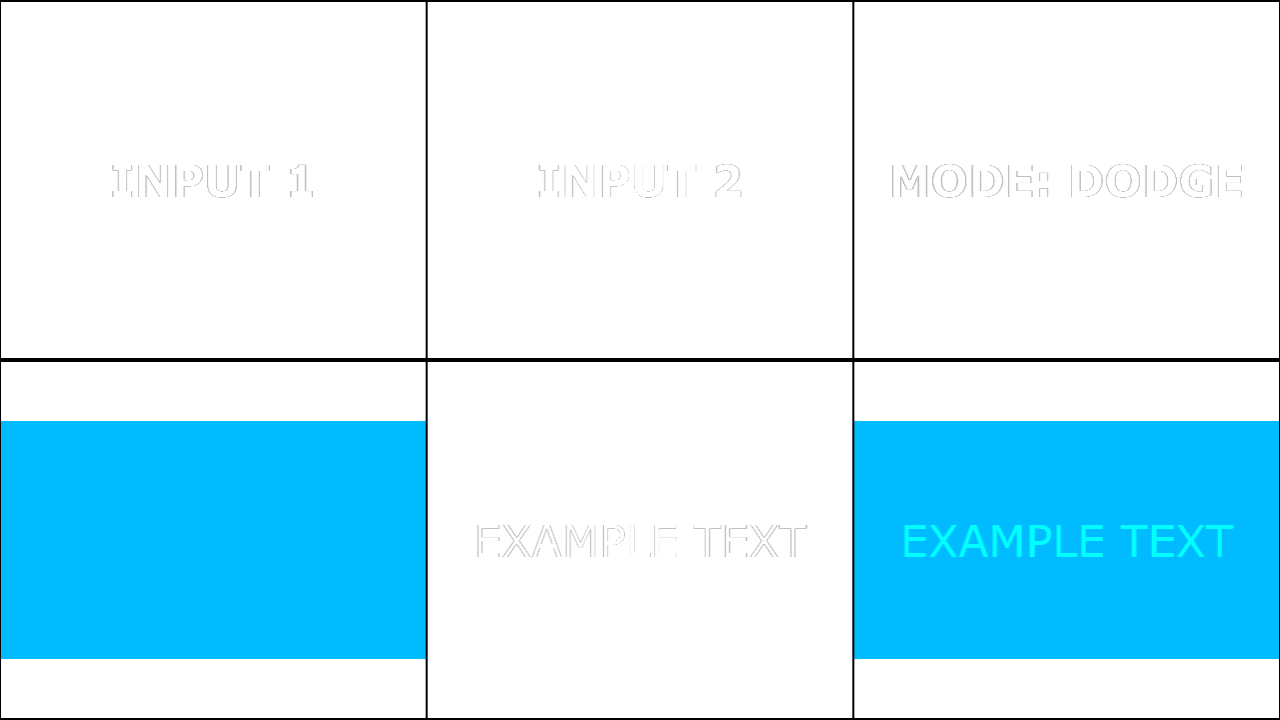
Brightens the base image to reflect the blend image, often producing intense highlights and increased saturation. It is useful for energetic glow effects, bright light blooms, and stylised highlight enhancement. Dodge can clip quickly; controlling opacity and limiting the blend input’s extremes is recommended. If you need a more controllable brighten with smoother roll-off, Screen is typically more forgiving. |
|
|
Exclude |
Ex |
Inversion |
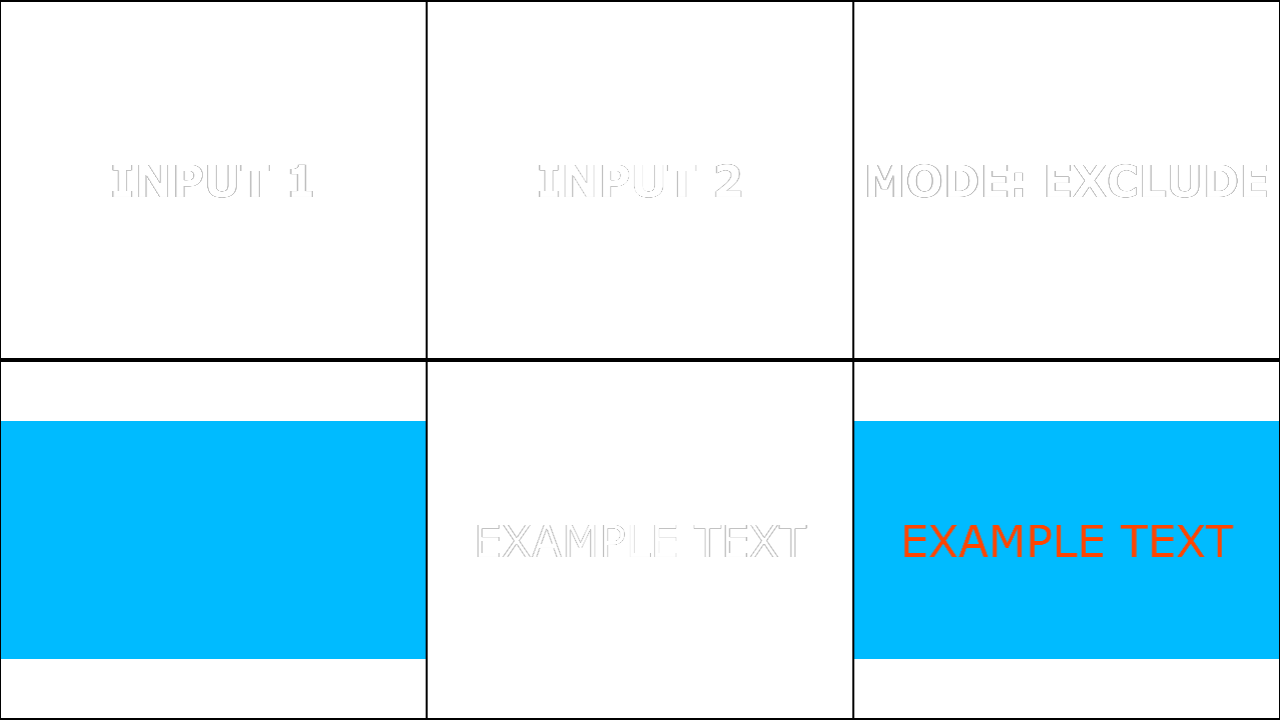
Similar to Difference but generally lower contrast and less aggressive, producing a softer inversion-like comparison. It is useful when you want the “difference aesthetic” without pushing differences to full white as quickly. This mode can be used for subtle texture mixing and colour variation effects where Difference is too harsh. For strict arithmetic removal, Subtract or Divide are more direct. |
|
|
Freeze |
Fr |
Inversion |
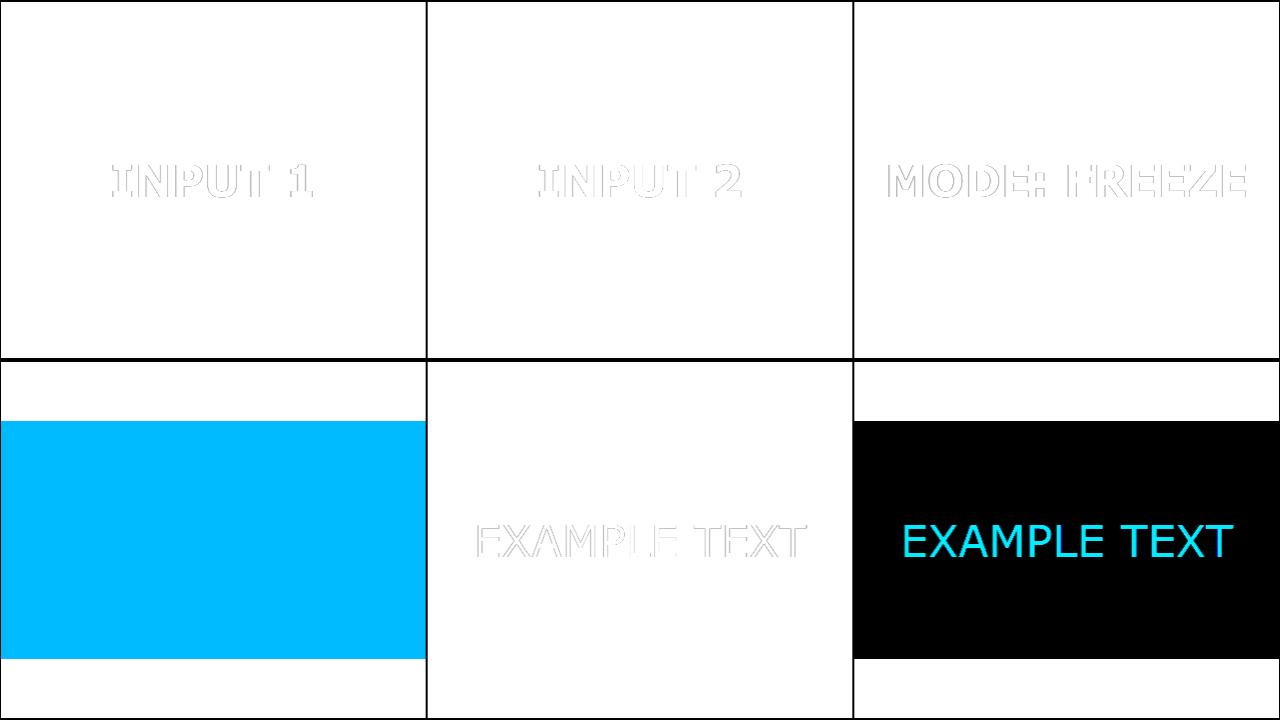
Produces a strong, stylised inversion/contrast effect that is typically used as an artistic compare/remap rather than natural compositing. It tends to create pronounced tonal changes and can yield “crystalline” or posterised interaction between inputs depending on content. Use it for effect work, experimental looks, or aggressive stylisation rather than realism. |
|
|
Glow |
Gl |
Lighten |
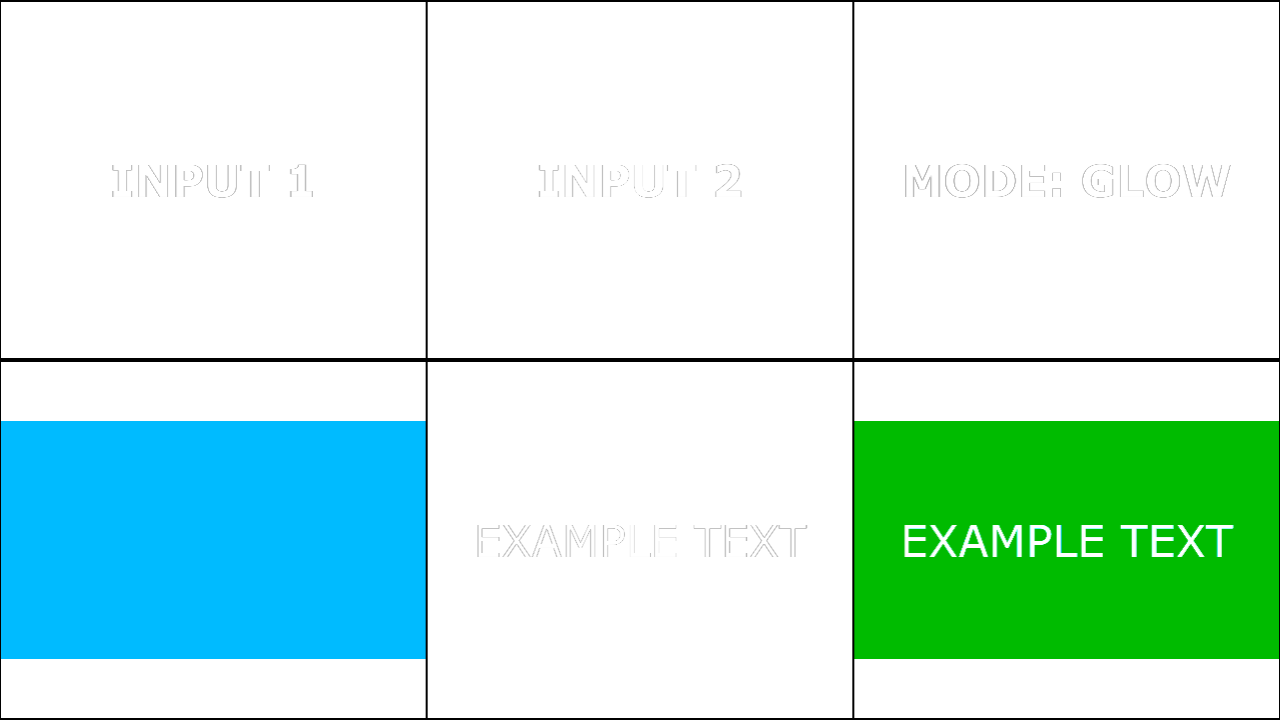
Creates a glow-like interaction where brighter regions tend to intensify and spread perceptually in the composite result. It is commonly used to enhance luminous elements, create bloom-adjacent looks, or make highlights appear more radiant when layered. This mode is best treated as effect-oriented: results vary significantly with input levels and contrast. For predictable “light accumulation,” Add or Screen are better primary choices, with Glow reserved for a creative variant. |
|
|
Hard Light |
HL |
Contrast |
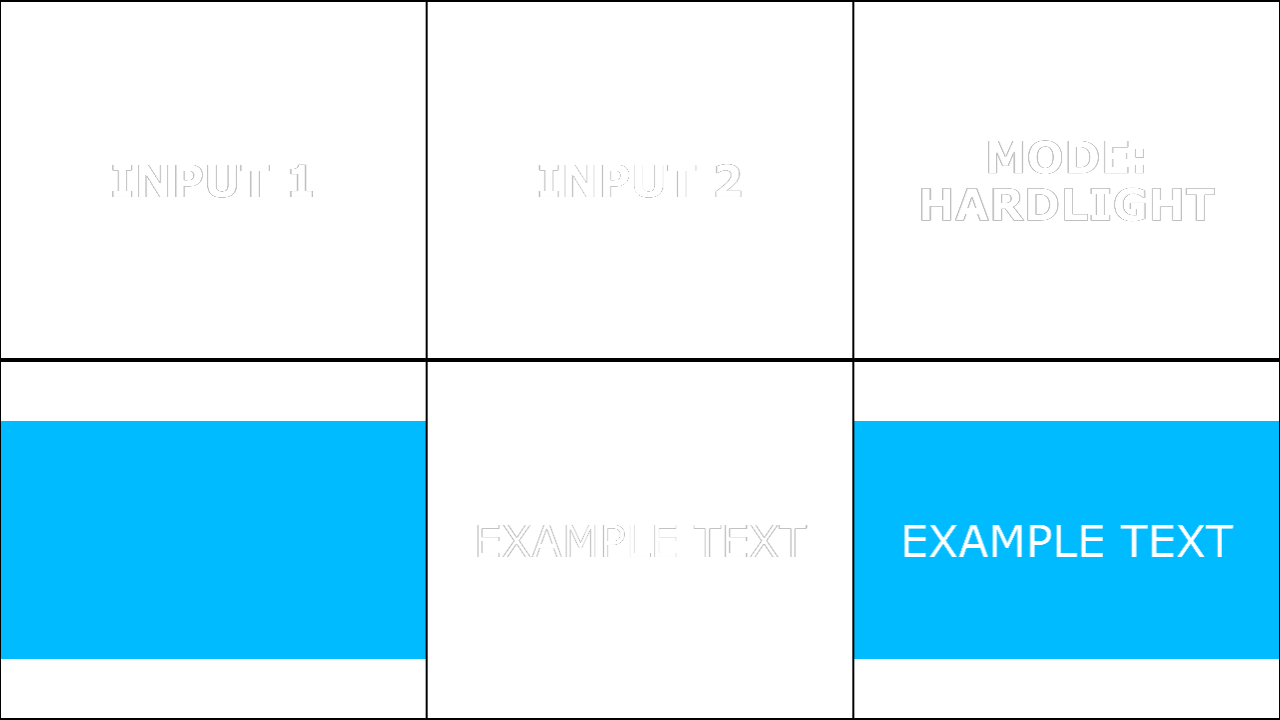
Applies a Multiply-like effect when the blend is dark and a Screen-like effect when the blend is light, producing strong contrast changes. It is used for punchy texture overlays, dramatic lighting looks, and stylised composites that emphasise both shadows and highlights. It can accentuate noise and compression, so smoothing the blend input can help in motion content. It is often order-sensitive in practice. |
|
|
Hard Mix |
HM |
Contrast |
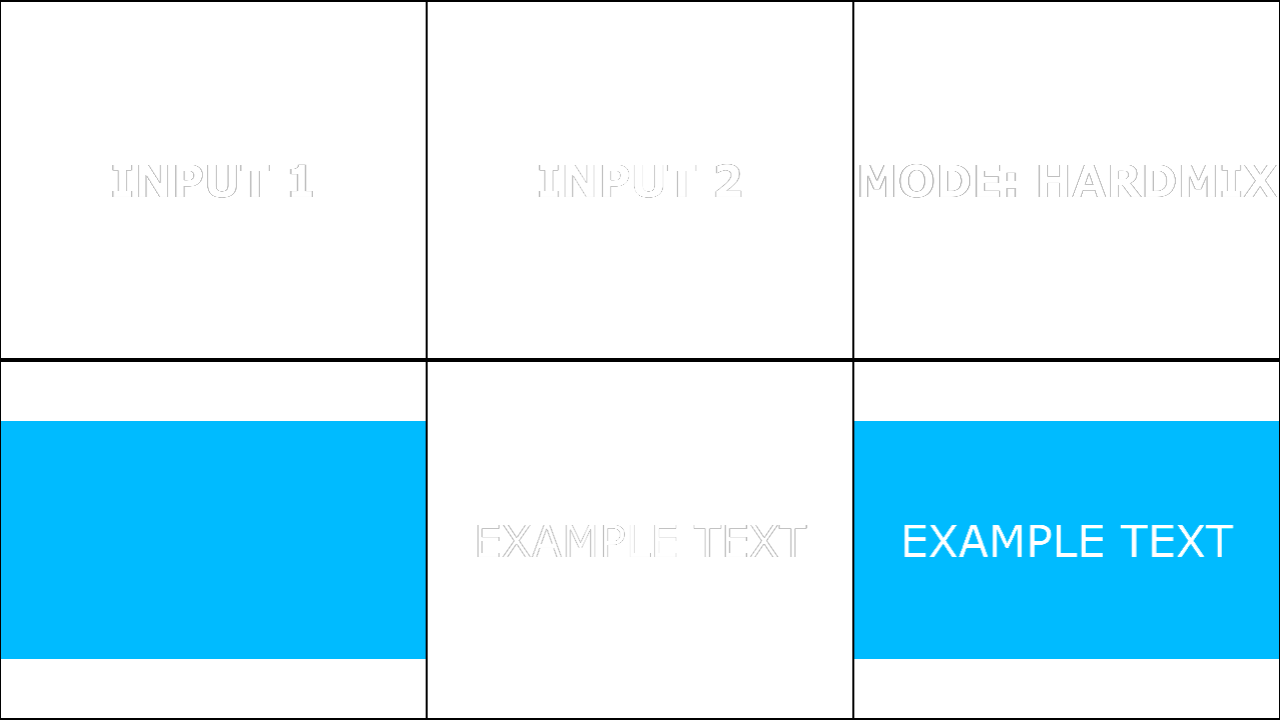
Produces an extremely high-contrast, thresholded result that tends to quantise colours toward primaries and extremes. It is primarily used for graphic, posterised effects, bold UI/video stylisation, and experimentation. Fine gradients and subtle shading are typically destroyed, so it is unsuitable for naturalistic blending. |
|
|
Heat |
He |
Inversion |
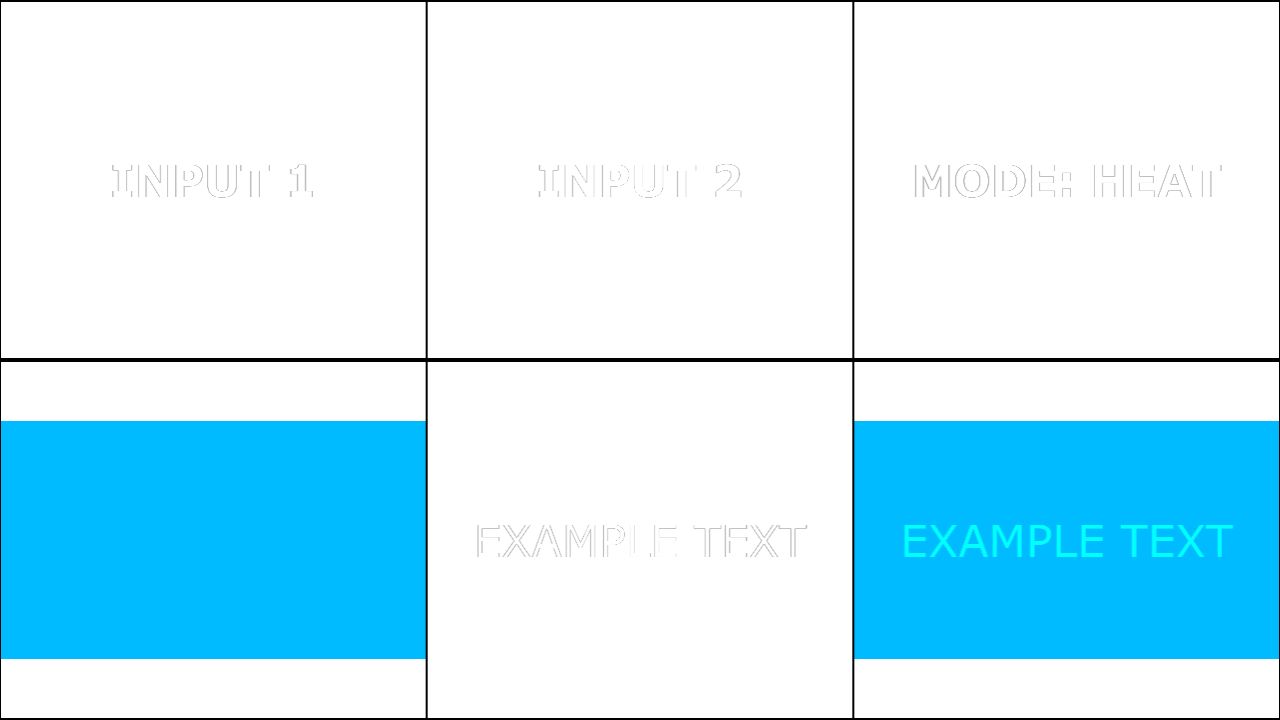
Generates a strong stylised interaction often perceived as a heat-map-like remap of tonal relationships between inputs. It is used for creative effects, high-energy contrasts, and non-photoreal visuals rather than conventional compositing. The mode can react strongly to midtone structure, producing dramatic transitions and colour shifts depending on content. |
|
|
Hue |
Hu |
Component |
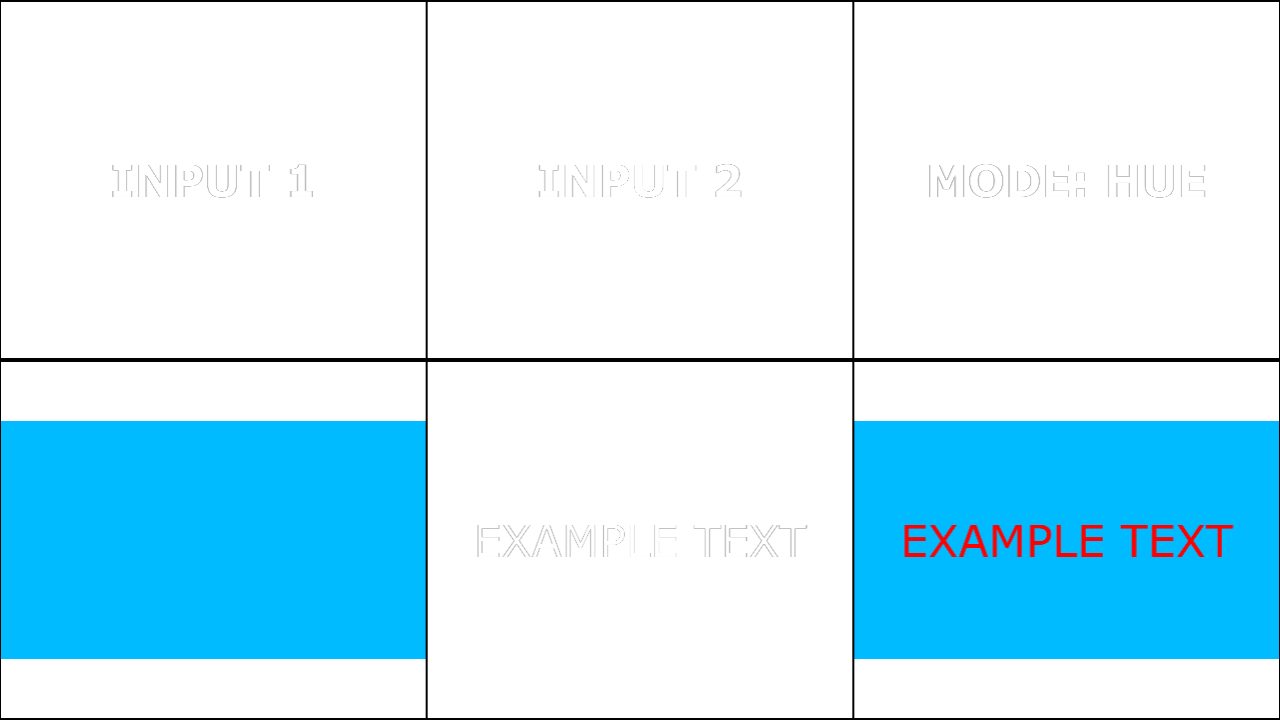
Applies the hue of the blend input while preserving the saturation and luminance of the base input. This is ideal for hue-shifting an element without changing its brightness structure or overall “intensity.” It is frequently used for colour theming, brand colour alignment, and subtle colour variation. In low-saturation areas, hue may be less stable because hue is not well-defined near grey; include examples that cover neutrals and skin tones. |
|
|
Inside |
In |
Normal |
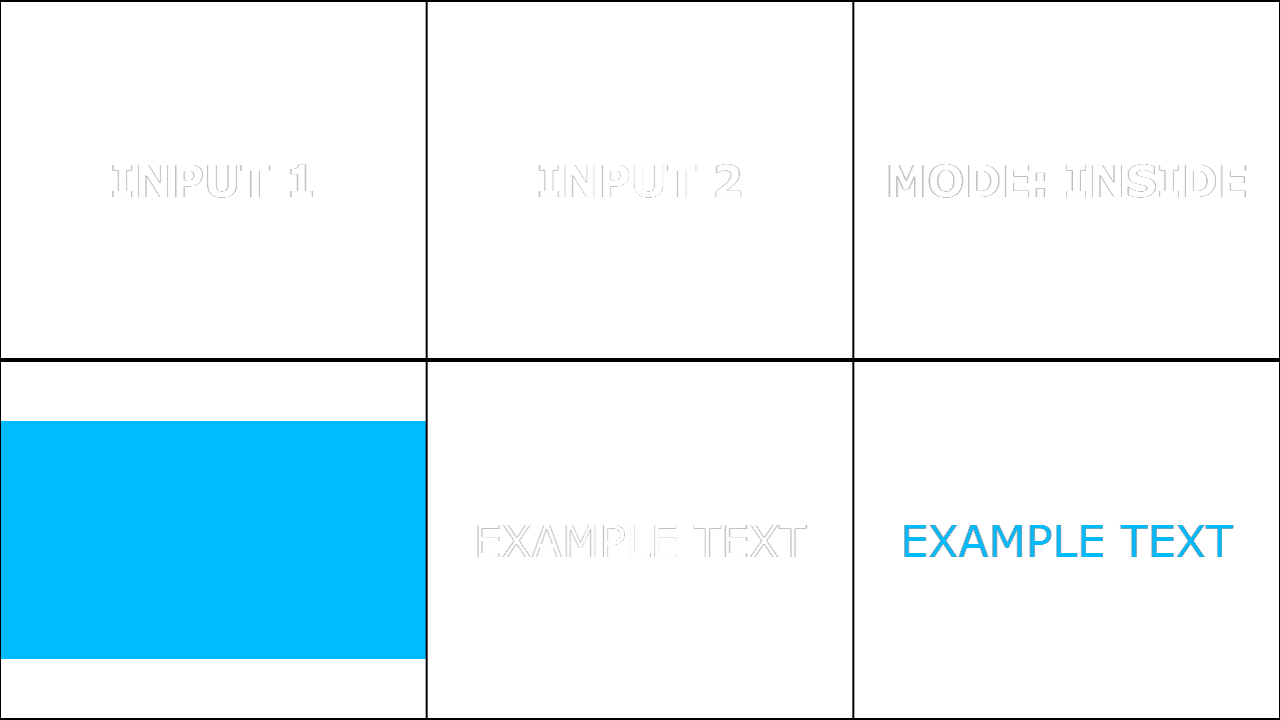
Treats the second input as a matte and keeps the first input only where the second input is present (typically driven by alpha). This is a foundational “mask-in” behaviour for stencilling, cut-outs, and filling shapes with textures or video. Edge quality is directly tied to the matte’s alpha fidelity; antialiasing and premultiplication conventions matter. If your mask is encoded in brightness rather than alpha, use Inside Luminance instead. |
|
|
Inside Luminance |
IL |
Normal |
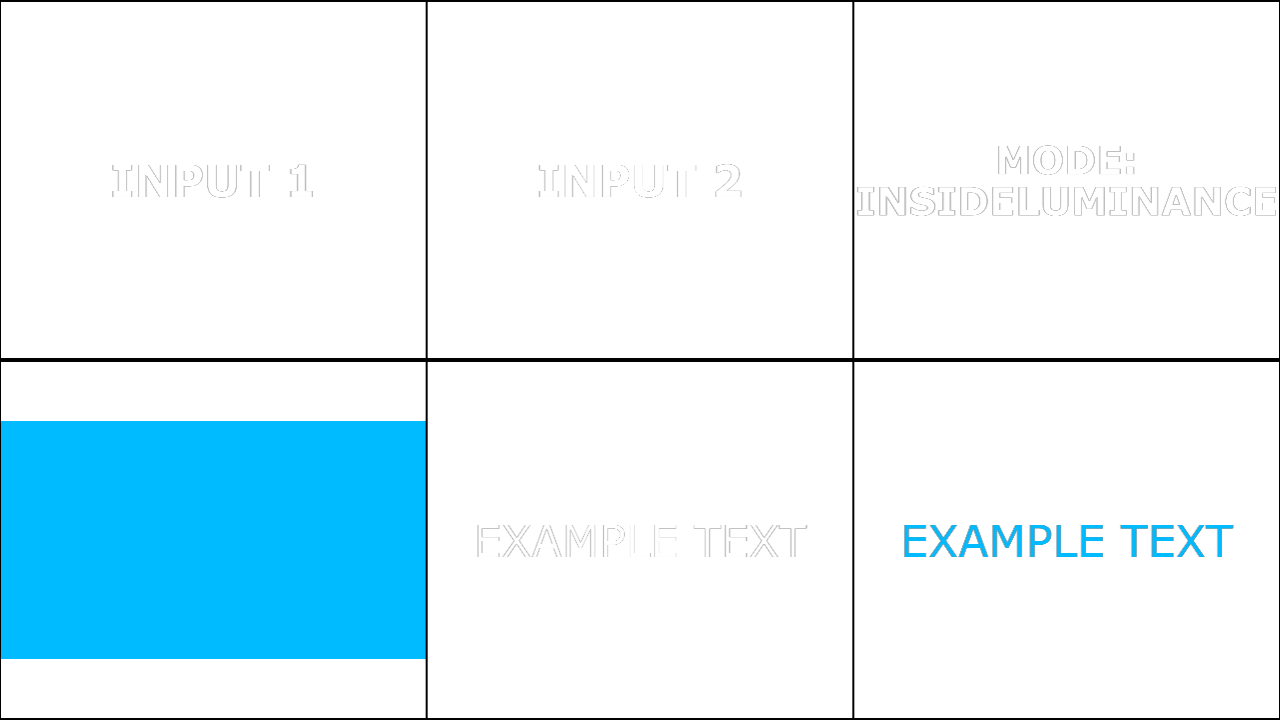
Similar to Inside, but uses luminance (brightness) as the masking influence rather than alpha alone. It is useful for luma-matte workflows where the mask exists as a grayscale image or where you want brightness-driven reveals. Because the matte is content-dependent, the same operation can behave differently across assets; standardising levels or applying threshold/levels upstream improves consistency. |
|
|
Inverse |
Iv |
Inversion |
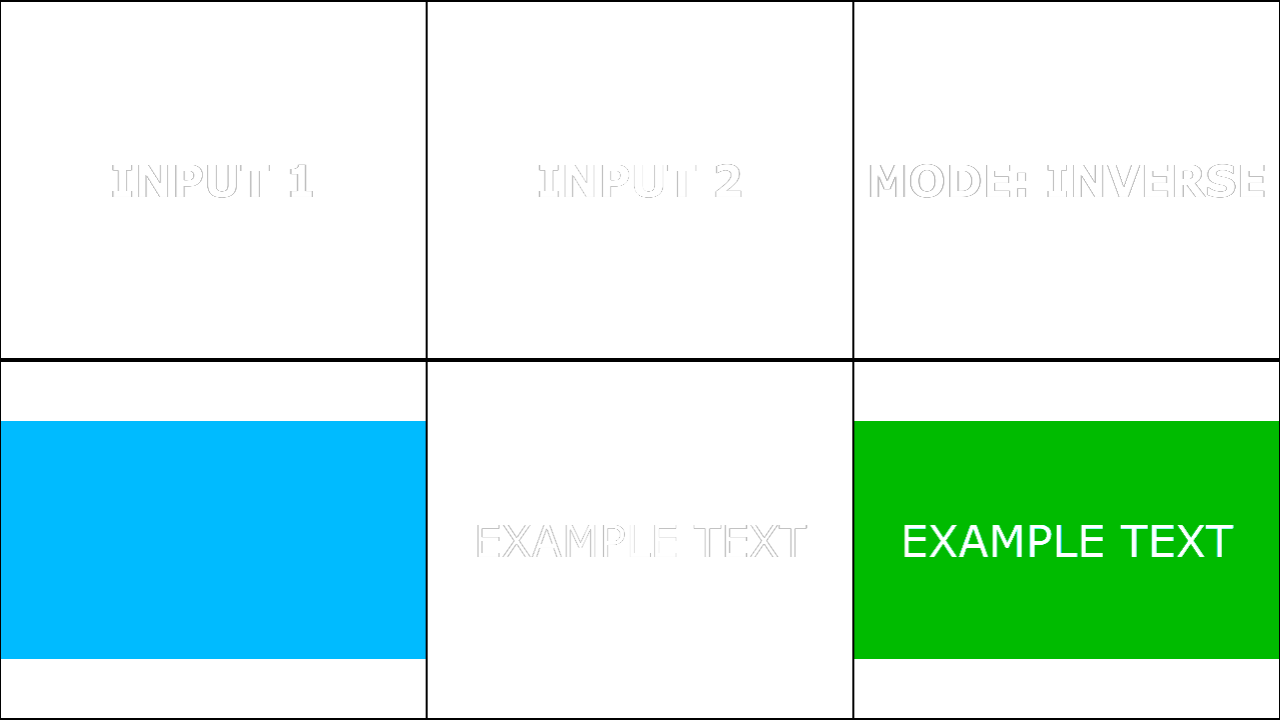
Produces an inversion-oriented combination intended for negative-like or complementary interactions between inputs. It is typically used as a utility/effect mode rather than a standard compositing approach. Because “inverse” behaviours can vary by implementation details, treat it as effect-oriented and document expected outcomes with reference examples. If your goal is simply to invert a single image, do that explicitly upstream to keep intent clear. |
|
|
Lighter Color |
LC |
Lighten |
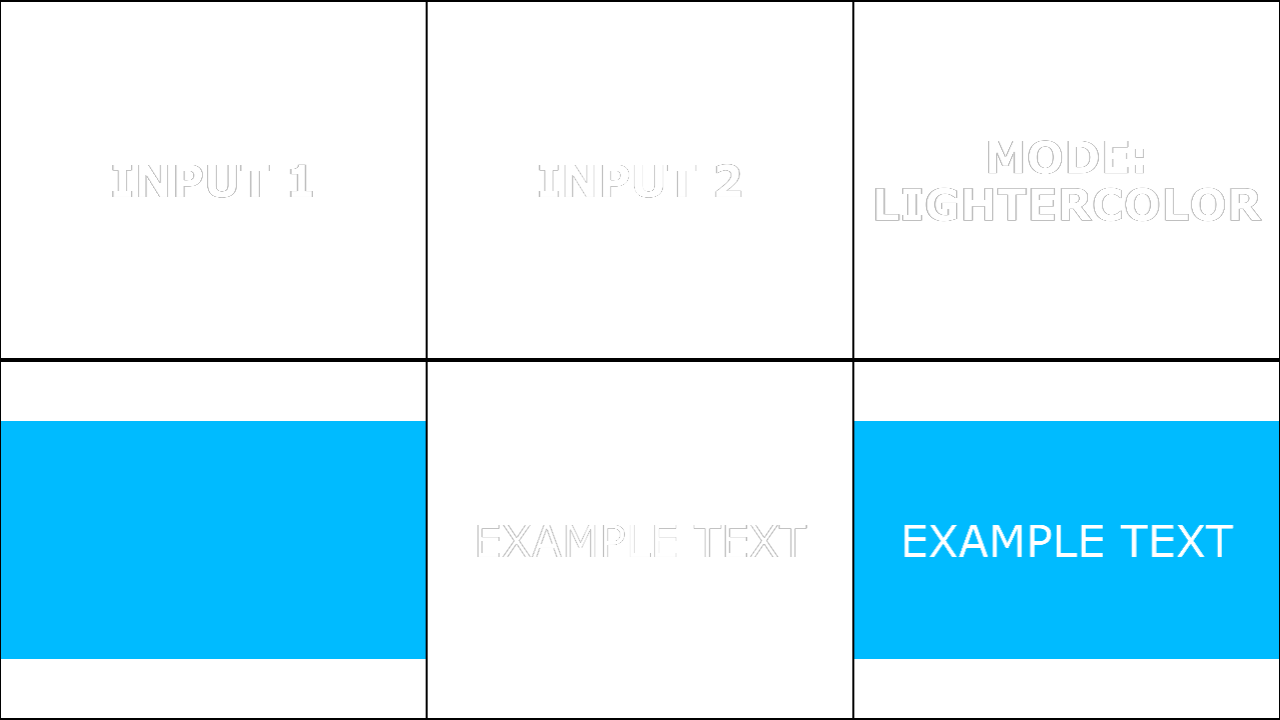
Selects the lighter overall colour between base and blend rather than blending them, preserving one pixel’s colour intact. This is useful when you want the brighter plate detail without producing mixed intermediate colours. It can create abrupt transitions where the selected source flips, which may cause flicker in motion if inputs are noisy. For a channel-wise selection alternative (which can create different artefacts), use Maximum. |
|
|
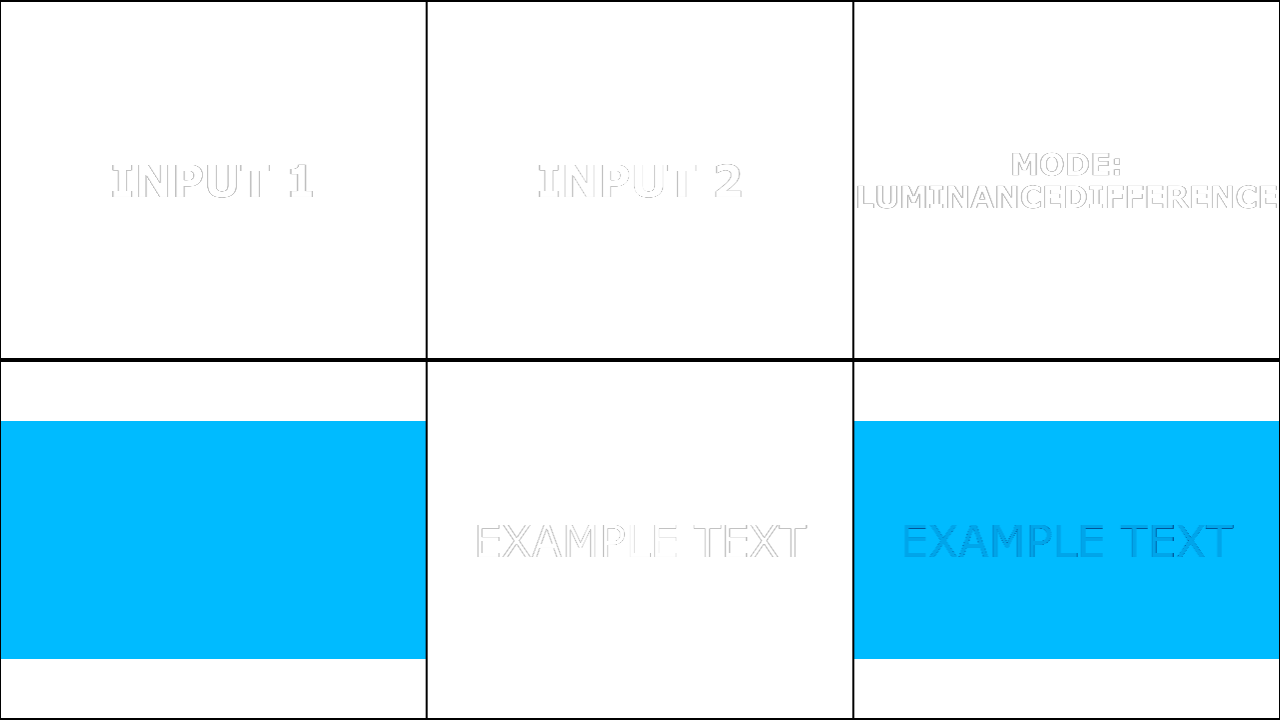
Luminance Difference |
LD |
Inversion |
Emphasises differences in brightness between the inputs more than differences in hue/saturation. It is useful for exposure comparison, luma-based diagnostics, and stylised edge/contrast effects where brightness structure matters most. Small luminance variations can become very visible, so denoising or smoothing may be beneficial for stable results. |
|
|
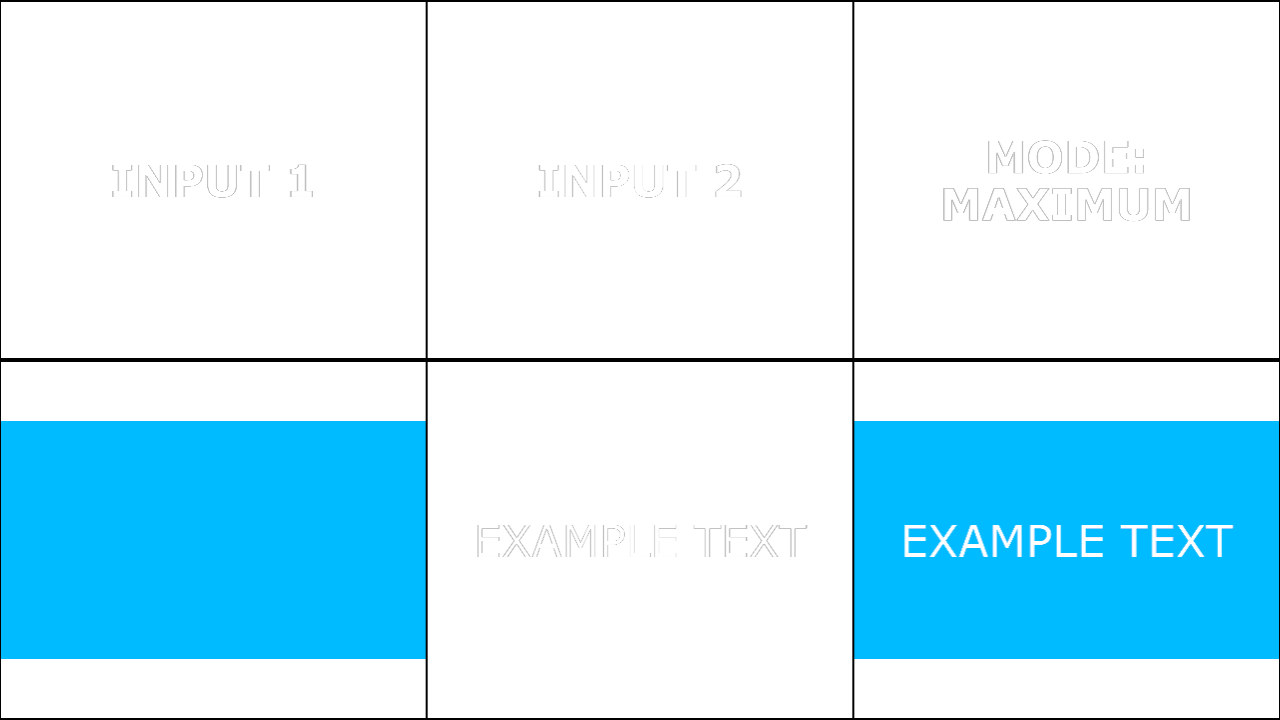
Maximum |
Mx |
Lighten |
Chooses the per-channel maximum across the inputs, acting as a channel-wise lighten operation. This can brighten aggressively while also producing hue shifts because channels can come from different sources (e.g., red from one input, green/blue from the other). It is useful for technical ceiling operations, extracting strongest channel contributions, and certain stylised composites. Where colour fidelity matters, compare results with Lighter Color, which selects a whole colour rather than mixing channels. |
|
|
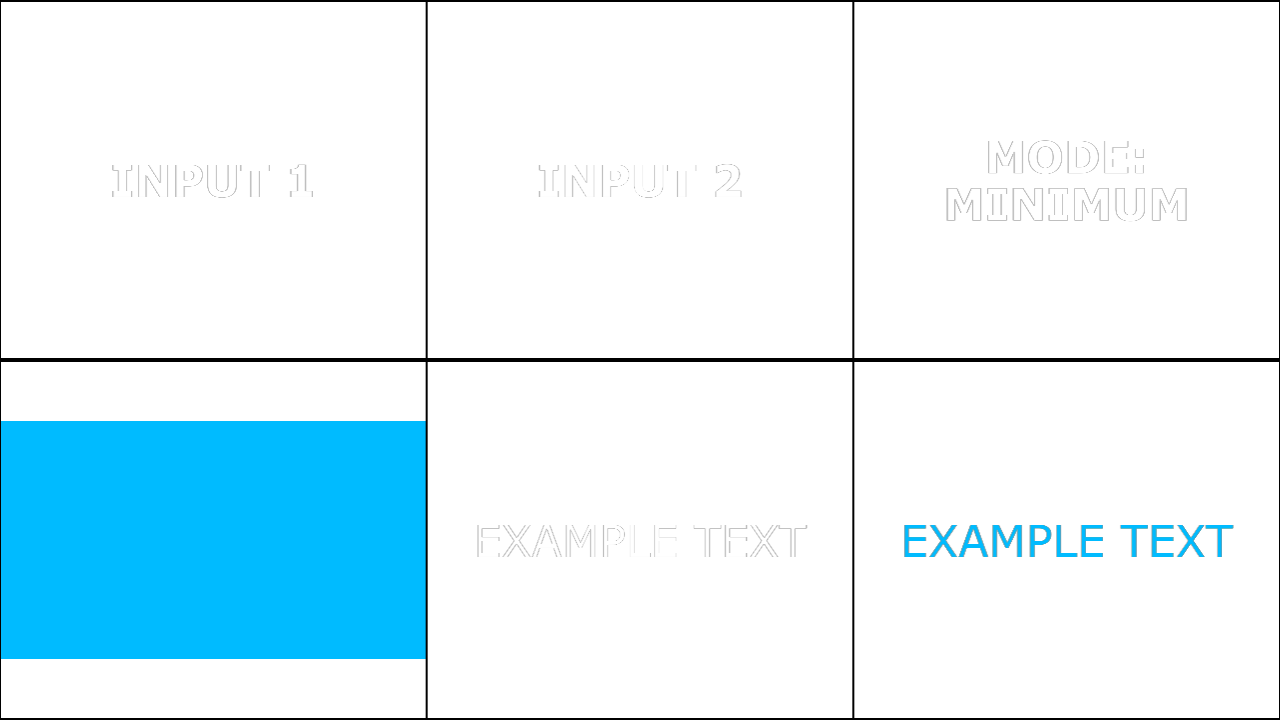
Minimum |
Mn |
Darken |
Chooses the per-channel minimum across the inputs, acting as a channel-wise darken operation. Like Maximum, it may shift hue because channels can be selected from different sources, producing combinations that do not exist in either original pixel. This is useful for floor operations, suppressing bright artefacts, and ensuring channels are constrained by another signal. For a whole-colour selection (often less hue-shifty), consider Darker Color. |
|
|
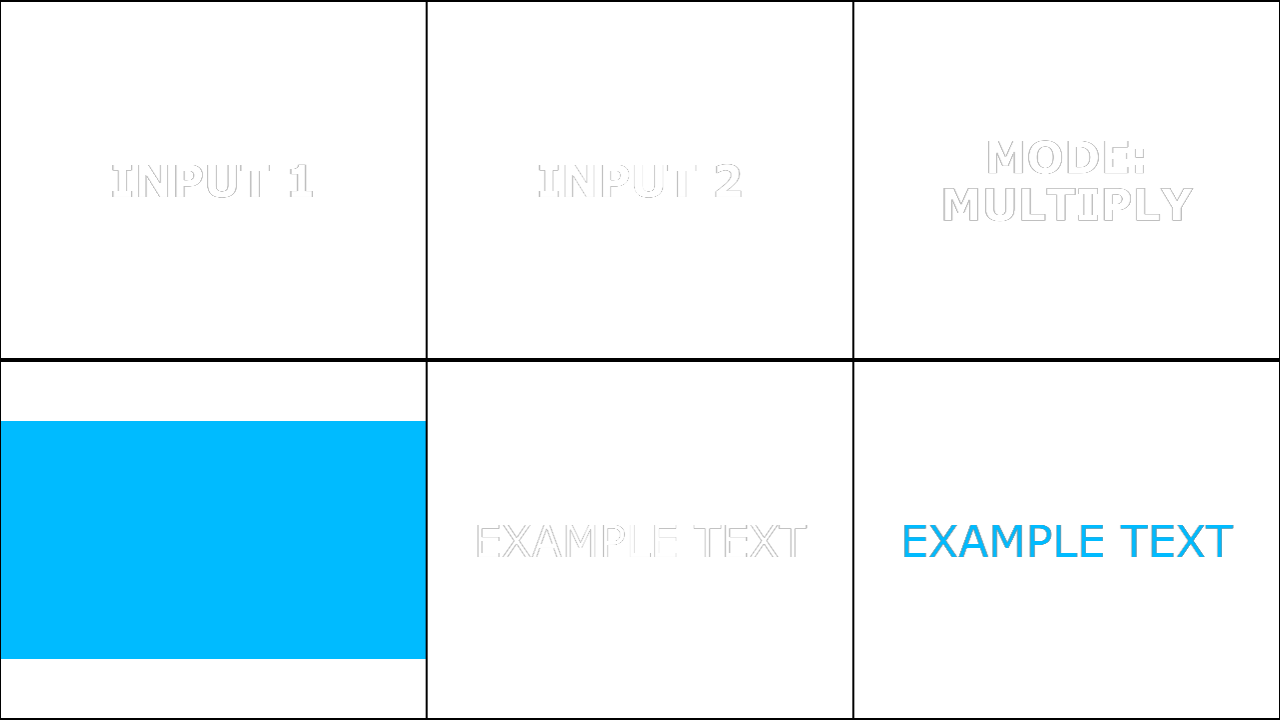
Multiply |
Mu |
Darken |
Multiplies the input values, darkening the result while leaving whites largely unchanged and preserving blacks. It is one of the most widely used darken modes for adding shadow, texture, grime, and “ink” overlays. Multiply tends to preserve hue relationships better than many burn modes, which makes it a reliable default. It can still crush highlights if overused; control with opacity and level management. |
|
|
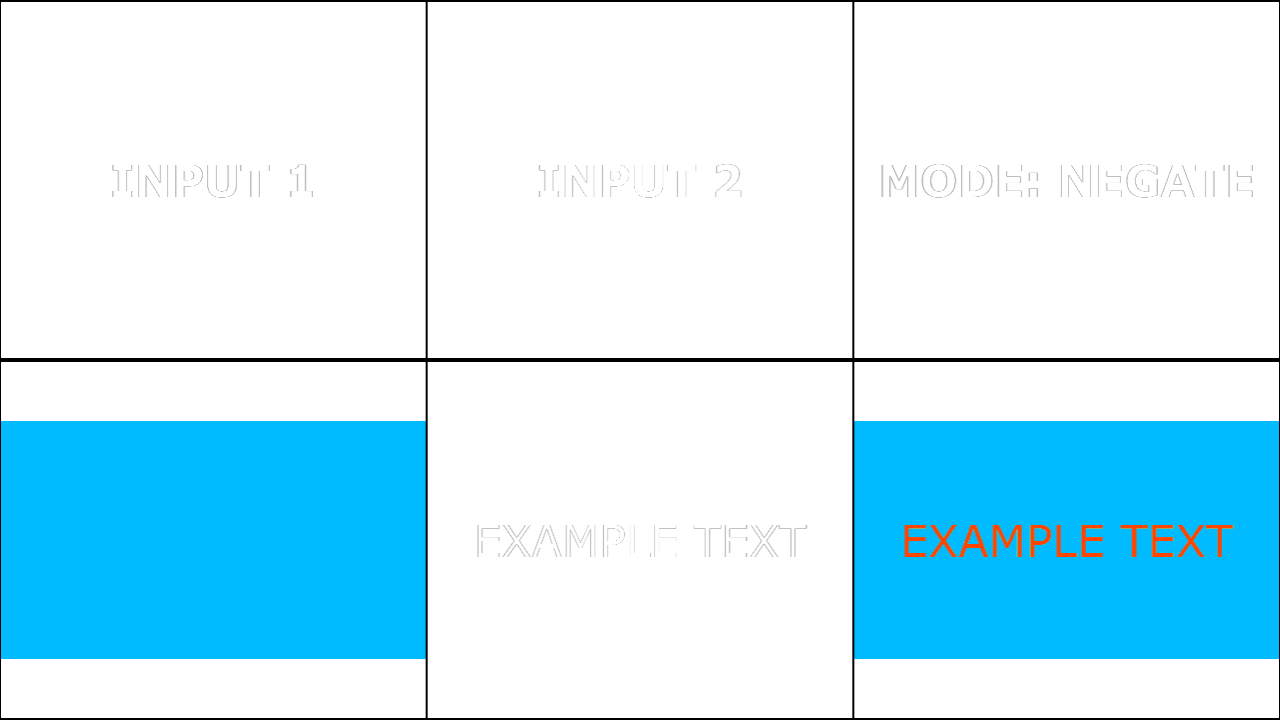
Negate |
Ng |
Inversion |
Produces an inversion-family interaction often perceived as a negative-like composite, distinct from Difference/Exclude in its tonal mapping. It is primarily used for creative effects, stylised transitions, or experimental comparison looks. Results can be highly dependent on input tonal ranges, especially around midtones and highlights. For diagnostic comparison, Difference is generally more interpretable; for softer comparison, Exclude is often preferable. |
|
|
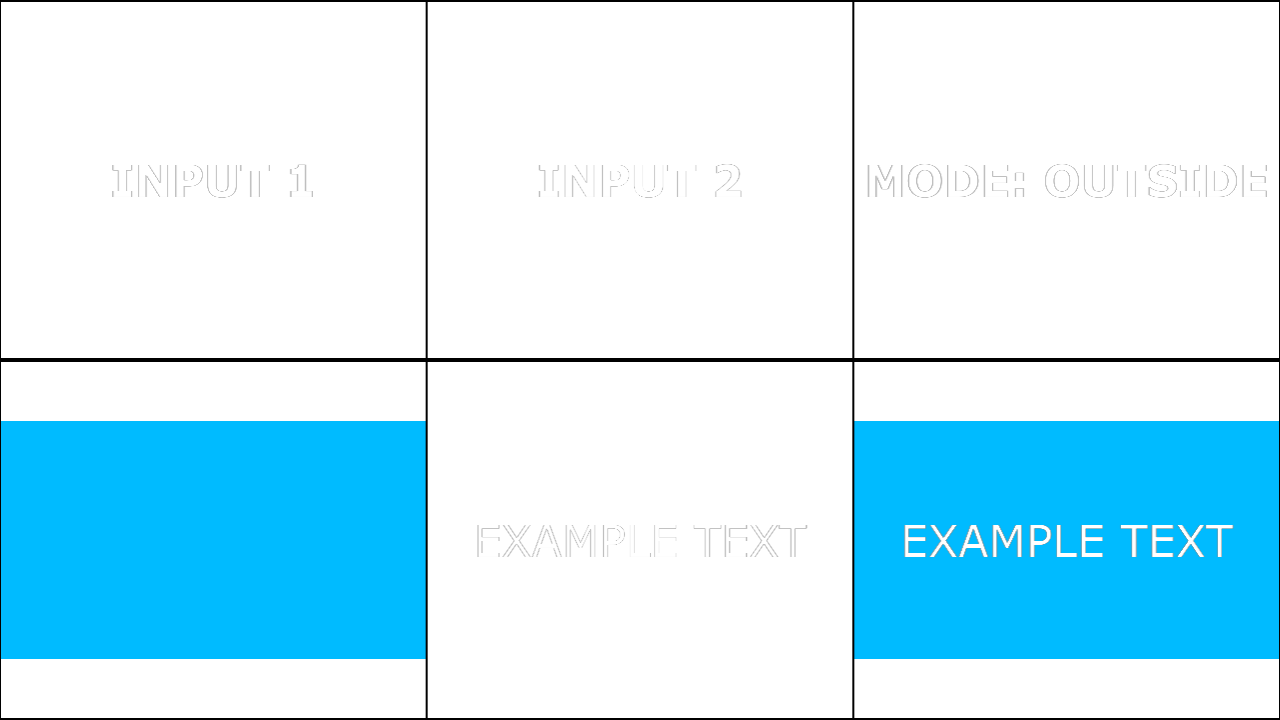
Outside |
Ou |
Normal |
The inverse of Inside: keeps the first input only where the second input is not present (typically by alpha). This is used for holdouts, cutting holes where another element sits, or preserving background regions around a matte. It is order-dependent: swapping inputs changes which element is held out and which is being cut. As with other matte operations, edge quality depends on alpha fidelity and consistent premultiplication. |
|
|
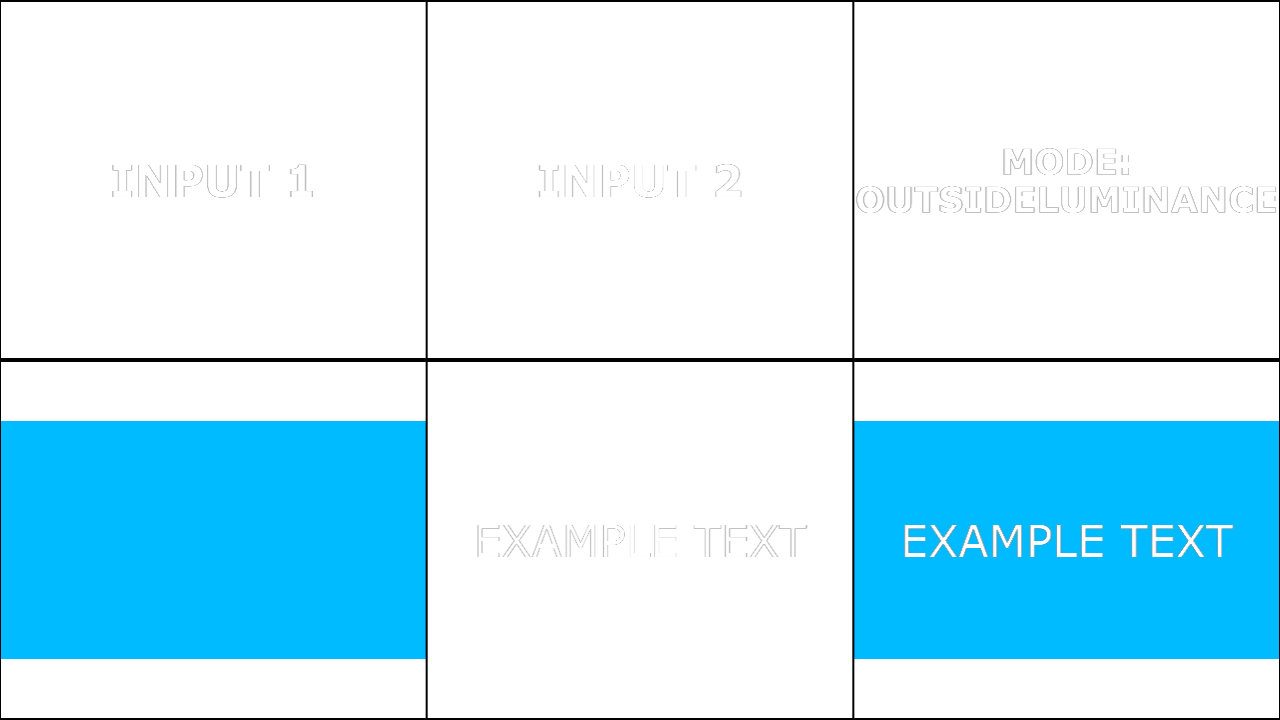
Outside Luminance |
OL |
Normal |
A luminance-driven holdout that tends to preserve the first input where the second input is dark and suppress it where the second input is bright. This is useful for luma-based cutouts, matte inversions, and creative “brightness punches out content” effects. Because masking is driven by brightness, gamma and level preparation strongly influence the outcome; upstream normalisation is recommended. |
|
|
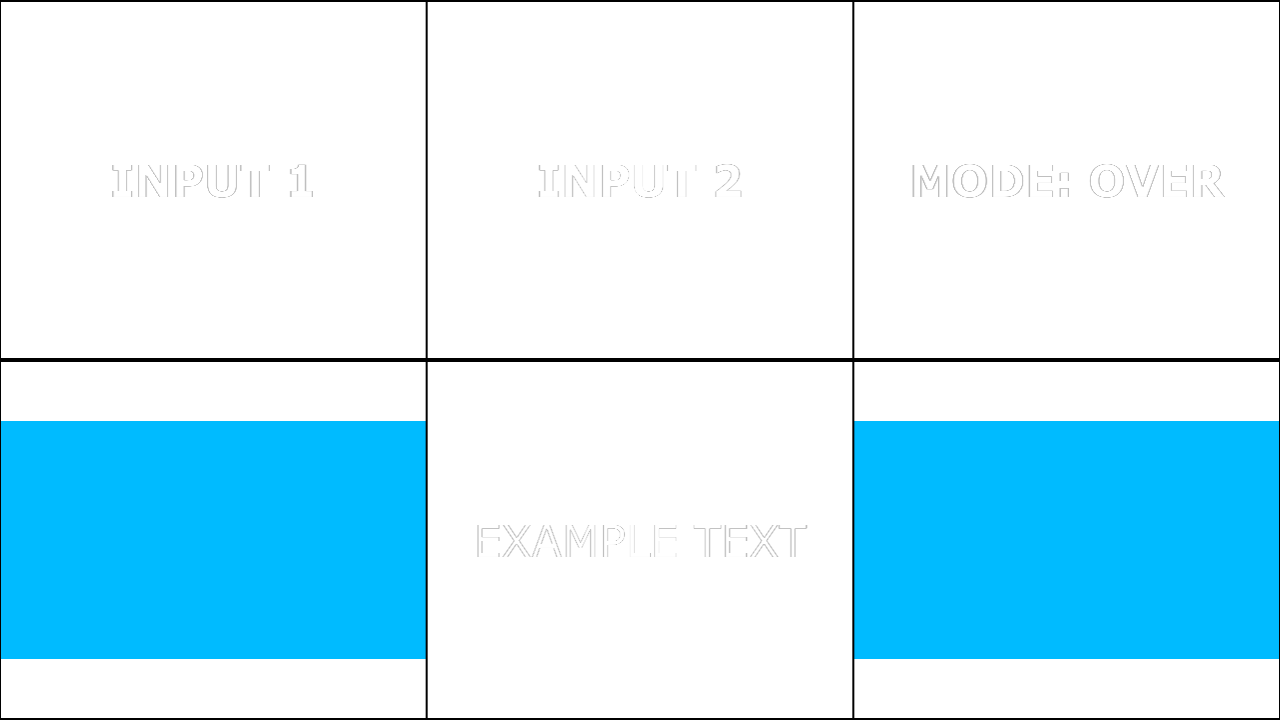
Over |
Ov |
Normal |
Standard layer compositing: input1 is placed over input2 based on input1 alpha coverage. This is the most common operator for building layered images and is the default mental model for “foreground over background.” It is order-dependent; swapping inputs changes which image is foreground. For best results, standardise alpha conventions in your pipeline to avoid fringing and halos. |
|
|
Overlay |
Oy |
Contrast |
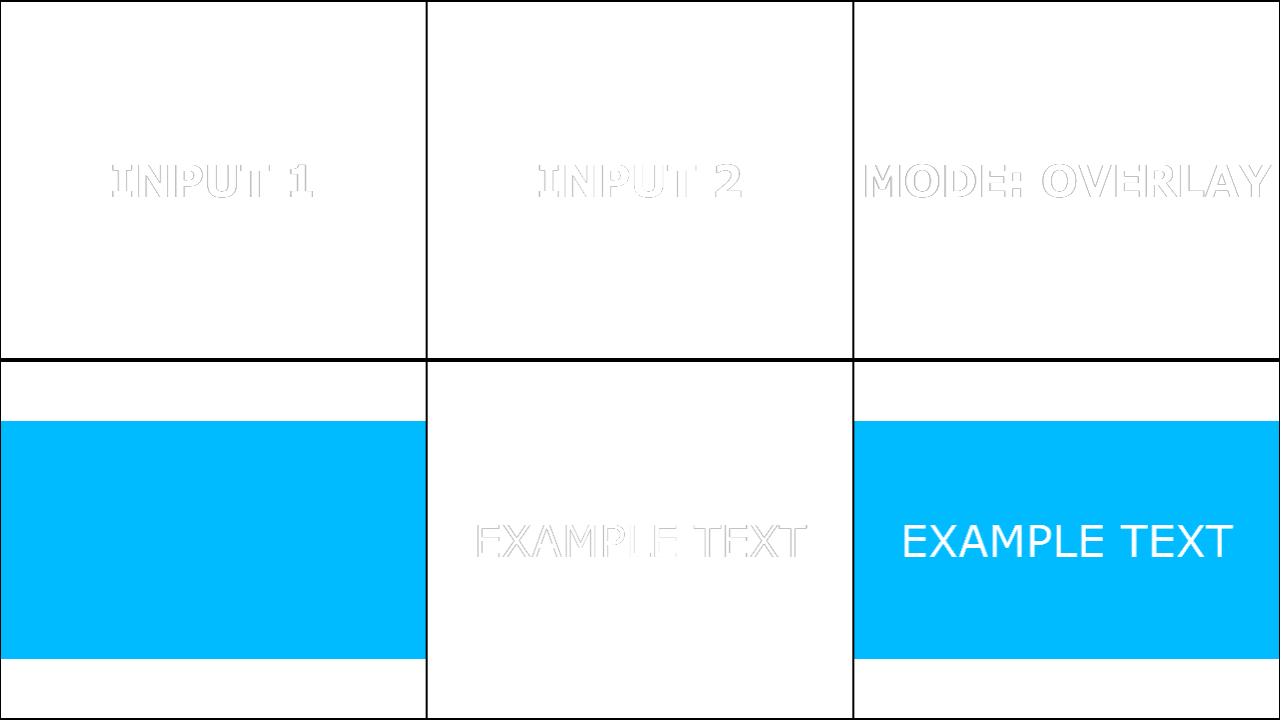
Increases contrast by combining Multiply in dark areas and Screen in light areas, typically preserving midtones while pushing shadows and highlights. It is commonly used to add texture, increase punch, and integrate overlays without simply brightening or darkening uniformly. Overlay can oversaturate and clip if inputs are already high-contrast; controlling opacity and preconditioning inputs helps. |
|
|
Pinlight |
Pl |
Contrast |
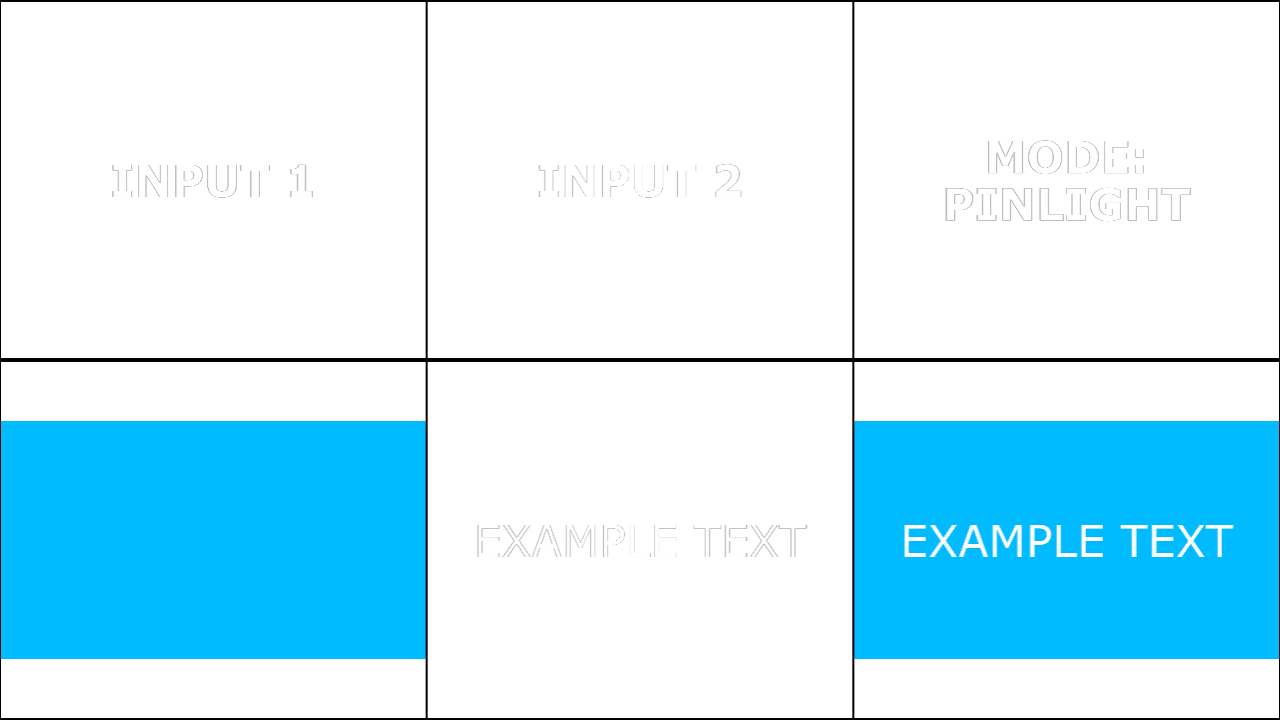
Produces a contrast-heavy selection-like effect that can yield harsh transitions, often perceived as posterization in midtone regions. It is used for graphic stylisation, high-impact texture interactions, and experimental looks rather than smooth blending. In motion, Pinlight can shimmer where small tonal changes flip the selection; slight blur or noise reduction can stabilise. |
|
|
Reflect |
Rf |
Lighten |
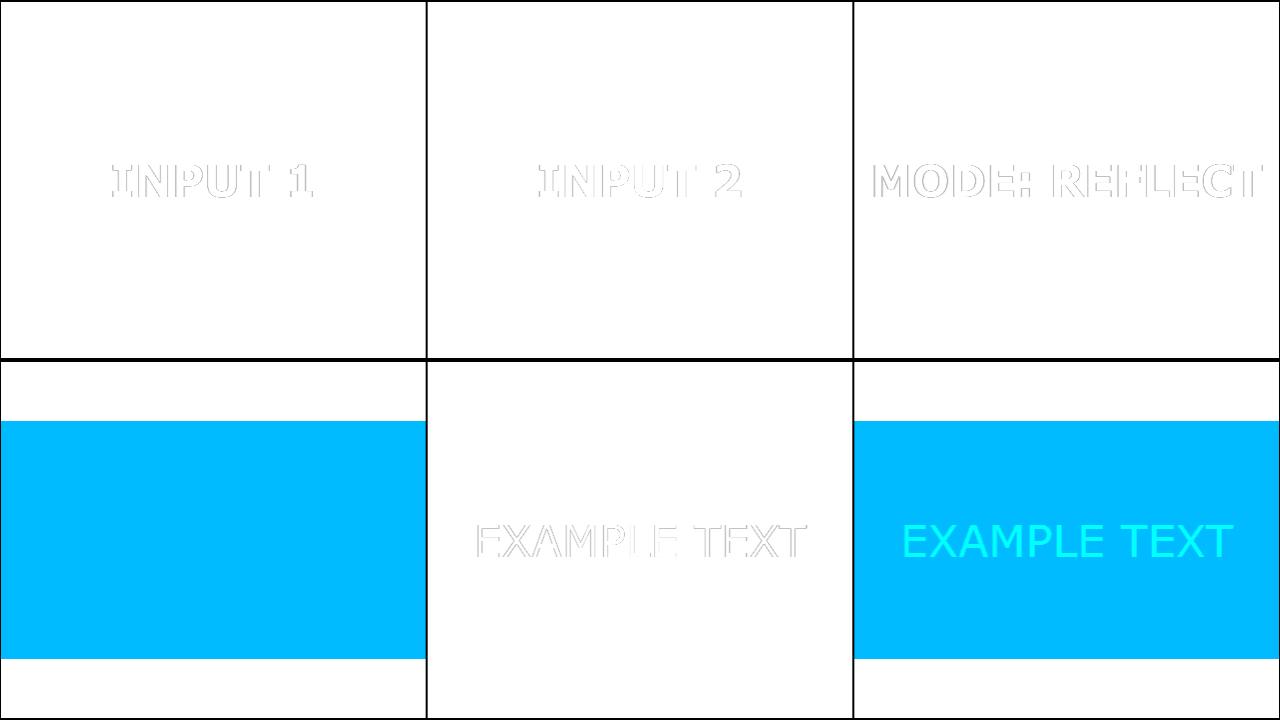
Produces an intense highlight emphasis that can resemble reflective “shine” behaviour, often stronger than Screen and closer to an aggressive brighten. It is useful for glints, specular accenting, and stylised highlight composites. Reflect can clip rapidly and amplify noise; controlling input levels and opacity is important. For predictable highlight lift, Screen or Dodge are safer first choices, with Reflect as a creative alternative. |
|
|
Screen |
Sc |
Lighten |
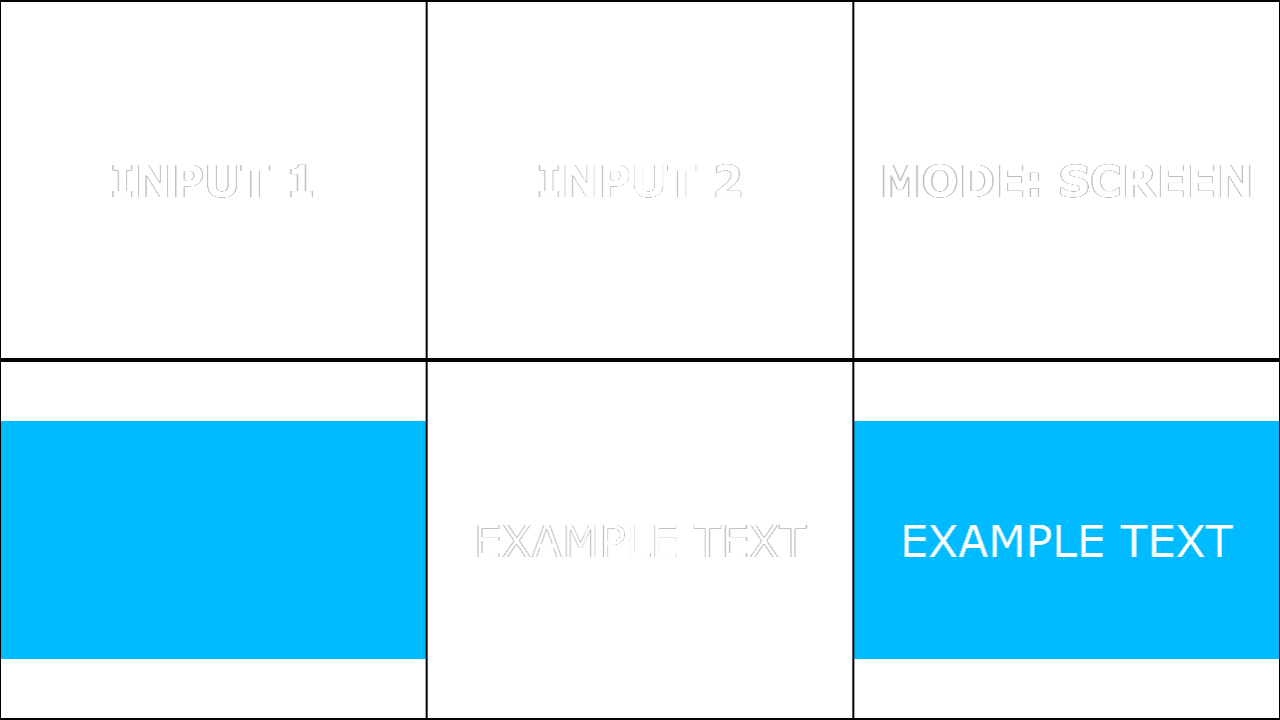
Brightens by effectively inverting both inputs, multiplying, then inverting back—making it the conceptual opposite of Multiply. Blacks tend to have little effect while whites push the result toward white, which makes Screen a natural choice for glow and light accumulation. It is widely used for compositing haze, fog, lens effects, and “light leaks.” Screen can wash midtones if too strong; use opacity control or luma masks to preserve contrast. |
|
|
Soft Light |
SL |
Contrast |
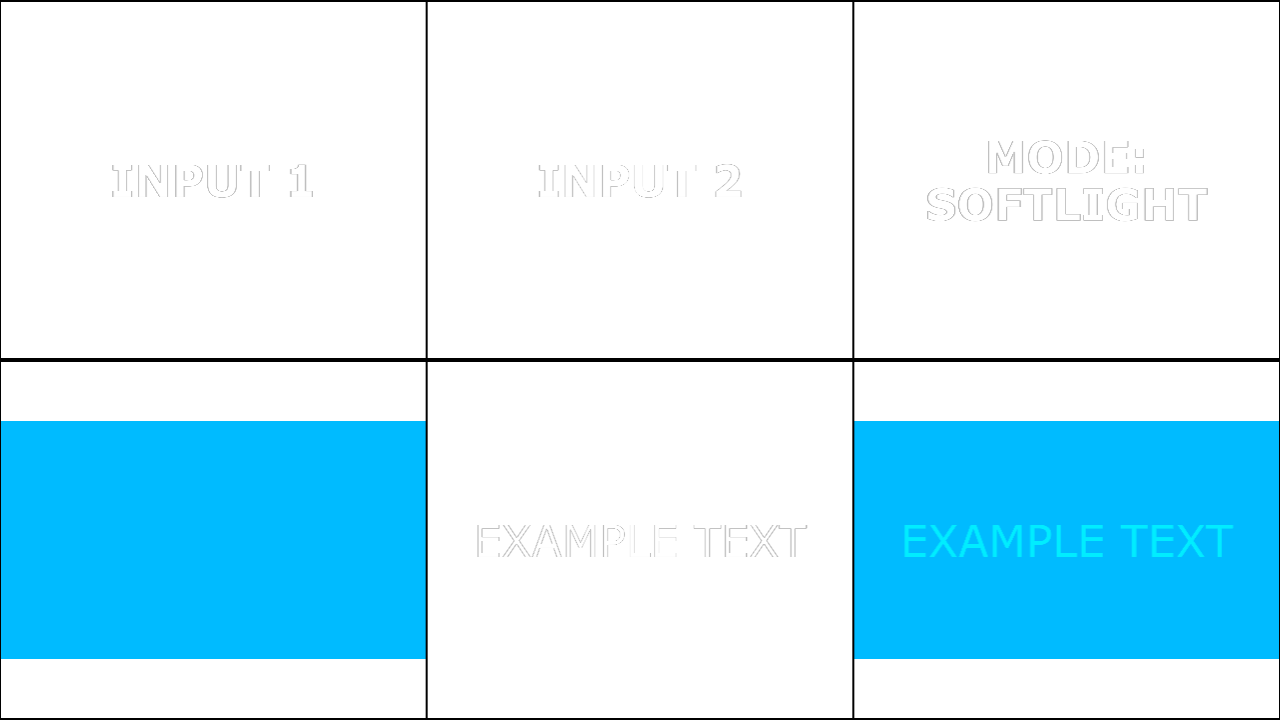
A gentler contrast mode that subtly darkens or lightens depending on the blend input, with smoother transitions than Overlay. It is commonly used for photographic-style enhancement, gentle texture integration, and controlled “lighting” looks. Soft Light typically preserves detail better than more aggressive contrast modes, making it suitable for natural imagery. For stronger, punchier effects, consider Overlay or Hard Light. |
|
|
Linear Light |
LL |
Contrast |
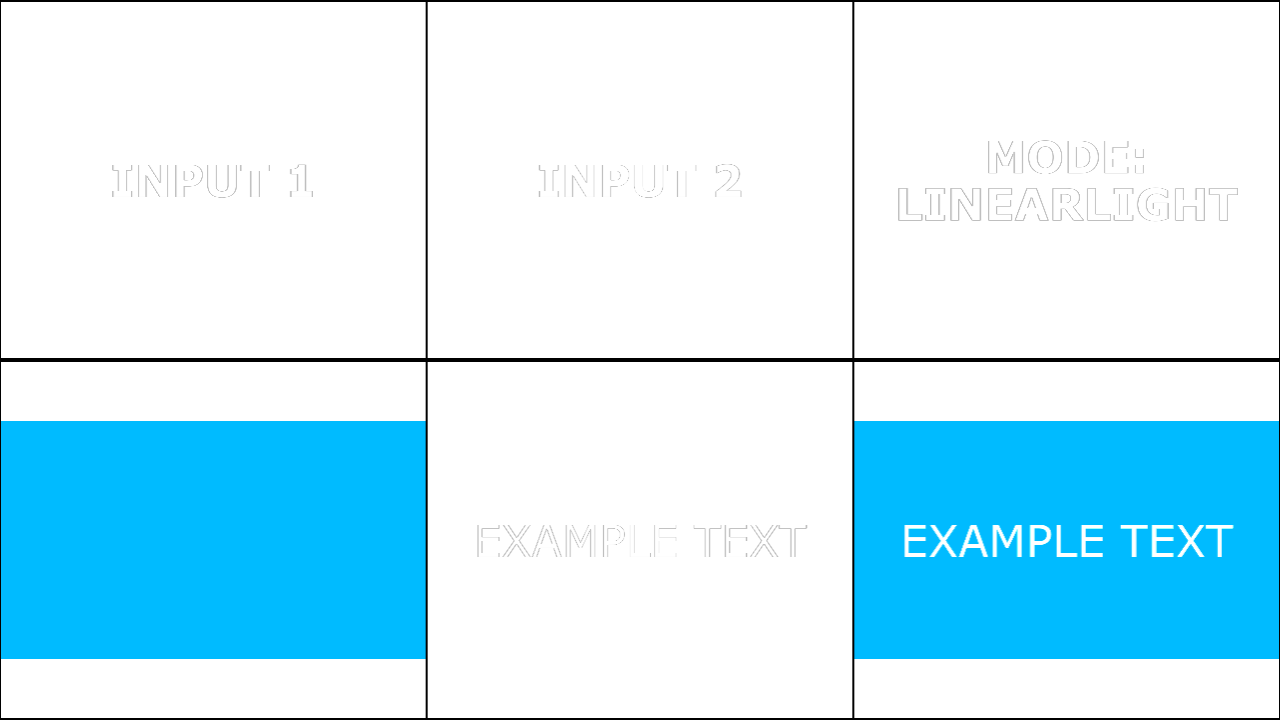
A strong contrast/brightness mode that can shift exposure aggressively, often behaving like a combination of linear brighten and linear darken behaviours. It is useful for edgy stylisation and technical experiments where you want a pronounced response around midtones. Linear Light clips quickly in highlights and shadows; preconditioning inputs (curves/levels) improves stability. If you need a softer version of the same “lighting” intent, Soft Light is generally more forgiving. |
|
|
Stencil Luminance |
ST |
Normal |
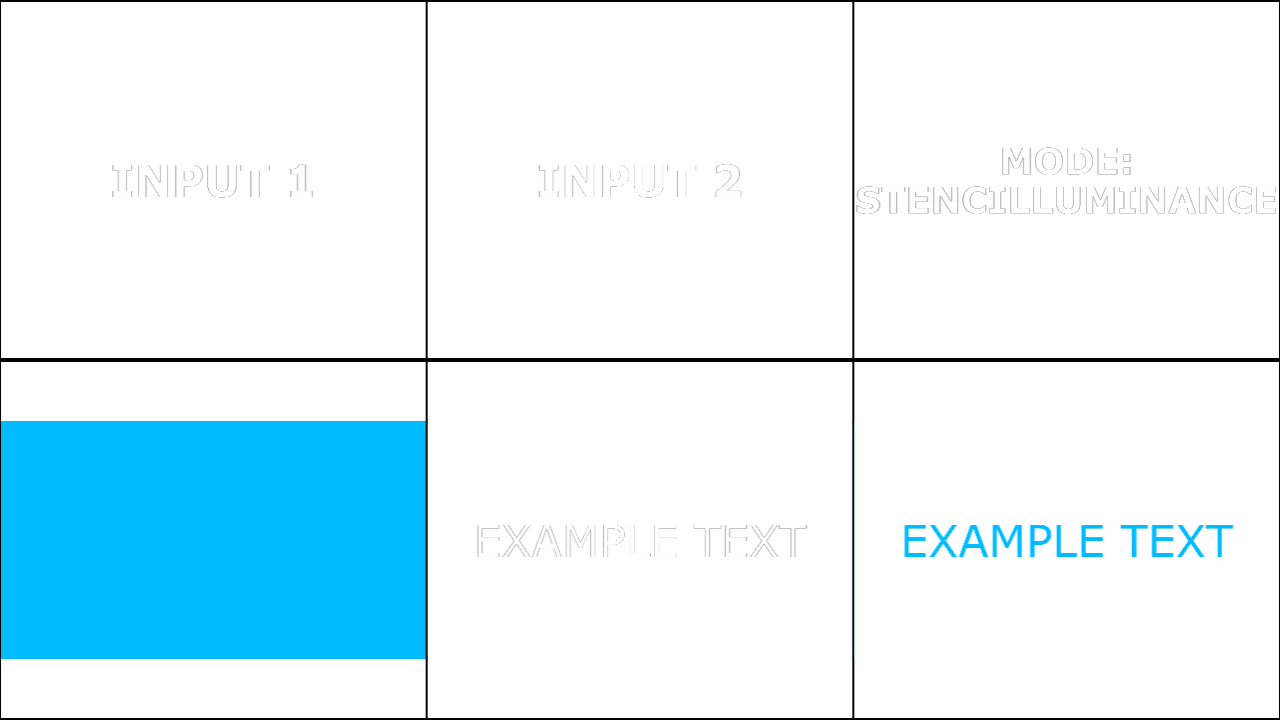
Uses luminance as a stencil influence, allowing one input to reveal or suppress the other based on brightness-driven masking. This is useful for projecting textures through grayscale stencils and for luma-driven reveal effects. Because it depends on luminance, consistent colour management and gamma handling are important for predictable results. |
|
|
Subtract |
Sb |
Cancellation |
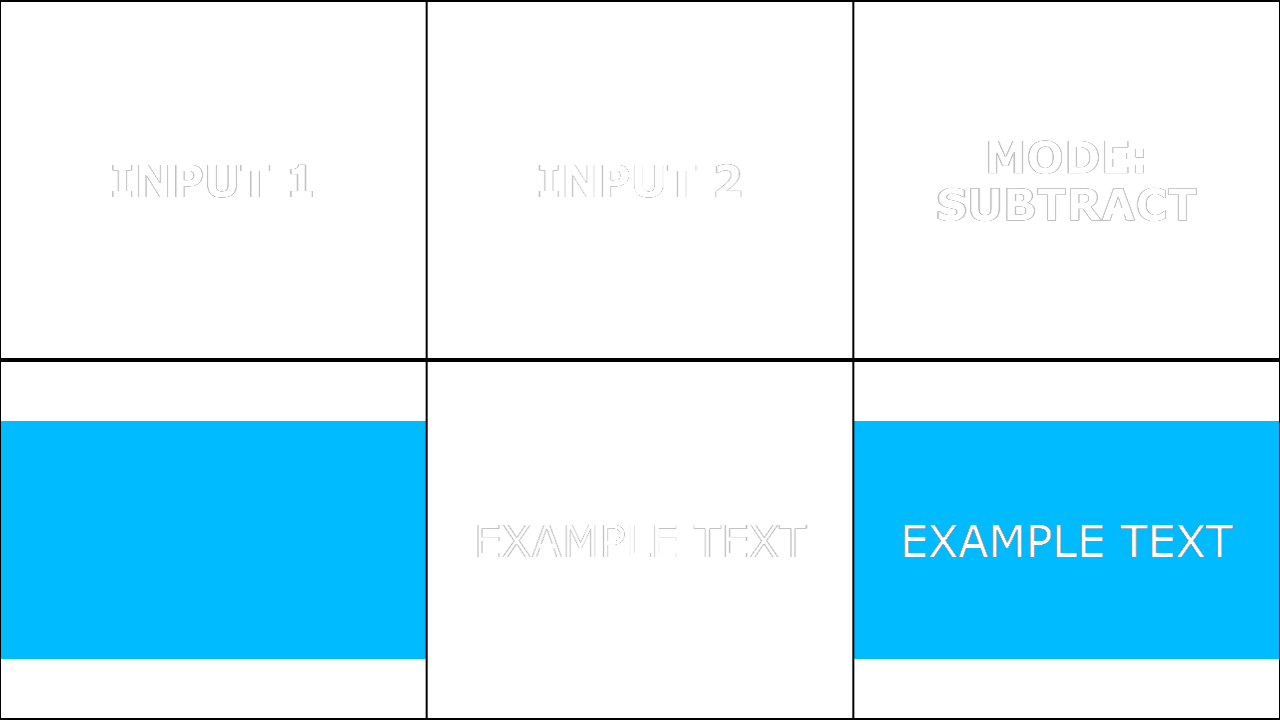
Subtracts the blend input from the base input per channel, darkening results and clamping at the minimum when values go below range. It is used for removal operations, analytical difference-like effects, and stylised shading where you want directional subtraction rather than symmetric difference. Subtract is sensitive to exposure mismatches; normalising inputs yields more stable results when used as a “removal” operator. If you need a symmetric “how different are these” signal, use Difference. |
|
|
Subtractive |
Sa |
Darken |
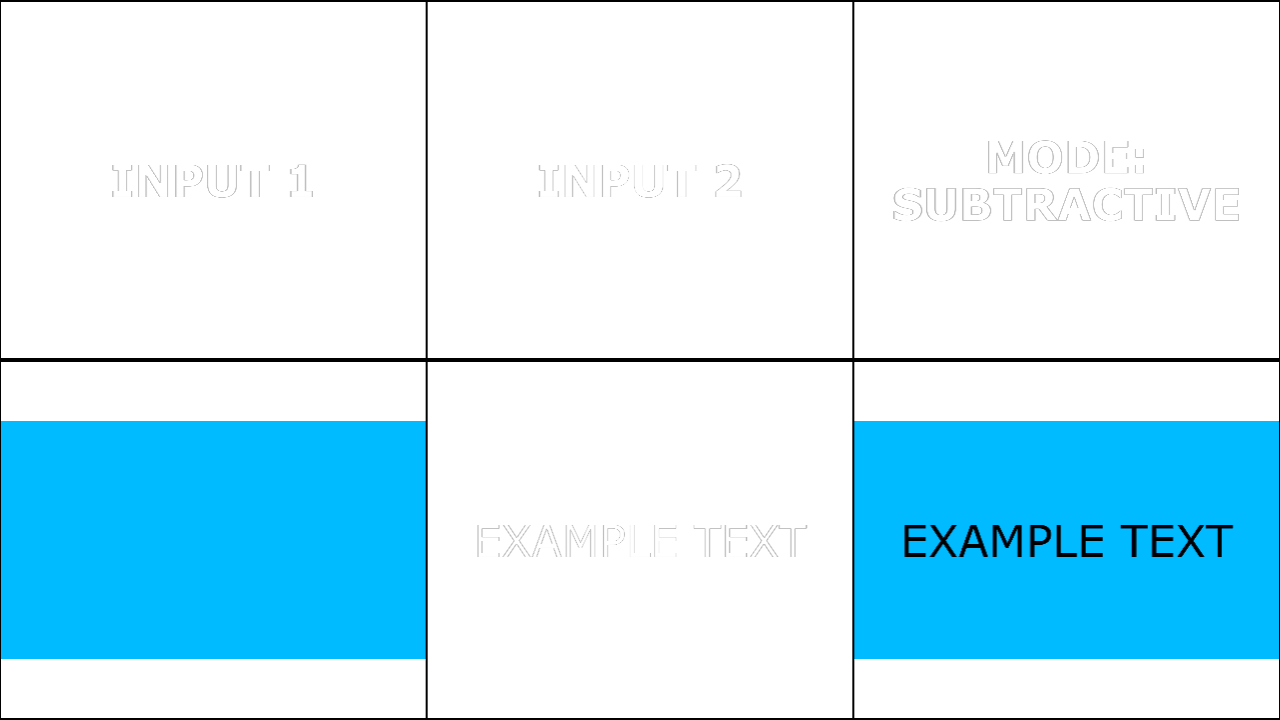
Produces a subtractive-colour style interaction intended to feel more like pigment/ink mixing than light mixing. It often yields darker, “inkier” composites that can be useful for print-like aesthetics or strong density overlays. Because it is effect-oriented, outcomes can vary significantly with content and level ranges. For strict arithmetic subtraction, use Subtract (Cancellation) instead. |
|
|
Under |
Un |
Normal |
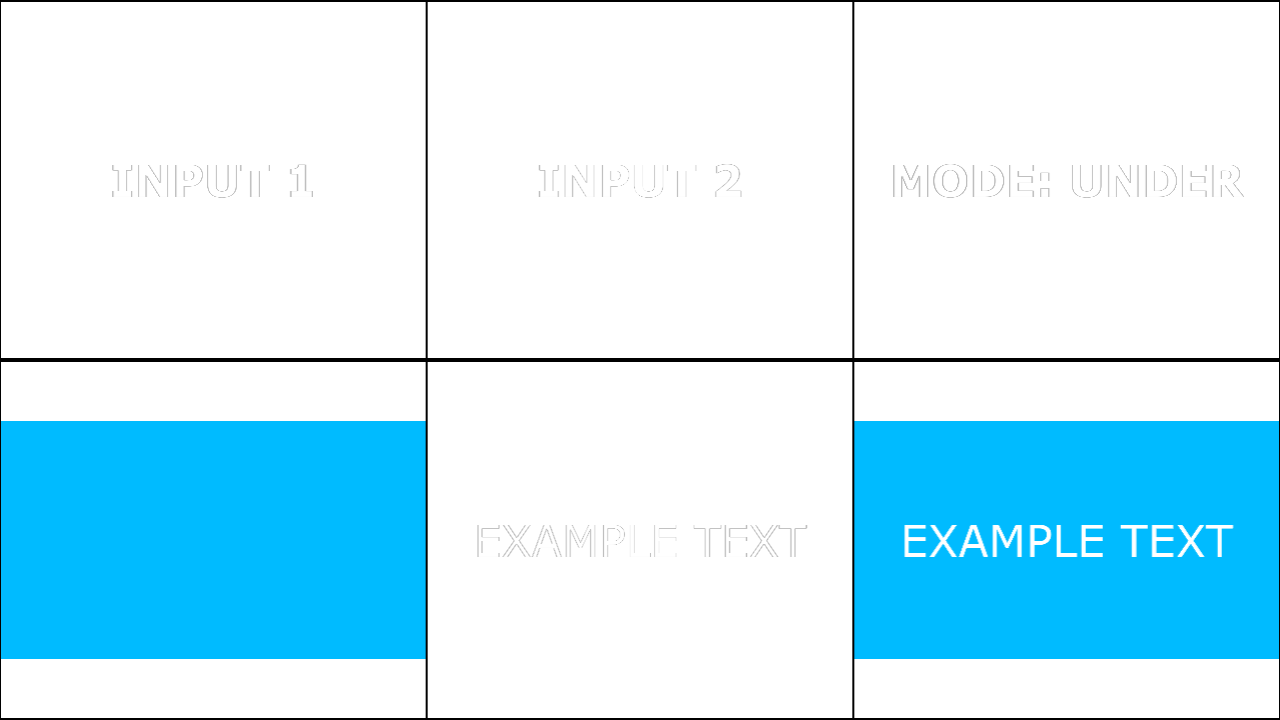
Places input1 behind input2 according to input2 alpha, effectively the counterpart to Over in layering intent. It is useful when you want to preserve a foreground element (input2) and only influence what is behind it. Under is order-dependent: swapping inputs changes what is treated as foreground vs background. As with Over, consistent alpha conventions are important to avoid edge artefacts. |
|
|
Vivid Light |
VL |
Contrast |
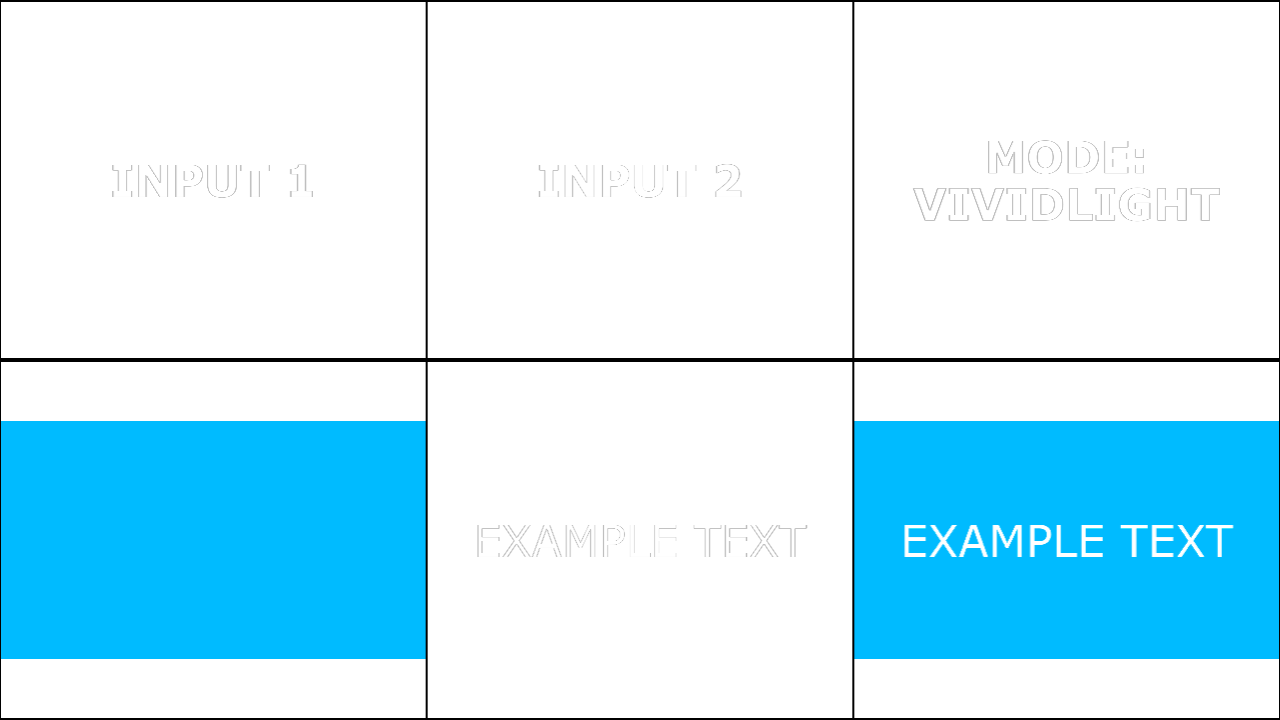
An aggressive contrast mode that tends to push highlights and shadows strongly, often increasing saturation and clipping rapidly. It is used for high-energy stylised looks, dramatic texture interactions, and bold lighting effects. Because it is highly sensitive to input levels, controlling opacity and limiting extremes is essential. For more controllable contrast enhancement, Overlay or Soft Light are typically better defaults. |
|
|
Xor |
Xo |
Normal |
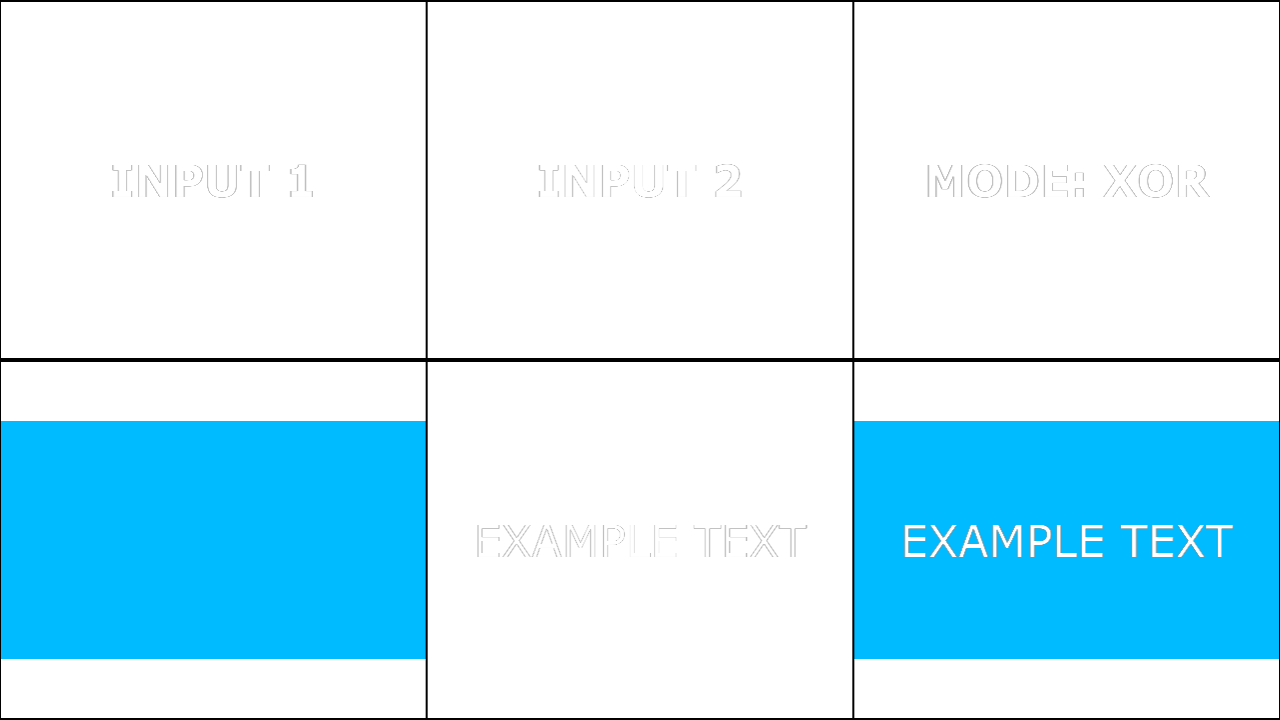
Keeps only the non-overlapping parts of the two images; overlap regions are removed, creating a cutout where both are present. It is useful for intersection-based graphic effects, alternating reveals, and “exclude overlap” transitions. Semi-transparent overlaps can produce nuanced results depending on alpha handling; establish consistent alpha conventions for predictable behaviour. While XOR is conceptually symmetric, perceived asymmetry can occur due to pipeline details. |
|
|
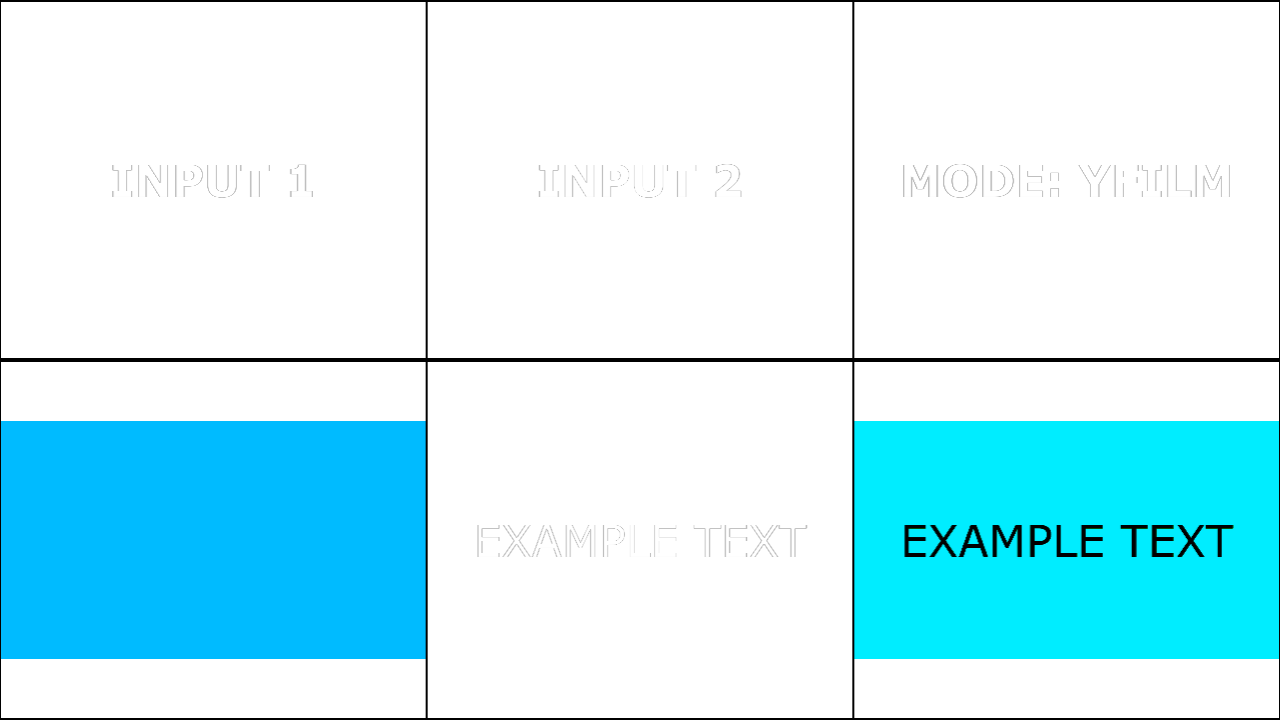
Y Film |
YF |
Contrast |
A filmic-styled mode intended for creative tonal interaction rather than technical compositing. It is typically used to introduce cinematic-like contrast behaviour or stylised blending that feels “graded” or “filmic.” If you need predictable results aligned with standard blend definitions, prefer Overlay/Soft Light/Hard Light first. |
|
|
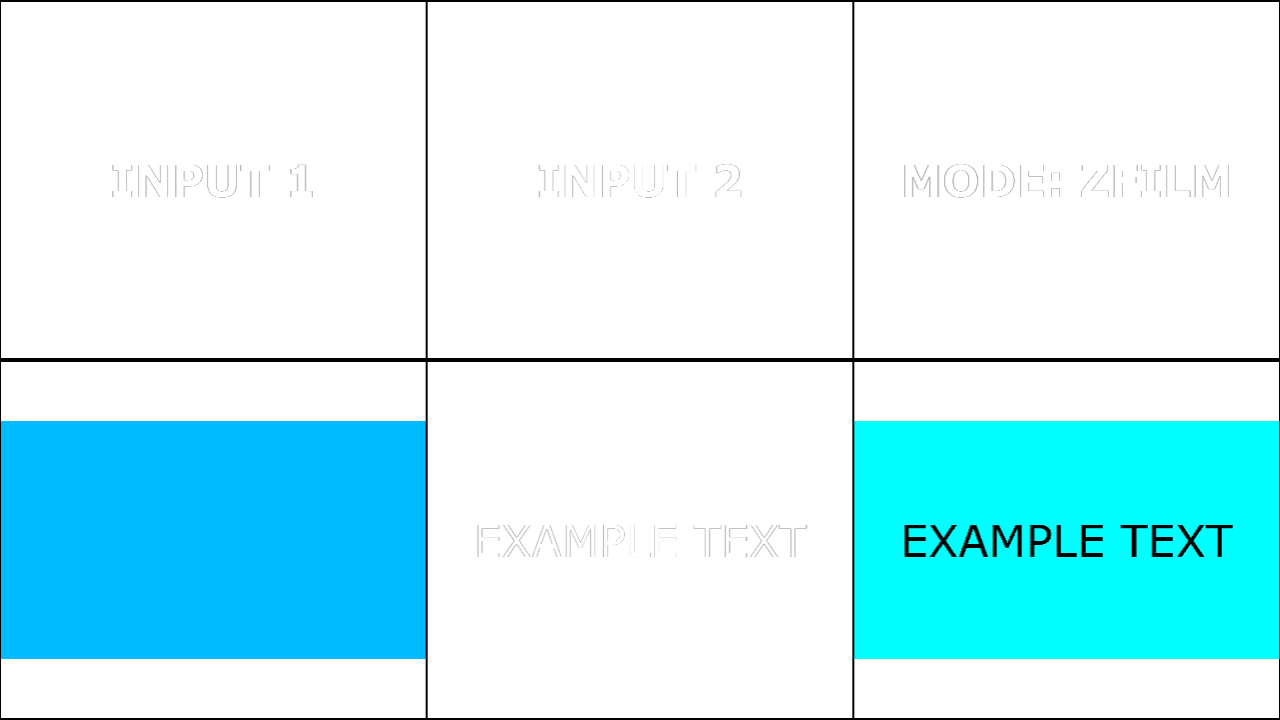
Z Film |
ZF |
Contrast |
Another filmic-styled blend intended for creative looks rather than strict arithmetic blending. It is useful for stylised composites where you want a distinct tonal mapping reminiscent of film processes. As with Y Film, outcomes can vary with exposure, contrast, and colour distribution. |
|